Spesa Radar Copilot: user guide#
Version 0.3.0 for Android and 1.1 for iPhone, October 2026
🛒 In one sentence: Spesa Radar Copilot is smart grocery shopping. You search for products, put them in the cart and the app plans the shop route by itself, from home to home: which shops, in what order, what to buy in each and how much the trip costs too.
⚠️ Important. This is not advertising: the app is not linked to the chains and receives no payment. Prices, availability and dates may not match or may change: the official flyer and the price in the shop are what count. Free app, adults only. Set up the navigator before you set off: never hold the phone while driving.
💡 Your ideas matter. From the 🤝 Contribute tab you can send us a flyer, tell us where to find your shop's offers, suggest an idea or report a problem, straight from the app (on iPhone too).
🖥️ New: Spesa Radar on the PC too. In ℹ️ Info → 💻 Open on PC you create a private link and carry on with your shopping on the computer, on a big screen; the changes come back to the phone (chapter 21).
This guide has two parts: the quick guide, 7 steps you can read in 2 minutes, and the complete reference guide, with every feature chapter by chapter. The screenshots are real. Those of version 0.2 come from the app in Italian on an Android emulator, with the light theme: a test starting point in the town of Milan and real offers from 1 October 2026. The dark-theme screenshots (interactive guide, Offers, Flyers, Contribute, Info) come from version 0.1, with the Avellino area: the features they show are the same. Since 0.2.2 the starting point is called 🏠 Home and its buttons have new names (chapter 2); the Info tab also has 💻 Open on PC (chapter 21). On iPhone the screens are almost the same (chapter 22). Screens that we only have in Italian are marked as such.
What's new in version 0.3.0#
- 🖥️ Spesa Radar on the PC: in ℹ️ Info → 💻 Open on PC you create a private link (with QR code, Copy and Share) and on spesaradar.web.app/pc you get the list, a map with the route, offers with search and filters, comparison across chains, weekly menu, budget, printing by store, CSV and Excel.
- 🔄 Changes made on the PC come back to the phone when you open the app, or straight away with Get changes from the PC.
- 🔒 Encrypted on the phone: the server only sees unreadable data. The link expires 30 days after it was last used; you can create a new one or delete it from the server.
- 📱 iPhone 1.1: Offers, Flyers, loyalty cards, contributions from the app, stars, dictation in the search and "Open on PC" (chapter 22).
What's new in versions 0.2.2 and 0.2.1#
- 🏠 0.2.2: the starting point becomes "🏠 Home", as in Auto Robot CoPilot: 📍 Save this place as Home, 🗺️ Choose Home on the map or 🏘️ Choose the town; then ✏️ Edit Home to change it.
- 🛠️ 0.2.1: fixes: updated contact, stars sent correctly.
What's new in version 0.2#
- 🔎 Search completes as you type: the first few letters are enough.
- 📦 The same product in several sizes, compared per kg or per litre.
- 🛒 Not on offer? "Buy it anyway" or "Wait for an offer".
- ✅ Quick tick in the cart and in the shop, even without internet; swipe an item to mark it as taken or to delete it.
- ⭐ 1 to 5 stars for the products you take.
- 💰 How much you save, with this shop and month by month.
- 📍 Area anywhere in Italy: choose your starting town (or use your location) and the app takes the offers of your province.
- 🧭 Shop route with the branch on the way, the travel cost and the km from home and between stops.
- 🚗 Auto Robot CoPilot is the recommended navigator; Google Maps is still there to open the whole route.
Quick guide in 7 steps#
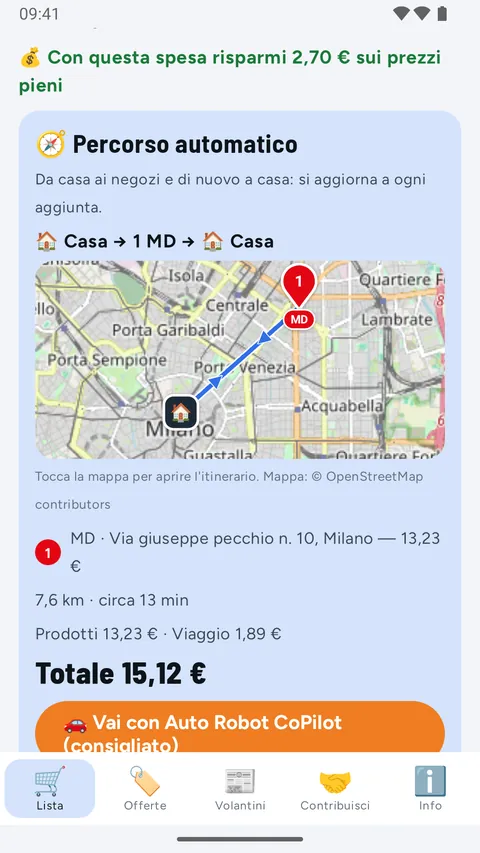
A real test run, starting from the town of Milan with seven everyday products in the cart (passata, pasta, mozzarella, tonno, detersivo…): the automatic route gets them all from MD for €15.12 including the trip; 💰 Where is it cheapest? finds an MD + Lidl route for €11.98.
1. Open the app and save your Home#
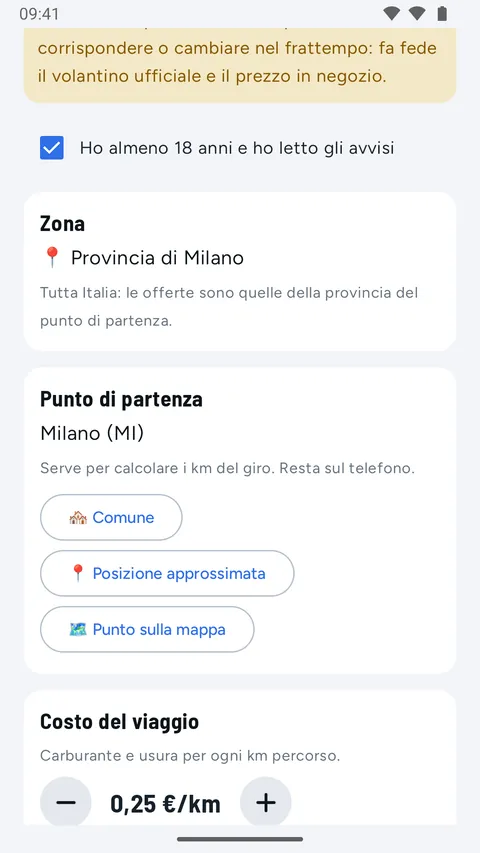
Read the two notices and tick "I am at least 18 and have read the notices". Then save your 🏠 Home: tap 🏘️ Choose the town and type yours (here Milano), or 📍 Save this place as Home (approximate location) or 🗺️ Choose Home on the map. The area automatically becomes your province. Tap Start. (The screenshot is from 0.2, with the old button names.)
2. Search for a product#
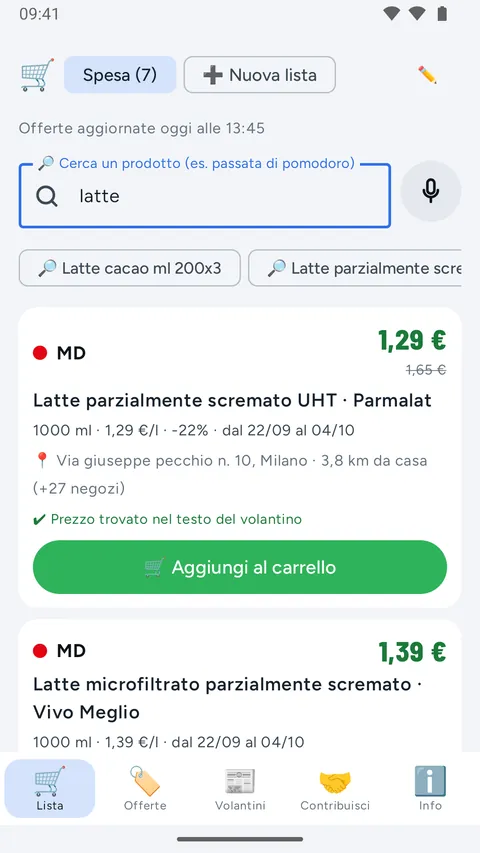
In the 🛒 List type the first few letters (or say it with the 🎤): the suggestions appear under the field. The results start from the cheapest, with the shop nearest to home.
3. Add it to the cart#
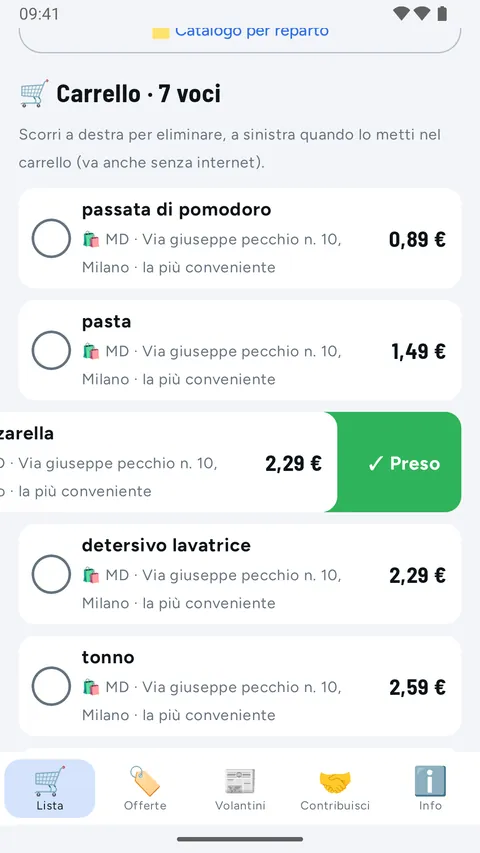
Tap 🛒 Add to cart. If it is not on offer, choose 🛒 Buy it anyway or 🕒 Wait for an offer. Each item has a circle to tap when you take it; swipe left to mark it, right to delete it.
4. Look at the route and set off#
The 🧭 Automatic route plans the route from home to home: the branch on the way, the km, the travel cost and how much you save. Then tap 🚗 Go with Auto Robot CoPilot (recommended) or 🗺️ Open in Google Maps, before you set off.
5. Ask "Where is it cheapest?"#
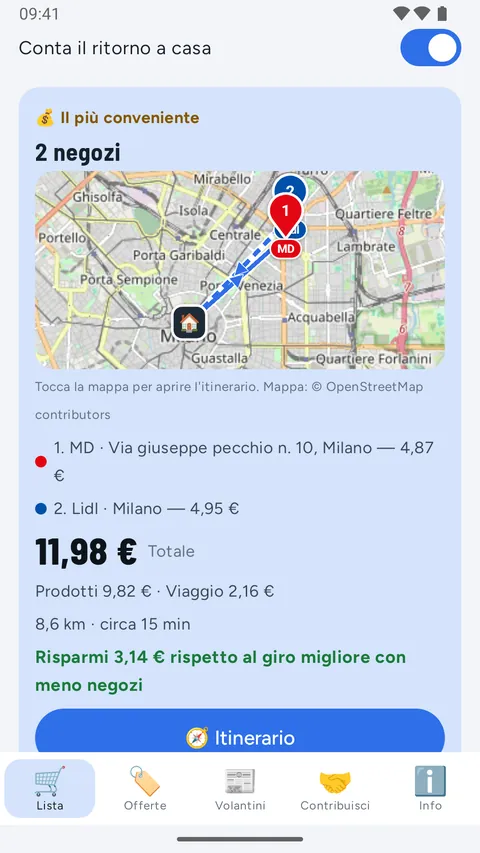
Tap 💰 Where is it cheapest? (the app chooses): it tries routes with 1, 2 or 3 shops, travel included. Here the cheapest is MD + Lidl: €11.98, €3.14 less than a single shop.
6. In the shop: ticks and stars#
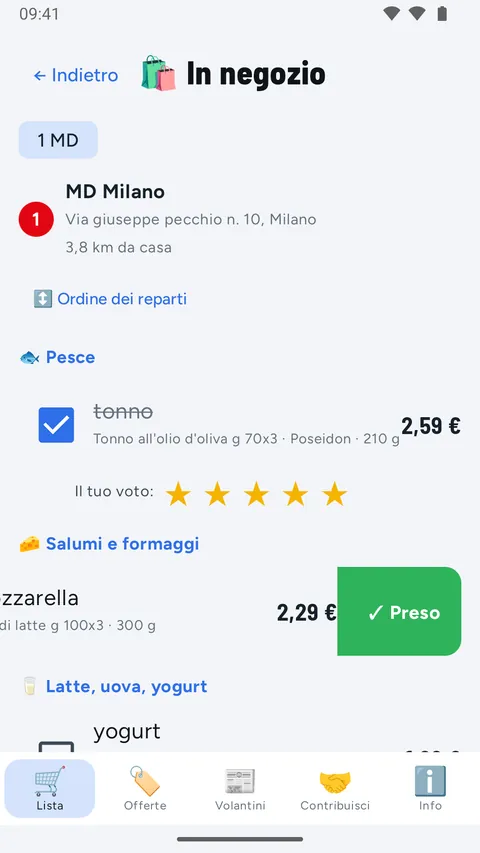
Tap 🛍️ In the shop: the list for the stop, by aisle. Tick what you take, even without internet, and give the products 1 to 5 stars. At the end, ✅ Shopping done.
7. Contribute#
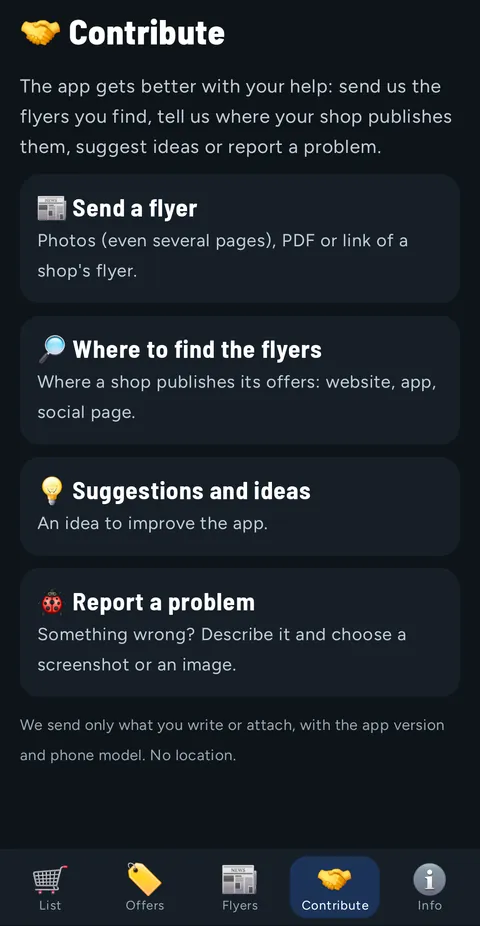
A flyer or a shop is missing, you have an idea or you found a mistake? Write to us from the 🤝 Contribute tab.
Everything else (sizes, "wait for an offer", stars, savings, lists, catalogue, loyalty cards, offers, flyers, widget, settings, Spesa Radar on the PC, iPhone, privacy) is in the reference guide below.
Complete reference guide#
Every feature, chapter by chapter, with the screenshots next to the text.
- 1. What it is
- 2. First start: area and 🏠 Home
- 3. The interactive guide
- 4. Search for a product
- 5. The cart: quick tick, swipes and stars
- 6. How much you save
- 7. Usual and recently used products
- 8. The catalogue by aisle
- 9. The window of an item
- 10. Several lists
- 11. The automatic route, from home to home
- 12. 💰 Where is it cheapest?
- 13. 🧭 Route and navigators
- 14. "In the shop" mode and "Shopping done"
- 15. Loyalty cards
- 16. 🏷️ Offers
- 17. 📰 Flyers
- 18. The widget
- 19. 🤝 Contribute
- 20. ℹ️ Info and settings
- 21. 🖥️ Spesa Radar on the PC
- 22. 📱 Spesa Radar on iPhone
- 23. Light and dark theme
- 24. Where the data comes from and how often it is updated
- 25. Privacy in brief
- 26. Area and chains covered today
- 27. Frequently asked questions
- 28. Notices
1. What it is#
| Tab | What it does |
|---|---|
| 🛒 List | You search for a product or pick it from the catalogue, add it to the 🛒 Cart and the app prepares the 🧭 Automatic route; from here also 💰 Where is it cheapest?, the 🧭 Route and the 🛍️ In the shop mode |
| 🏷️ Offers | All the offers in the area and the regular prices, with search, filters, price per kg/l and a link to the official flyer |
| 📰 Flyers | Each chain's flyers: valid or coming soon, with the dates and a small calendar |
| 🤝 Contribute | Send flyers, tell us where to find them, suggest ideas, report problems |
| ℹ️ Info | Notices, 💻 Open on PC, language, theme, loyalty cards, area, 🏠 Home, chains, travel cost, threshold, offer updates, privacy, quick guide |
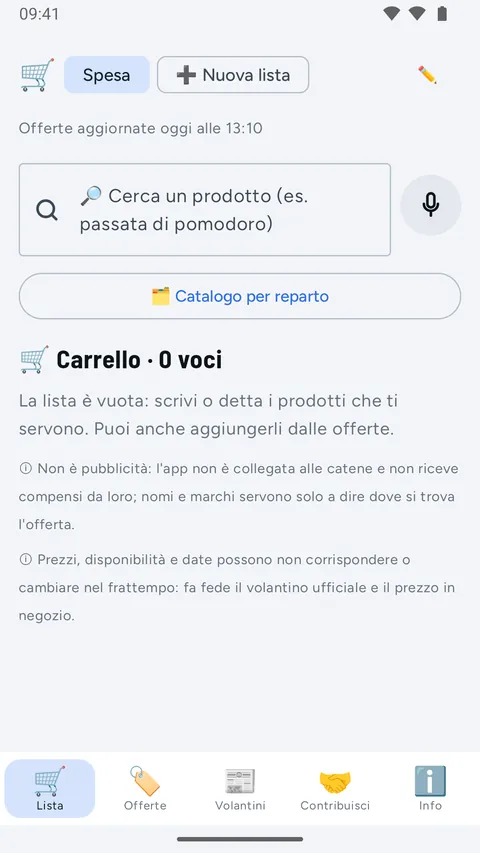
At the bottom you find big icons, each with a word: tap an icon to go to its tab. The phone's Back button takes you back to the 🛒 List.
2. First start: area and 🏠 Home#
The first time you open the app you see "Welcome to Spesa Radar Copilot" with the slogan "Smart grocery shopping: where it's cheapest and your shop route".
- Read the two yellow notices: this is not advertising and the data may not match or may change.
- Tick "I am at least 18 and have read the notices".
- 🏠 Home: the point where the route starts and ends ("Your shopping route starts and ends here (for the km). It stays only on your phone and you can change it whenever you like."). Choose one of three ways:
- 🏘️ Choose the town: type the name, even just the beginning, and tap the right one. All Italian towns are there; if two towns have the same name, add the province code (san martino av);
- 📍 Save this place as Home: the phone asks for approximate location permission; the app rounds the point to about 100 m;
- 🗺️ Choose Home on the map: move the map (or tap a point) until the pin in the middle is on your home and tap ✔ Save as Home.
- Area: it is the province of your Home, anywhere in Italy ("All of Italy: the offers are those of the province of your starting point."). The app downloads only the offers for that province. If there are none there yet, it says so and invites you to send us the flyers from 🤝 Contribute.
- Chains: they appear once the area's offers are downloaded, and they are all on; tap a chain to leave it out of the calculation (and tap it again to put it back).
- Travel cost: how much each km costs you in fuel and wear. It starts at €0.25/km; change it with − and +.
- Savings threshold: a route with more shops is suggested only if it saves at least this much. It starts at €2.
- Tap Start (it turns on once you have ticked the 18+ box and saved your Home).
Once saved, you see it in the route as 🏠 Home · Milano (MI) if you chose a town, or just 🏠 Home if you used the location or the map. To change it tap ✏️ Edit Home (also later, in ℹ️ Info → 🏠 Home): the three ways appear again.
(The screenshot above is from 0.2: there the buttons were still called Town, Approximate location and Point on the map.)
| Setting | Starting value | Change it in |
|---|---|---|
| 🏠 Home | to be saved | ℹ️ Info → ✏️ Edit Home |
| Area | the province of your Home | changes by itself with your Home |
| Chains | all on | ℹ️ Info |
| Travel cost | €0.25/km (steps of €0.05) | ℹ️ Info |
| Savings threshold | €2 (steps of €0.50) | ℹ️ Info |
| Trip back home in the total | on | 💰 Where is it cheapest? |
🔑 No account, no email, no password. Lists, cart, settings, Home and loyalty cards stay on your phone. Only if you use 💻 Open on PC does an encrypted copy leave it (chapter 21).
3. The interactive guide#
After Start, the 📖 Quick guide opens by itself: six slides that show the main flow and the notices: 🔎 Search a product, 🛒 Choose the offer, 🧾 Your cart, 🧭 Automatic route, 🚗 Open in the navigator, ⚠️ Not advertising. Swipe with your finger or use Next and Back; Skip closes it, and on the last slide Start closes it.
The screenshots below are in Italian; in the app the slides are in your language.
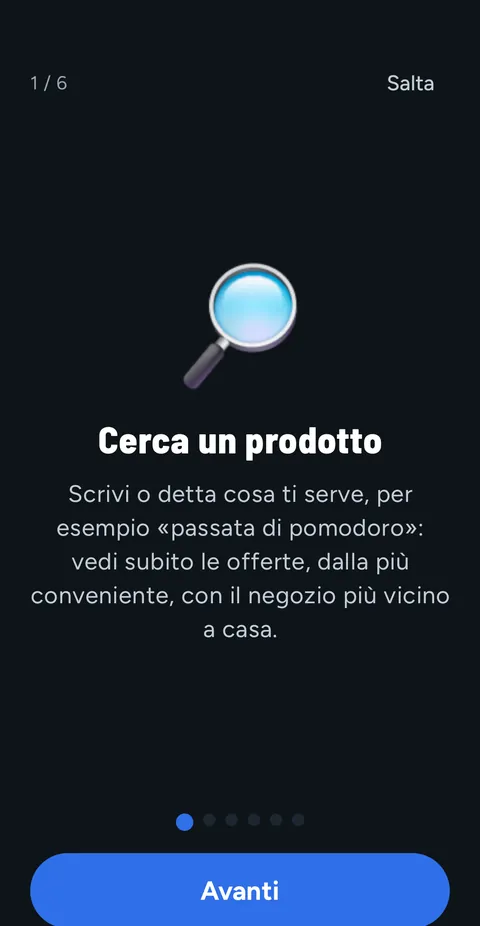
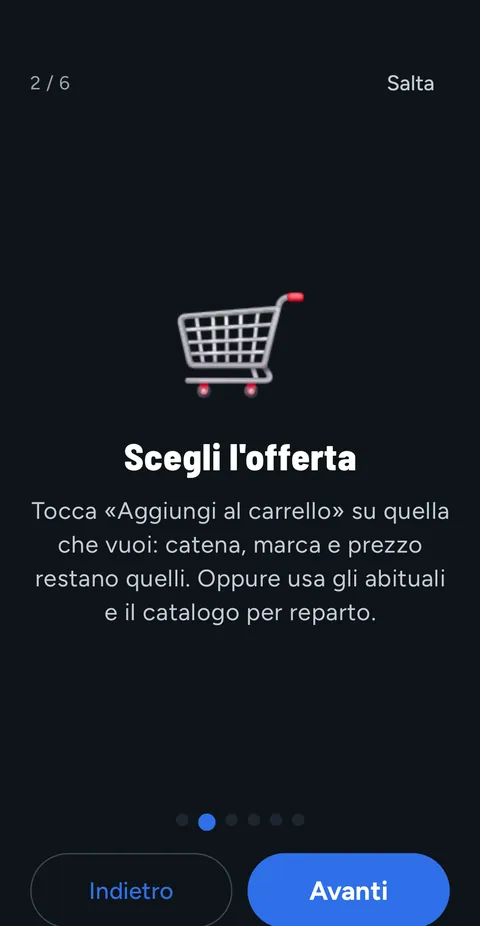
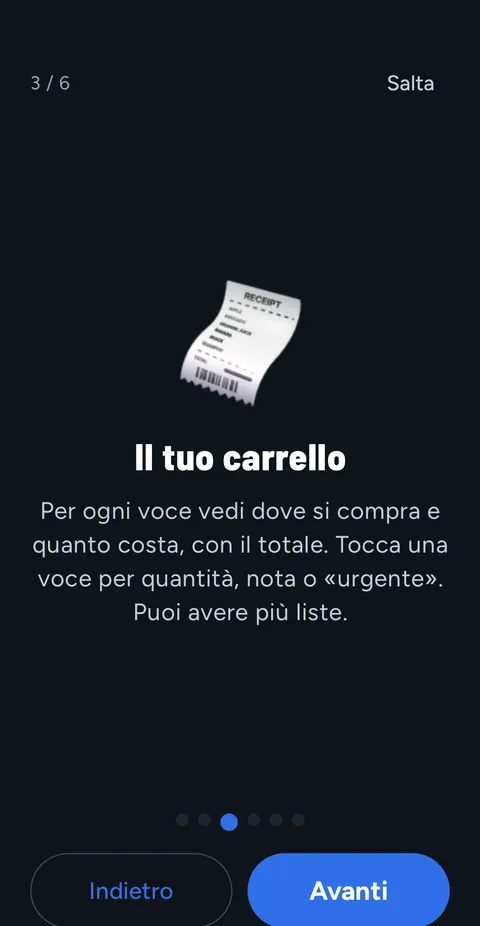
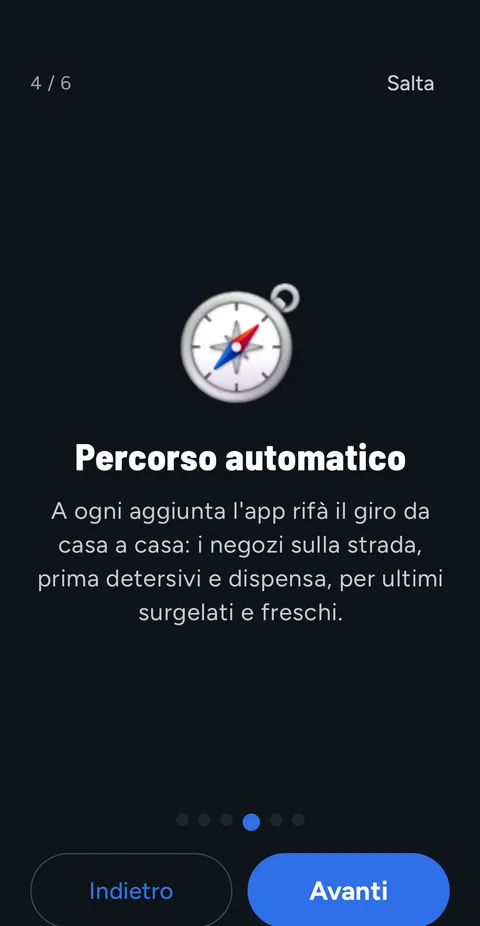
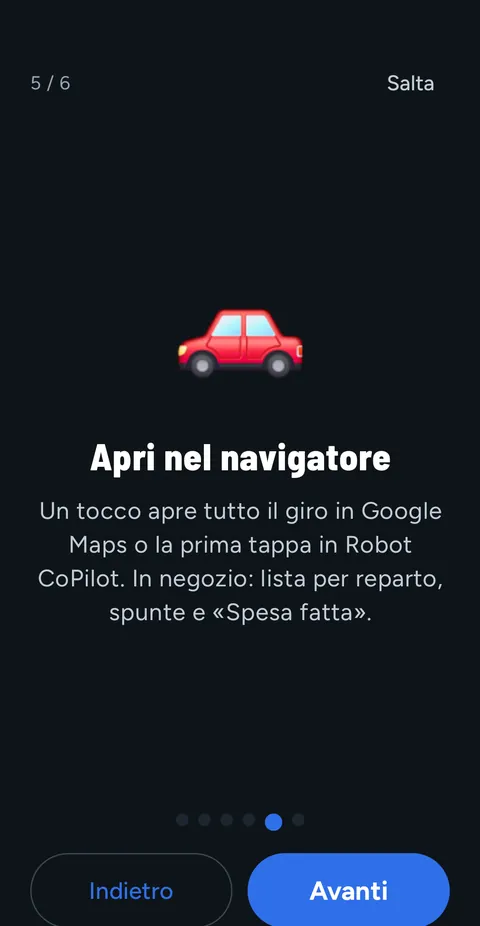
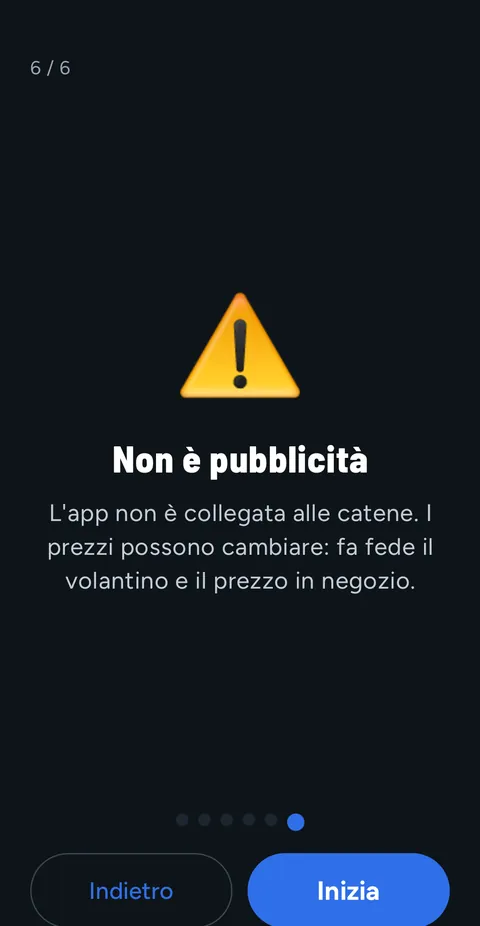
You can reopen it at any time from ℹ️ Info → 📖 Quick guide.
4. Search for a product#
At the top of the 🛒 List there is the search, in plain view: 🔎 Search a product, in Italian (e.g. passata di pomodoro). You can also tap the microphone 🎤 and say it.
Search completes as you type#
- After two letters, up to 6 suggestions (🔎 …) appear under the field: first the common products from the catalogue, then the names of the products available today in your area, with the brand, as in the flyers.
- Each word you type counts as the beginning of a word in the name: pan st finds Pan di Stelle Mulino Bianco.
- Tap a suggestion and the search starts with that name.
What you see in each result#
The results (offers and regular prices) start from the cheapest: when possible, the price per kg or per litre is what counts. Show more adds more; tapping a result opens the offer card (chapter 16).
| In the result | Example (from the screenshot) |
|---|---|
| Chain and price, with the previous price crossed out | MD · €1.29, previously €1.65 |
| Product and brand | Latte parzialmente scremato UHT · Parmalat |
| Size, price per kg/l, discount and dates | 1000 ml · €1.29/l · −22% · from 22/09 to 04/10 |
| Nearest shop to home, with the distance (and how many other shops of the chain have it) | 📍 Via giuseppe pecchio n. 10, Milano · 3.8 km from home (+27 shops) |
| Price check (chapter 16) | ✔ Price found in the flyer text |
If the same offer from the same chain is in several flyers (for example MD in two nearby areas), you see a single card, with the shop nearest to home.
- 🛒 Add to cart: that product, in that chain, goes into the cart (it is the offer 📌 you chose) and ✅ In the cart appears.
- Don't mind the brand? Tap ➕ Add "latte": the app picks the cheapest.
Same product, different sizes#
When the same product comes in different packs (for example 350 g and 700 g), you see it on a single card:
- if the first size is the one that costs least per kilo (or per litre, or per piece), it says ✅ The size that costs least per kg;
- below, each 📦 Other size with its price, price per kg/l and chain; if another size costs less per kg, it is marked ✅ better value;
- tapping another size opens its card, where you can put it in the cart.
Only sizes with the price in the same unit are compared (kg with kg, litres with litres). The same size in another chain stays on a separate card: it is another shop.
Not on offer? "Buy it anyway" or "Wait for an offer"#
If there is no offer in the flyers for what you are looking for, the app says so under the results ("It's not on offer right now (regular prices above). What would you like to do?") and offers two buttons:
| Button | What happens |
|---|---|
| 🛒 Buy it anyway | The item goes into the cart and onto the route: at the regular price, if we know it; otherwise you pick it up at one of the shops on the route |
| 🕒 Wait for an offer | The item stays on the list but does not join the route ("🕒 Waiting for an offer: joins the route when it appears in a flyer"). When it appears, 🔔 Now on offer: … shows at the top of the list and the item joins the route by itself |
If the app finds no price at all, it says so ("No price found for "…" in nearby shops. You can still put it on the list:") with the same two buttons. You can change your mind from the item's window (chapter 9).
ℹ️ Product names stay in Italian, as in the flyers: search for latte, caffè, pasta… even if the app is in another language.
5. The cart: quick tick, swipes and stars#
Under the search there is the 🛒 Cart with the number of items:
- each item shows where to buy it and what it costs (🛍️ MD · Via giuseppe pecchio n. 10, Milano · the cheapest, or 📌 if you chose the offer yourself), with ⚡ if it is urgent and 📝 the note; below there is the Shopping total;
- the circle on the left is the quick tick: tap it when you put the product in your trolley. It works even without internet; the products you have taken are crossed out and move to the bottom;
- swipe an item with your finger: to the left to mark it ✓ Got it (if it was already taken, it goes back to ↩ Still to get); to the right to 🗑 delete it. If you don't swipe all the way, the item slides back and nothing happens;
- tap an item to open its window (chapter 9);
- Clear the list removes everything (after you confirm).
Stars#
Under each product you have taken you see "How is it?" with 5 stars: tap from 1 to 5 (5 = excellent); then you see "Your rating:". The stars are also in the 🛍️ In the shop mode.
- They stay on the phone: one rating per product (the latest), up to 300 products.
- When there is internet they are sent anonymously: product, chain, stars and day; no name or location. They help recommend good products and are not shown to others one by one.
6. How much you save#
- Under the cart: "💰 With this shop you save €2.70 on full prices". For each product on offer the app counts the difference from the full price (the crossed-out one in the flyer or, if there isn't one, the regular price of the same product in the same chain), times the quantity.
- With ✅ Shopping done (chapter 14) it counts only the ticked products and tells you: "💰 You saved … with this shop!".
- From then on, under the cart you also see "So far you've saved … (this month …)". The total is kept month by month and stays on the phone.
- Only real differences: a product with no known full price does not count.
7. Usual and recently used products#
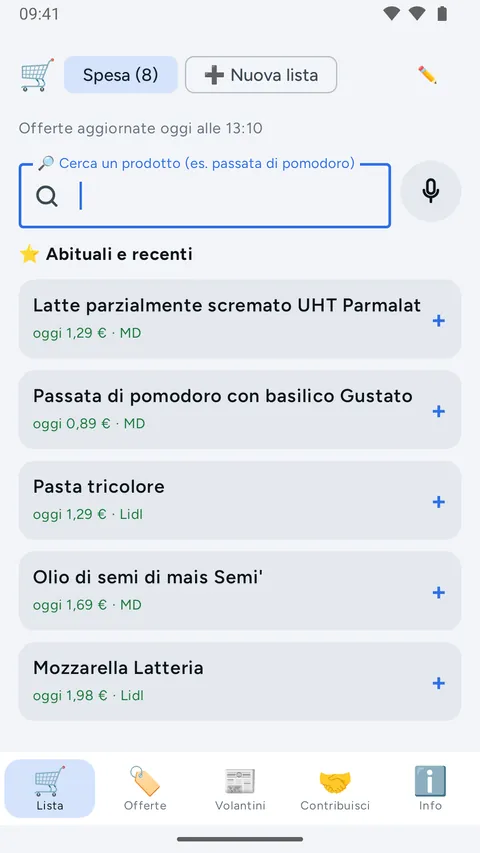
When the search is empty, in the ⭐ Usual and recent section you find the products you put in the cart most often and those used recently (not the ones already on the list). Next to each one there is today's best price, for example today €1.29 · MD, so you see at once where it is cheapest this week.
- One tap (or a swipe to the left, ➕ Add) and the product goes back into the cart.
- Swipe to the right (🗑 Remove from favourites) to take it off the list.
- You see 5; Show more shows them all. The list builds itself (products used often and recently count more, up to 100) and stays on your phone.
8. The catalogue by aisle#
Don't feel like typing? With the search empty, tap 🗂️ Catalogue by aisle: the most common products, grouped by aisle.
- At the top, the aisles, on several rows: the most used first (🍎 Fruit & vegetables, 🧽 Detergents & home, 🧀 Cold cuts & cheese, 🥫 Tins & condiments, 🫒 Oil & vinegar); ➕ See everything else shows the others (meat, fish, milk, bread, pasta, frozen food, personal care…).
- Choose the view: ▦ Tiles (big tiles with an icon) or ☰ List.
- Tap a product: it turns green, goes into the cart and the app picks the cheapest. A second tap removes it. In the list view you can also swipe: to the left to add, to the right to remove.
The tile names are in your language (in languages other than Italian, the Italian name is also shown underneath); in the cart the product goes with the Italian name used in the flyers.
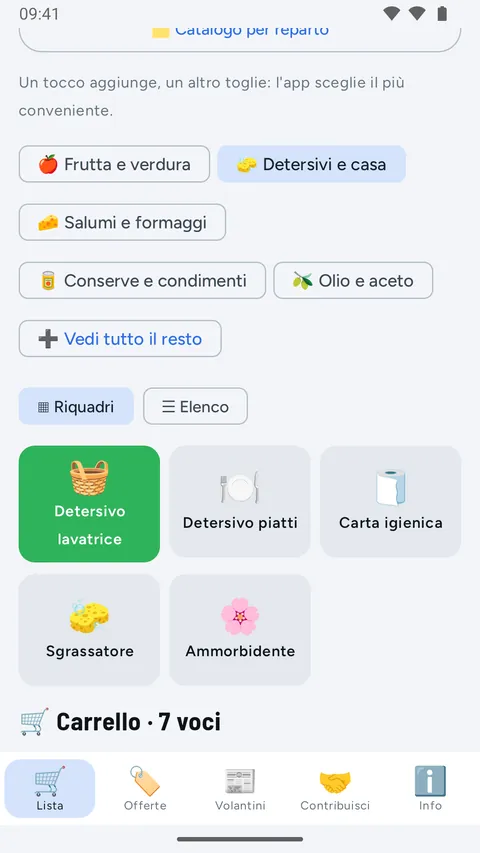
🖼️ Icons only: no photos of products or flyers.
9. The window of an item#
Tap an item in the cart to complete it, then tap Done:
| Field | What it is for |
|---|---|
| Quantity | How many packs, with − and + |
| Note | A detail for whoever does the shopping (organic, 2 litres) |
| ⚡ Urgent | Needed right away: among shops with equally fresh goods, its shop comes first on the route |
| 🕒 Wait for an offer | The item stays on the list but joins the route only when it appears in a flyer; then you see it at the top of the list |
| 📌 Your choice | The offer you chose, with Back to the cheapest |
| Choose an offer | The best offer from each chain (up to 6), to change the chosen one |
| 🗑 Delete | Removes the item |
On the route, when a stop moves ahead because of an urgent item, the note says so ("MD goes first: there is an urgent item.").
10. Several lists#
You can keep several lists, for example Shopping (the first one), Party, Seaside house.
| Command | What it does |
|---|---|
| List names at the top (with the number of items) | Switch from one list to another |
| ➕ New list | Creates a list: type the name and tap Save |
| ✏️ next to the lists | Opens ✏️ Rename to change the name |
| 🗑 Delete list (inside Rename) | Deletes the list with its items (after you confirm) |
- Cart, automatic route, 💰 Where is it cheapest? and the route are worked out on the chosen list.
- All lists stay on your phone.
11. The automatic route, from home to home#
With a full cart you don't have to work anything out: under the cart, the 🧭 Automatic route box shows the whole route, from the starting point to the shops and back home (for example 🏠 Home → 1 MD → 🏠 Home), and it updates with every item you add. The trip back home is always included in the total.
How it chooses the shops#
- For each chain in the cart it takes the branch on the way: the shop that adds the least to the route home → … → home, not necessarily the nearest to home.
- Items for which you have not chosen an offer are bought at a stop on the route that has them, where they cost least. If no stop has them, the app adds the shop where they cost least, counting the extra road too: a few cents less 20 km away are not worth the trip.
- It does not add shops it doesn't need: to compare routes with 2 or 3 shops too, there is 💰 Where is it cheapest? (chapter 12).
- Only shops within 25 km of your Home are considered.
Why this order#
The order of the stops follows three rules, in this order:
- Perishables last. Things that can wait in the car are bought first; fresh and frozen food at the end, so they get home as soon as possible.
- Among equally fresh goods, the shop with an urgent item first.
- All else being equal, the shortest route.
| Level | What it includes | When |
|---|---|---|
| Can wait in the car | Detergents and home, personal care, pantry (pasta, tins, coffee…), drinks, pets, non-food | First |
| Fruit and vegetables | Fruit and vegetables | Next |
| Fresh | Milk, eggs, yoghurt, cold cuts, cheese, meat, fish | Towards the end |
| Frozen | Frozen food | Last |
Under the route a note explains the chosen order, for example "First Lidl: detergents & home can wait in the car." and "Last MD: frozen food, then home."
An example#
Starting from the town of Milan, seven everyday products in the cart, all "the cheapest". MD has them all, so the route is 🏠 Home → 1 MD → 🏠 Home:
| What | Value |
|---|---|
| Stop | MD · Via giuseppe pecchio n. 10, Milano (3.8 km from home) |
| Route | 7.6 km, about 13 minutes, from home to home |
| Products | €13.23 |
| Travel | €1.89 (about 7.6 km at €0.25/km) |
| Total | €15.12 |
| Saving | "With this shop you save €2.70 on full prices" |
With 💰 Where is it cheapest? the app finds an MD + Lidl route for €11.98 (chapter 12).
The summary#
Under the one-line route there is the map preview:
- 🏠 the starting point, in a dark square;
- each supermarket with its symbol: a pin in the colour of the chain, with the stop number inside and the name underneath; if two chains on the route have almost the same colour, the second one gets another colour, so you can tell them apart without reading the label;
- the straight lines of the route with arrows in the direction of travel and, dashed, the way back home;
- a tap on the map opens the 🧭 Route.
Then you see the stops with the spending at each, the estimated km and minutes, the cost of the products, the travel cost (km × €/km) and the total. With more shops there is also the comparison with the best single shop ("You save … compared with everything at …"); if instead a single shop would cost less, the app says so honestly. Under each stop, if you have that chain's loyalty card, there is 💳 Show the … card (chapter 15).
At the bottom, the buttons, in this order: 🚗 Go with Auto Robot CoPilot (recommended), 🗺️ Open in Google Maps (chapter 13), 🧭 Route and 🛍️ In the shop (chapter 14).
12. 💰 Where is it cheapest?#
Under the automatic route, the 💰 Where is it cheapest? (the app chooses) button is for those who prefer the app to choose the shops: it compares the ways of doing your shopping and puts the cheapest at the top, travel included. Here too, for each chain, it takes the branch on the way. At the top you see when the offers were updated, the starting point (for example Start: 🏠 Home · Milano (MI)) and the Include the trip back home switch.
| Option | When it appears |
|---|---|
| Everything in one shop | Always: the cheapest single shop |
| 2 shops | If it buys items that would be missing with one shop only, or if you save at least the threshold compared with the best one-shop option |
| 3 shops | If it buys items that would be missing with fewer shops, or if you save at least the threshold compared with the best option with fewer shops |
🧺 Routes that buy everything come first. At the top go the routes that find all the items in the cart and, among them, the cheapest. A route that leaves you without an item is never "💰 Cheapest", even if it costs less: it is missing a product, and its price does not include the extra trip to buy it somewhere else. You can tell from the warning ⚠️ 1 item without a price on this route.
For each option:
- the numbered stops, with chain, address and spending at each;
- the small map with the preview of the route (in the first option; in the others tap 🗺️ See the route on the map): a tap on the map opens the route;
- the big Total = Products + Travel;
- km · about min;
- You save … compared with everything at the nearest shop (or compared with the best route with fewer shops); if it is also the nearest you see "It is also the nearest shop."; if the route finds items that are missing from the other one, it says so;
- ⚠️ the items without a price on that route;
- the 🧭 Route button.
In the Milan example the cheapest is the route with 2 shops: 1. MD (Via giuseppe pecchio n. 10) for €4.87 and 2. Lidl (Milano) for €4.95. Total €11.98 (products €9.82 + travel €2.16), 8.6 km, about 15 minutes: "You save €3.14 compared with the best route with fewer shops", that is, compared with the €15.12 of everything at MD.
Below you also find the discarded routes, with the reason: "With 2 shops you would save only €1.20: less than your €2.00 threshold" or "With 3 shops you would spend more: the trip costs more than you save". Items with no price in any shop are listed separately.
The Include the trip back home switch also counts the last stretch back to the starting point (on at the start).
📏 How km and minutes are estimated: straight-line distance × 1.3; minutes at about 35 km/h. The navigator works out the real road.
13. 🧭 Route and navigators#
The route is your shopping trip, ready to go: it opens with 🧭 Route from the automatic route or from an option in 💰 Where is it cheapest?.
- Map with 🏠 the starting point (dark square) and, for each shop, a pin in the colour of its chain with the stop number and the chain's short name underneath. The stops are joined by straight lines with arrows in the direction of the route, the way back home dashed ("the navigator works out the real road").
- 🚗 Go with Auto Robot CoPilot (recommended), the orange button, comes first: it opens Auto Robot CoPilot towards the first stop. It takes you to the shop and meanwhile tells you aloud about speed cameras, queues and roadworks. If it is not installed, the app says so ("Auto Robot CoPilot isn't installed") and offers Install for free (Google Play) or Use Google Maps.
- 🗺️ Open in Google Maps: opens the whole route with the stops in order and, if you count the trip back, arriving home.
- 🏠 Home with its name (🏠 Home · Milano (MI)), then each stop: number, chain and shop (MD Milano), address, km from home for the first stop and km from the previous stop for the others, the products to get with their price and Spend here. If you have that chain's loyalty card, the reminder 💳 Show the … card appears on the stop (chapter 15).
- Tick off products as you shop: the ticks stay even if you close the app; Clear ticks resets them.
- At the bottom, 🏠 Back home with the km and the Total (products, travel, km, minutes).
🚗 Safe use: open the navigator before you set off; while driving, don't touch the phone.
14. "In the shop" mode and "Shopping done"#
Once you reach the shop, tap 🛍️ In the shop in the automatic route:
- at the top, the stops (1 MD, 2 Lidl…; ✔ when one is finished): the first one with products to get opens by itself, with the shop, the address and the km (3.8 km from home);
- you see only the list for that stop, sorted by aisle, with big ticks, easy to tap with the trolley in your hand; if you have the card, there is 💳 Show the … card;
- you can also swipe: to the left ✓ Got it, to the right to delete the item;
- under each product you have taken there are the stars from 1 to 5 (chapter 5);
- under the list, Still to get here: 2 with the products still missing (or Everything taken here ✔), Spent here and Spent in total; when a stop is finished, the → 2 … button takes you to the next one;
- with ↕️ Aisle order you move the aisles with ▲ and ▼ into the order you find them in the shop and tap Done: the app remembers it for that chain;
- it also works without a connection.
When the route is over, tap ✅ Shopping done and confirm: "Ticked items leave the list; the missing ones stay." If you saved on full prices, the app tells you and adds it to the month's total (chapter 6).
15. Loyalty cards#
Keep the supermarkets' loyalty cards on your phone, without carrying them in your wallet.
- In ℹ️ Info → 💳 Loyalty cards tap ➕ Add card: tap the chain (or type the Chain name) and type the Card number.
- The app suggests the Code type (EAN-13, EAN-8, Code 128 or QR) from the number by itself and shows you a preview; if the scanner at the till cannot read it, try another type. Tap Save.
- Tap Show: the card opens full screen on a white background, with the code, the number and the screen at full brightness; Close takes you back. The bin 🗑 next to a card removes it.
- When the route goes through that chain, the reminder 💳 Show the … card appears on the stop (in the automatic route, on the route screen and in the shop mode): one tap and the code is ready.
🔒 The cards stay only on your phone: the phone draws the code itself, with no external services, and it is not sent to anyone. 🗑 Delete my data deletes them too.
16. 🏷️ Offers#
Here you see all the offers in the area, including those of the chains left out of the calculation.
| Command | What it does |
|---|---|
| Search a product | Searches by name and brand |
| Valid today | Offers from the current flyers |
| ⏳ Coming soon | Offers from flyers that start in the next few days |
| Regular prices | The shops' regular prices (not on offer), when available |
| ↑ Price / ↑ Price per kg/l | Sorts from the lowest price or from the lowest price per kg/l |
| All chains and the chain names | Filters by chain |
| All categories and the categories | Filters by category (fruit & vegetables, meat, frozen food, detergents & home…) |
| Show more | Loads more offers at the bottom of the list |
Each row shows chain, product, brand, size, price per kg/l, dates, the price (green if on offer) and the previous price crossed out with the discount.
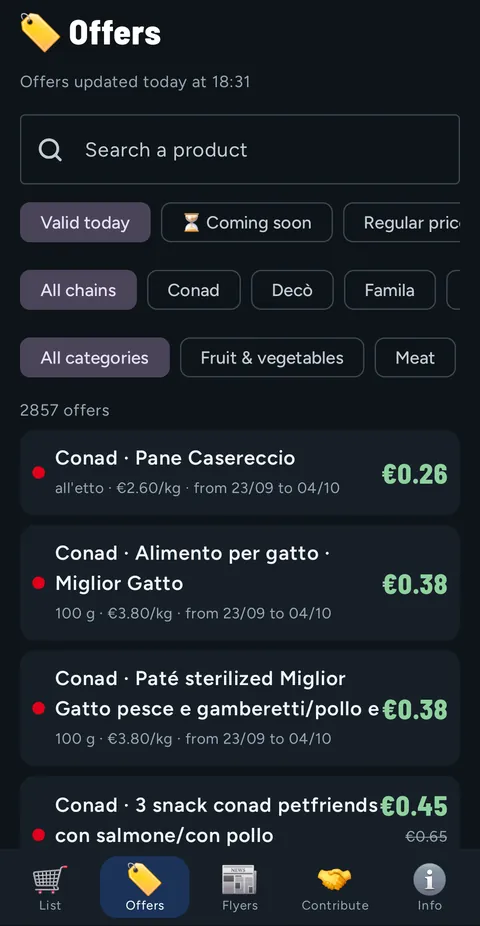
The offer card#
Tap a row and the card opens:
| On the card | Example |
|---|---|
| Chain and category | Decò · Coffee & breakfast |
| Price, on offer or regular price | €9.99 on offer |
| Price per kg/l | €9.99/kg |
| Previous price and discount | was €13.49 · −26% |
| Regular price of the same product (if any) | regular price: €12.90 · You save €2.91 |
| Brand, size, conditions | Conditions: with loyalty card |
| Dates and flyer, with the page | from 01/10 to 07/10 · Weekly offers · page 3 |
| Price check | ✔ Price found in the flyer text · ⚠️ Price to be checked · Flyer without text: price not checked |
| Where it applies | In all the chain's shops in the area or Only at: and the list of shops |
Buttons: 📰 Official flyer (or 🌐 Chain website if the link is missing) opens the official source; 🛒 Add to cart puts the offer in the cart.
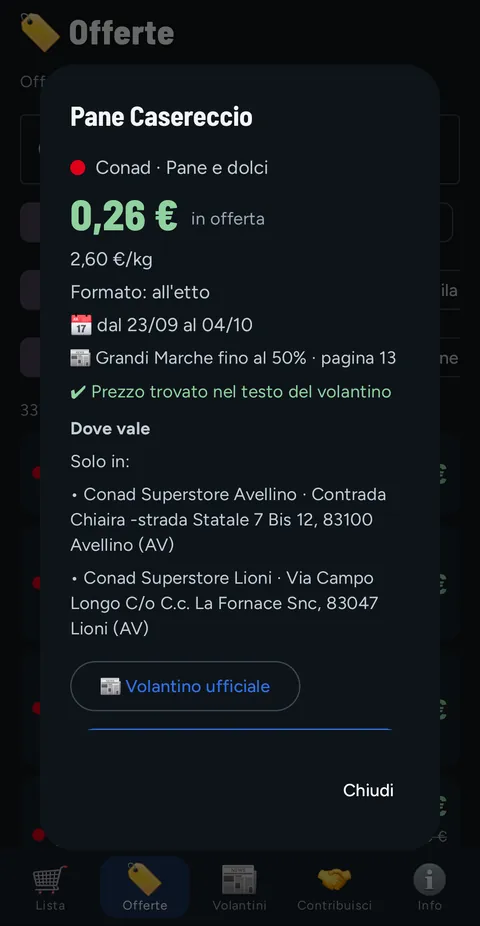
🖼️ No photos: the app shows only text data. To see the real flyer tap 📰 Official flyer.
17. 📰 Flyers#
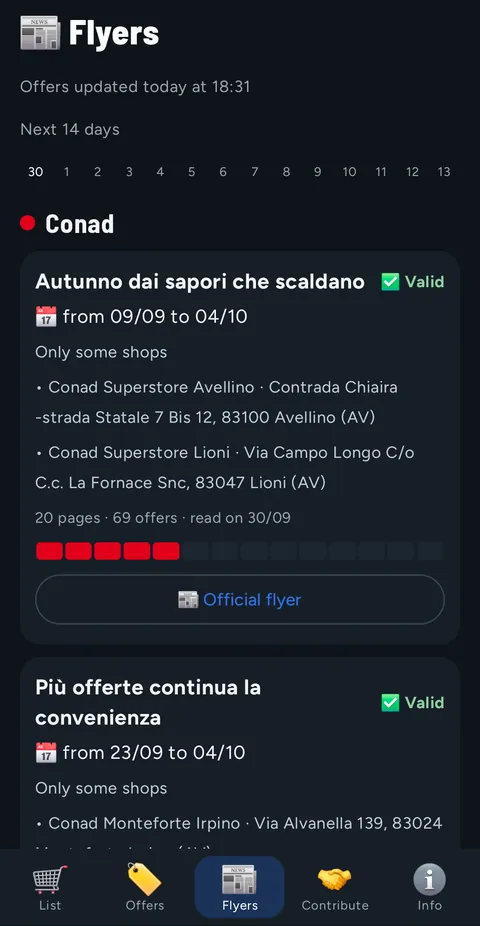
For each chain you see the valid flyers and those coming soon (expired ones do not appear).
| On the flyer card | Meaning |
|---|---|
| ✅ Valid / ⏳ Coming soon | Running today / starts in the next few days |
| 📅 from … to … | The dates, both days included |
| All shops / Shops in the region / Only some shops | Where it applies (with the list of shops, if needed) |
| N pages · N offers · read on … | What it contains and when we read it |
| Coloured bar | The days it is valid, in the next 14 days |
| 📰 Official flyer | Opens the flyer on the chain's website |
18. The widget#
Put Spesa Radar Copilot on your phone's Home screen: press and hold an empty space, choose Widgets, look for Spesa Radar Copilot and drag Cart and next stop.
| In the widget | Example |
|---|---|
| Items in the cart and shopping total | 🛒 7 items · €13.23 |
| Next stop on the route | Next stop: MD · Via giuseppe pecchio n. 10, Milano |
| Empty cart | Cart empty: tap to add |
| Route finished | All stops done ✔ |
One tap on the widget opens the app.
👀 The widget shows the list on the Home screen: anyone who looks at your phone can see it.
For now the widget is only on Android: it is not yet available on iPhone.
19. 🤝 Contribute#
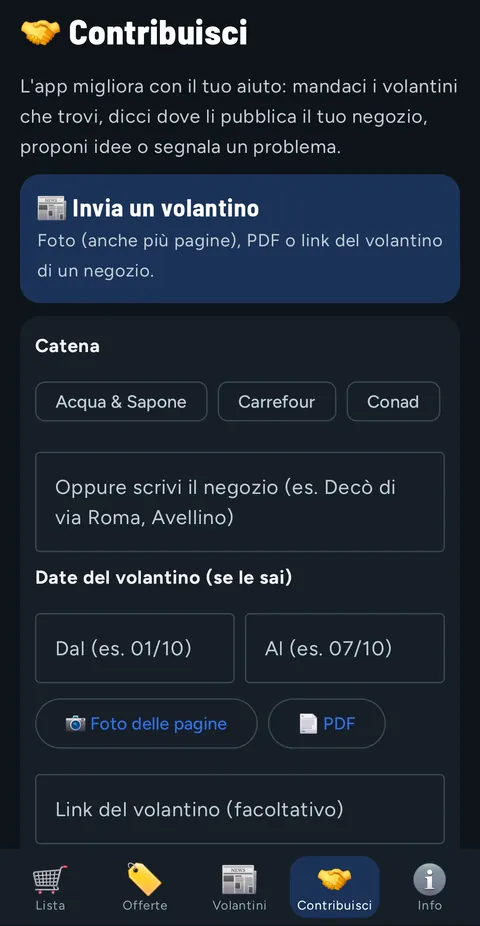
The app gets better with your help. Four options (the screenshot is in step 7 of the quick guide):
| Option | What you send | How it is sent |
|---|---|---|
| 📰 Send a flyer | Chain and shop, dates (if you know them), 📷 Photos of the pages (even many) or 📄 PDF, link, note | Straight from the app, also with photos or a PDF (up to 30 files): a bar shows the upload progress |
| 🔎 Where to find the flyers | Chain and shop, where the shop publishes its offers (website, app, social page, in the shop), link | Straight from the app |
| 💡 Suggestions and ideas | An idea, typed or dictated; if you like, the app screen, up to 3 images from the phone and the latest app errors | Straight from the app |
| 🐞 Report a problem | What is wrong, with a screenshot or an image you choose | Straight from the app |
- To choose the shop, tap the chain (or Other and type its name), then one of the nearest shops, or type it.
- To send a flyer you need at least a photo, a PDF or a link.
- After sending you see "✅ Thank you! Received."
- We send only what you write or attach, with the app version and phone model. No location. An artificial intelligence service sorts the messages: it receives only the text and the app name. On iPhone the app asks for your consent first (chapter 22). Don't write personal data.
20. ℹ️ Info and settings#
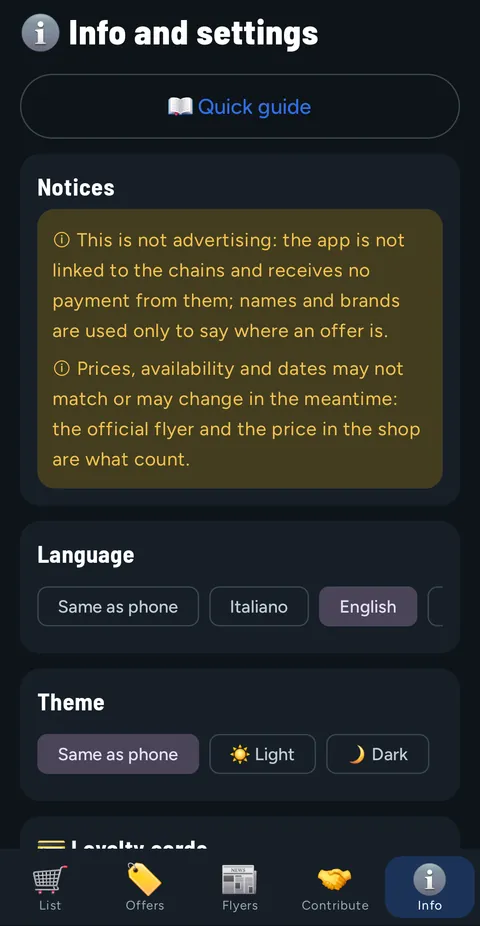
| Option | What it is for |
|---|---|
| 📖 Quick guide | Reopens the interactive guide |
| Notices | The two notices: this is not advertising; the data may change |
| 💻 Open on PC | Link, QR code, Copy, Share, expiry date, Get changes from the PC, new link and Delete from the server (chapter 21) |
| Language | Same as phone or one of the 6 languages |
| Theme | Light, dark or same as phone (chapter 23) |
| 💳 Loyalty cards | Add, show or remove your cards (chapter 15) |
| Area | The province of your Home, anywhere in Italy (📍 Province of Milano) |
| 🏠 Home | Where the route starts and ends: ✏️ Edit Home, then 🏘️ town, 📍 this place or 🗺️ map |
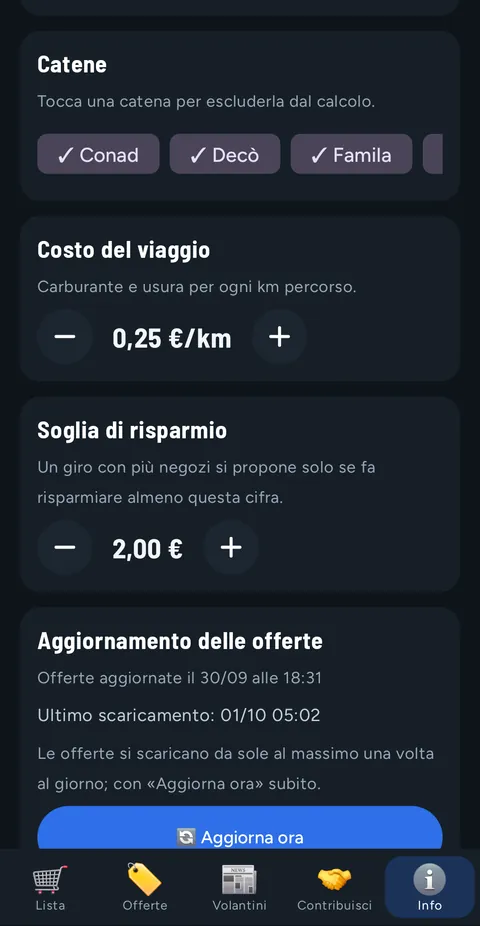
| Chains | The chains with prices in your area: tap to leave one out or put it back |
| Travel cost | €/km, with − and + |
| Savings threshold | With − and + |
| Offer updates | When they were updated, Last download and 🔄 Update now |
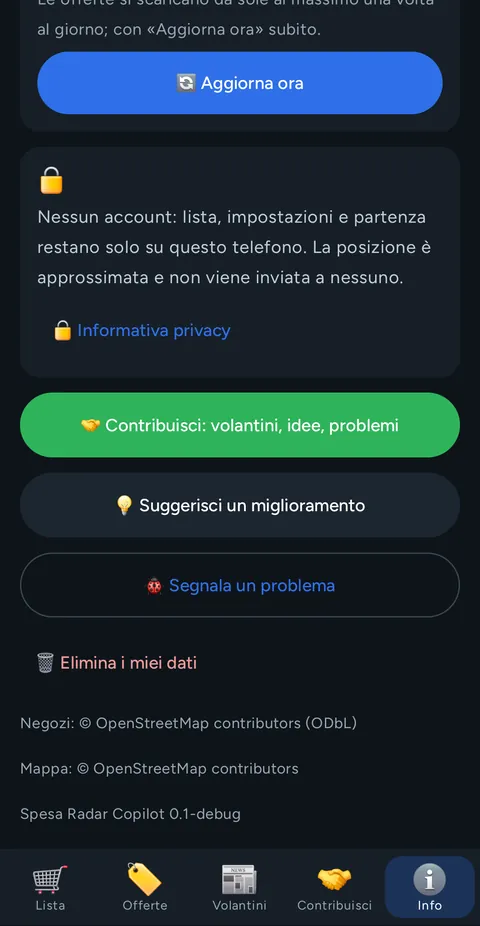
| 🔒 Privacy policy | Opens the full policy |
| 🤝 Contribute: flyers, ideas, problems | Takes you to the Contribute tab |
| 💡 Suggest an improvement / 🐞 Report a problem | Send an idea or an error to the developer |
| 🗑 Delete my data | Deletes lists, cart, usual products, settings, Home, loyalty cards, stars, savings and saved offers from the phone (after you confirm); if there is a PC link, it also deletes the encrypted copy from the server |
At the bottom of Info you also find the credits (Shops: © OpenStreetMap contributors (ODbL), Map: © OpenStreetMap contributors) and the app version.
21. 🖥️ Spesa Radar on the PC#
Shopping is easier to plan on a big screen: Spesa Radar on the PC is the computer version, in the browser, at spesaradar.web.app/pc. Nothing to install and no account.
How to open it from the phone#
- On the phone go to ℹ️ Info → 💻 Open on PC and tap Create the link for the PC.
- The link and the QR code appear. To get it onto the computer:
- Copy, then paste it on the PC (in the Paste the link from the phone field, or in the address bar);
- Share, to send it to yourself by email or chat;
- or scan the QR code with another device's camera.
- Open the link in the computer's browser: Linked to the phone appears at the top.
Under the link the app shows when it expires ("The link expires on …: it renews itself when you open the app."): it is valid for 30 days after it was last used. The other buttons:
| Button | What it does |
|---|---|
| Get changes from the PC | Brings what you changed on the PC to the phone straight away |
| Renew now | Sends the updated copy straight away and renews the expiry date |
| New link (the old one stops working) | Creates a new link; the old one stops working |
| Delete from the server | The link stops working and the encrypted copy is deleted from the server (the PC's too); the list stays on the phone |
🔒 End-to-end encrypted. List, Home (approximate), chains, settings and route are encrypted on the phone (AES-256): the server only sees unreadable data. The key is in the link, after the "#", and is never sent. Whoever has the link can see and change the list: give it only to people you choose (for example your family).
What you can do on the PC#
| Section | What you find |
|---|---|
| List | Your lists (new, rename, delete); type several products separated by commas; for each item a note, Urgent, Wait for an offer, the chosen offer or Let it pick the cheapest; Compare shows the same product across chains |
| Map and route | Your Home (change it with Move Home) and the route on the map, with three choices: Fewer km, Balanced or More savings; estimated time, products, travel and total; Open in Google Maps |
| Offers | Search by product or brand and filters: chain, aisle, maximum price per kg/l, Ending within, brand, On offer only, Include upcoming ones; sort by price, price per kg/l, discount or end date; link to the official flyer |
| Weekly menu | Lunch and dinner for each day: type a dish or the ingredients and tap Build the list from the menu; the ingredients go into the list, with no duplicates |
| Budget | How much you want to spend: you see how much is left, or how far over you are, on the estimated total with today's offers |
| Print and export | Print / PDF by store, CSV, Excel and Copy as text |
| Settings | Travel cost, Stores within (km), Count the way back Home, chains, province and language (8 languages, Chinese and Russian too) |
How changes get back to the phone#
- On the PC every change saves itself after a moment ("Saved: the phone gets it next time the app opens"); 📲 Send to phone saves it straight away.
- The phone picks up the changes when you open the app (on iPhone also when you go back to it) or with Get changes from the PC, and merges them with its own: "List updated with the changes made on the PC" appears.
- What you change on the phone reaches the PC by itself, after a few seconds.
- Without a link the site still works, but the list stays only in that browser.
- If the link has expired or was deleted, the PC says so: create a new one from the app.
22. 📱 Spesa Radar on iPhone#
Spesa Radar Copilot is also available for iPhone (version 1.1), with the same features as Android and the same 6 languages:
- search with dictation 🎤, cart, ticks, swipes and stars; usual products, catalogue by department, several lists;
- 🏠 Home, automatic route, 💰 Where is it cheapest?, itinerary and 🛍️ In store mode;
- 🏷️ Offers and 📰 Flyers tabs, with search, filters, price per kg/l and a 14-day calendar;
- 💳 Loyalty cards, with the code drawn by the phone and the reminder on the stops;
- 🤝 Contribute straight from the app, with photos and PDFs of the flyer too: before sending, the app asks for your consent to the sorting by artificial intelligence (without consent you can send a ready-made email);
- 💻 Open on PC, as on Android (chapter 21); changes from the PC also arrive when you go back to the app.
Differences: the map is Apple Maps, and to set off you choose Auto Robot CoPilot, Apple Maps or Google Maps. The Home screen widget is not yet on iPhone.
🍏 App Store: coming soon. The iPhone version is under review by Apple. As on Android, it will be available only in Italy.
23. Light and dark theme#
In ℹ️ Info → Theme choose how the app looks (in this guide the version 0.2 screenshots use the light theme, the 0.1 ones the dark theme):
| Theme | When it is handy |
|---|---|
| ☀️ Light | By day, in a brightly lit shop |
| 🌙 Dark | In the evening, and it uses less battery on OLED screens |
| Same as phone | Follows the Android or iPhone setting |
24. Where the data comes from and how often it is updated#
- Every day a program reads the chains' official flyers and extracts only text data: product, brand, size, price, price per kg/l, discount, conditions, dates, page and link to the flyer. No images.
- When the flyer is a PDF, reading is automatic (also with the help of artificial intelligence) and every price is checked against the PDF text: hence the ✔ Price found in the flyer text or ⚠️ Price to be checked mark.
- The shops come from the chains' official lists and from OpenStreetMap (© OpenStreetMap contributors, ODbL).
- Regular prices (not on offer) are added when available, with the date they were read.
- The result is one file per province, with the shops and the offers valid there.
- The app downloads only your province's file, by itself at most once a day (when you open it) and at once with 🔄 Update now. It saves it on the phone: without a connection it uses the last copy ("No connection: using the last saved copy.").
- At the top of the tabs you see when they were updated: "Offers updated today at 13:45".
25. Privacy in brief#
| What | Where it goes |
|---|---|
| Account | None: no email or password |
| Lists, cart, notes, usual products, settings, Home, ticks, savings | Only on the phone |
| Loyalty cards | Only on the phone |
| Location | Optional and approximate, used only on the phone for your Home |
| 💻 Open on PC | Only if you create the link: list, approximate Home, chains and settings leave encrypted on the phone; the server only sees unreadable data and deletes it 30 days after it was last used, or straight away with Delete from the server |
| Offers file | The phone downloads the file for its province, the same for everyone: no personal data sent |
| Product stars | On the phone; when there is internet they are sent anonymously (product, chain, stars, day) |
| Map | On Android the map images come from OpenStreetMap or MapTiler, which see the IP address; on iPhone the map is Apple Maps |
| Auto Robot CoPilot / Google Maps / Apple Maps | Robot CoPilot (and Apple Maps, on iPhone) receives the position of the first stop, Google Maps the route stops and your Home: only when you tap the button |
| Contribute and suggestions | Only what you write or attach, only when you tap Send |
| Advertising, sale of data | None |
To send a contribution or stars, or to create the PC link, the app uses a random anonymous code, with no name or email.
📷 The screenshots in this guide show no personal data: the Home is a test one, the town of Milan.
Full policy: autorobotcopilot.web.app/spesaradar/privacy
26. Area and chains covered today#
The area is the province of the starting point, anywhere in Italy. The chains available depend on the area:
| Where | Chains with offers |
|---|---|
| All of Italy | Lidl and MD, wherever they have shops and flyers |
| Province of Avellino | Also Conad, Decò, Famila and Maury's (Famila and Maury's in Atripalda) |
- In ℹ️ Info → Chains you see the ones with prices in your province.
- Shops within 25 km of your Home are considered.
- Eurospin: not available.
- More chains are coming gradually. Your shop is missing? Tell us from 🤝 Contribute → 🔎 Where to find the flyers, or send us the flyer.
- The app is published only in Italy: on Google Play, and soon on the App Store.
27. Frequently asked questions#
Is it free? Yes. No advertising, no sponsored products, no account.
Does it work all over Italy? Yes: save your Home (town, location or map) and the app takes the offers of your province. Today there are Lidl and MD wherever they have shops and flyers; in the province of Avellino also Conad, Decò, Famila and Maury's. If there are no offers for your province yet, the app says so.
The price in the shop is different from the one in the app: why? The data is read from the flyers and may contain errors or change in the meantime. The official flyer and the price in the shop are what count. Check the offer card (📰 Official flyer) and, if you find an error, report it from 🤝 Contribute.
Why does the automatic route cost more than "Where is it cheapest?"? The route starts from your choices and adds a shop only if needed. 💰 Where is it cheapest? also tries routes with 2 or 3 shops: in the Milan example, MD + Lidl at €11.98 instead of everything at MD at €15.12.
What is the difference between "Buy it anyway" and "Wait for an offer"? With Buy it anyway the product joins the route straight away, even at the regular price. With Wait for an offer it stays on the list but joins the route only when it appears in a flyer: then you see it at the top of the list.
Does ticking work without internet? Yes: ticks, swipes, lists and the 🛍️ In the shop mode work without a connection. The stars are sent when the internet is back.
Why is the supermarket nearest to home the last stop? Because that is where you buy fresh or frozen food, or because that order gives the shortest route. Things that can wait in the car are bought first (chapter 11).
Why does the app suggest only one shop, even if a product costs less elsewhere? Because with travel the route with more shops would cost more, or you would save less than the threshold. You see it written under the options in 💰 Where is it cheapest?. You can lower the threshold in ℹ️ Info.
Why does "Cheapest" cost more than "Everything in one shop"? Because that single shop does not have all the items in the cart: a route that leaves you without a product never comes before one that buys everything (chapter 12). You can tell from the warning ⚠️ … without a price on this route.
How does it work out the km? Straight line × 1.3 and about 35 km/h for the minutes. It is an estimate: the navigator works out the real road.
Does it work without internet? Yes, with the last saved copy of the offers. Map, navigators, official flyers, sending from Contribute and stars need a connection.
What does "Price to be checked" mean? That the price read was not found again in the flyer text: check it with 📰 Official flyer.
Is my location sent to anyone? No. Your Home stays on the phone. It leaves the phone only if you tap 🗺️ Open in Google Maps (your Home and the route stops go to Google Maps); 🚗 Go with Auto Robot CoPilot receives only the position of the first stop. With 💻 Open on PC the approximate Home goes to the server only encrypted: the server cannot read it.
Can I use Spesa Radar on the computer? Yes: in ℹ️ Info → 💻 Open on PC you create the link, open it at spesaradar.web.app/pc and work on a big screen; the changes come back to the phone (chapter 21).
Can whoever has the PC link see my list? Yes, whoever has the link can see and change the list: give it only to people you choose. If you gave it to someone by mistake, tap New link or Delete from the server: the old link stops working.
Is there an iPhone version? Yes, version 1.1 is ready and under review by Apple: it will be on the App Store soon (chapter 22).
Are my loyalty cards safe? They stay only on the phone and are not sent to anyone. 🗑 Delete my data deletes them.
How do I delete my data? ℹ️ Info → 🗑 Delete my data (it also deletes the PC's encrypted copy from the server), or uninstall the app. For contributions and stars already sent, write to the address below.
Who can I contact? Write from the app (🤝 Contribute, 💡 or 🐞) or to acquagoin@gmail.com.
28. Notices#
ⓘ This is not advertising. Spesa Radar Copilot is not linked to the chains and receives no payment from them; names and brands are used only to say where an offer is.
ⓘ The data may not match or may change. Prices, availability and dates may not match or may change in the meantime: the official flyer and the price in the shop are what count. Every offer links to the official flyer.
The notices appear at first start, in the ℹ️ Info tab and at the bottom of offers, cart and route.