
SongLab: user guide#
Version 1.0.0 for Android (iPhone version coming soon) and PC page, October 2026
🎤 In a nutshell: SongLab is the notebook for songwriters. On your phone you write lyrics in colour-coded sections, check the length of every line, record each part in time with the metronome and build the beat in the Studio. Can't play an instrument? Hum the melody or the beat and it becomes a part played by an instrument (🎤 Sing & create). On your PC you open the same song in a full FL Studio-style studio, linked to the phone with a QR code.
🔒 Privacy: no account and no ads. Your songs live on your phone; if you link the PC they travel encrypted, and only the phone and the PC know the key (chapter 30).
🖼️ The pictures in this guide are real screenshots of the app: the phone ones are in English, the PC ones are in Italian (the layout and the positions of the buttons are the same in every language).
The guide has three parts: 📱 Part 1, the phone (chapters 1–16), 🖥️ Part 2, the PC (chapters 17–28) and 🔗 Part 3, phone and PC together (chapters 29–32).
📱 Part 1 · The phone#
1. First launch and Home#
The first time you open the app, the Quick guide appears: 5 pages you move through with Next (or Skip); the last one has Start. You can see it again any time from ⚙ Settings → ❓ Quick guide.
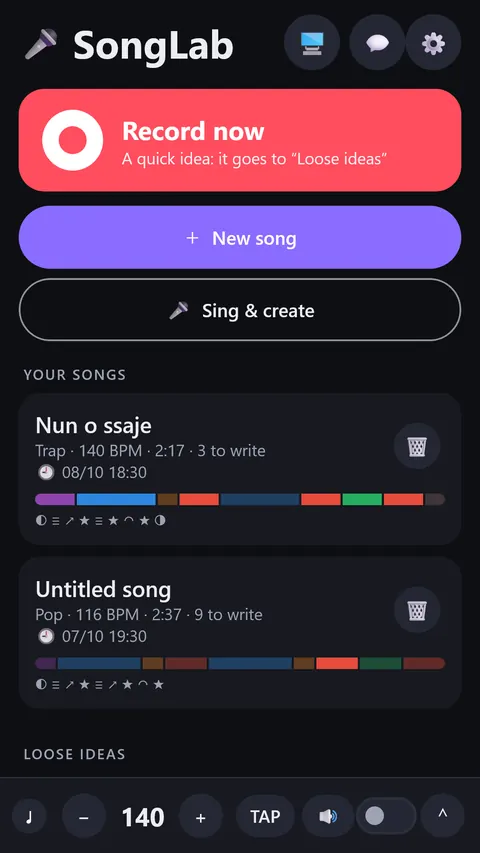
| Where | Button | What it does |
|---|---|---|
| Top | 🖥️ | Opens Open on PC (chapter 14) |
| Top | 💬 | 💡 Suggest an idea or 🐞 Report a problem (chapter 15) |
| Top | ⚙ | Settings (chapter 16) |
| Big, red | Record now | A quick idea: one tap and you're recording, no count-in and no choices. Tap again (Stop) and the idea goes to Loose ideas |
| Purple | + New song | Pick a template or a genre (chapter 2) |
| Below | 🎤 Sing & create | Hum a melody or a beat and it becomes a part played by an instrument, in a new song (chapter 10) |
| List | Your songs | Each song shows its title, genre, BPM, length, how many sections are still to write and a coloured strip with the sections. Tap to open it, 🗑 to delete it. Long-press: ✎ Rename, ⧉ Duplicate, ⤴ Export (JSON), 📦 Song with audio (ZIP), 🗑 Delete |
| List | 🗑 Recently deleted | Deleted songs stay here for 30 days and can be restored with one tap |
| List | Loose ideas | The ideas you recorded on the fly: ▶ play, tap Idea N to write a note, 🗑 delete |
While you're recording with Record now, a red bar stays at the bottom of every page: Recording · m:ss ■ Stop. You can move around the app and stop whenever you like.
At the bottom of almost every page there's the metronome bar (chapter 4).
2. New song: templates and genres#
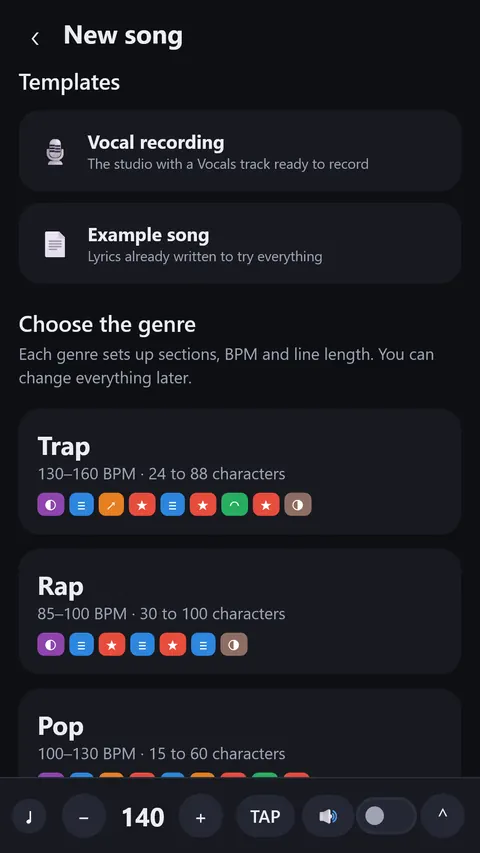
Templates
- 🎙 Vocal recording: creates a Trap song, opens the Studio with the Vocals track already armed and sets the metronome to the song's BPM. For when you just want to record.
- 📄 Example song: a Trap song that's already written and split into sections, so you can try everything out.
Choose the genre: each genre sets up the sections, the BPM and the line length. You can change everything later.
| Genre | BPM (starts at) | Lines | Ready-made structure |
|---|---|---|---|
| Trap | 130–160 (140) | 24 to 88 characters | Intro, Verse, Pre-chorus, Chorus, Verse, Chorus, Bridge, Chorus, Outro |
| Rap | 85–100 (92) | 30 to 100 characters | Intro, Verse, Chorus, Verse, Chorus, Verse, Outro |
| Pop | 100–130 (116) | 15 to 60 characters | Intro, Verse, Pre-chorus, Chorus, Verse, Pre-chorus, Chorus, Bridge, Chorus |
| Neomelodico | 70–100 (84) | 20 to 70 characters | Intro, Verse, Chorus, Verse, Chorus, Chorus |
| Reggaeton | 88–100 (94) | 15 to 60 characters | Intro, Verse, Pre-chorus, Chorus, Verse, Pre-chorus, Chorus, Bridge, Chorus, Outro |
| R&B | 60–90 (72) | 15 to 60 characters | Intro, Verse, Pre-chorus, Chorus, Verse, Pre-chorus, Chorus, Bridge, Chorus (starts in F minor) |
| Drill | 138–146 (142) | 24 to 88 characters | half-time: Intro, Chorus, Verse, Chorus, Verse, Chorus, Outro |
| Rock | 100–140 (120) | 15 to 60 characters | Intro, Verse, Chorus, Verse, Chorus, Bridge, Chorus, Post-chorus, Outro (starts in E minor) |
Sections start out empty. Choruses are linked repeats of the first one ("Chorus A"): write it once and the lyrics show up in all of them. If a genre has 3 or more choruses, the last one is already detached, so you can vary it. New songs start in C harmonic minor (R&B and Rock in their own key).
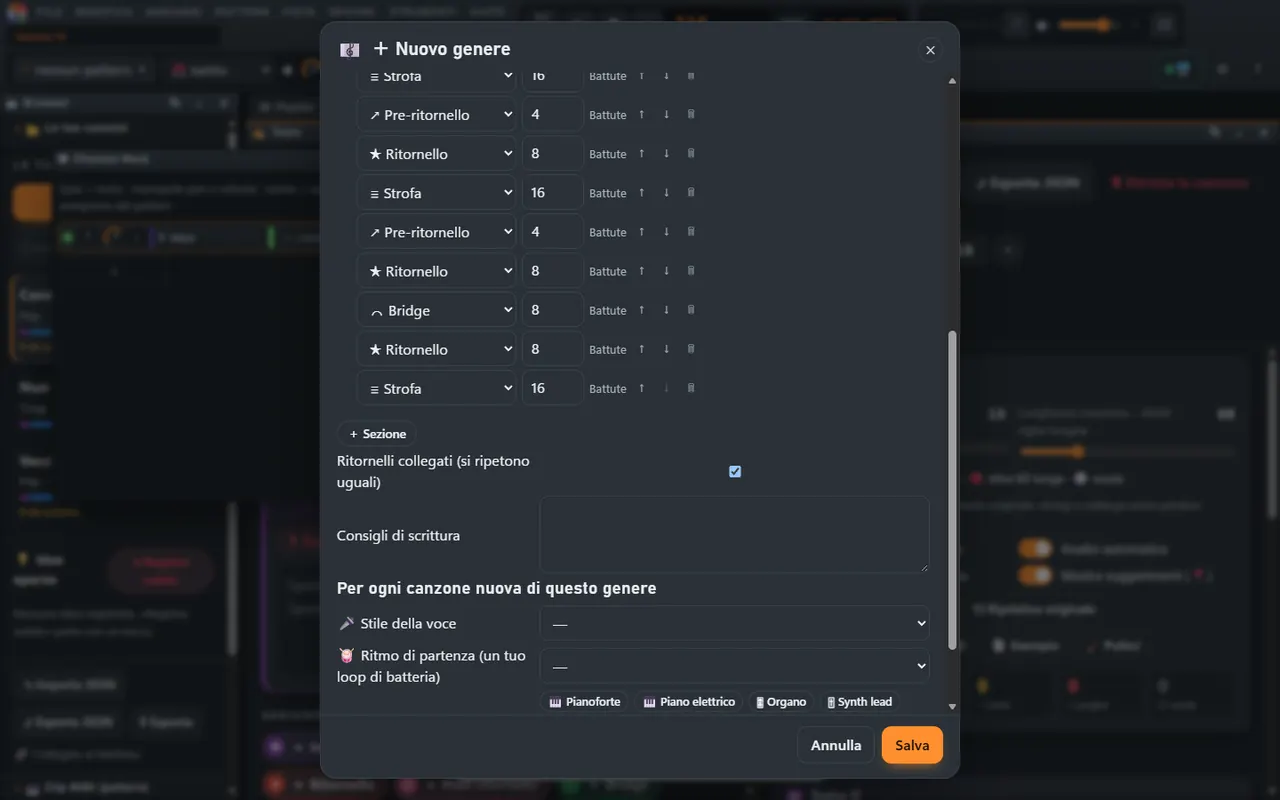
Your genres. With + New genre (or 🎼 Genres, also in ⚙ Settings → Voice and genres) you create a genre of your own, or Duplicate and edit one of the app's: name, icon, minimum, maximum and typical BPM, Half-time, minimum and maximum line length, words per second, starting key, Structure (the sections with their bars), Linked choruses, Writing tips and, for every new song in this genre, the vocal style, a starter beat (one of your drum loops) and the instruments for new tracks. Genres can be exported and imported as files, and they reach the PC too.
3. The lyrics editor#
Title, genre, BPM, key and length#
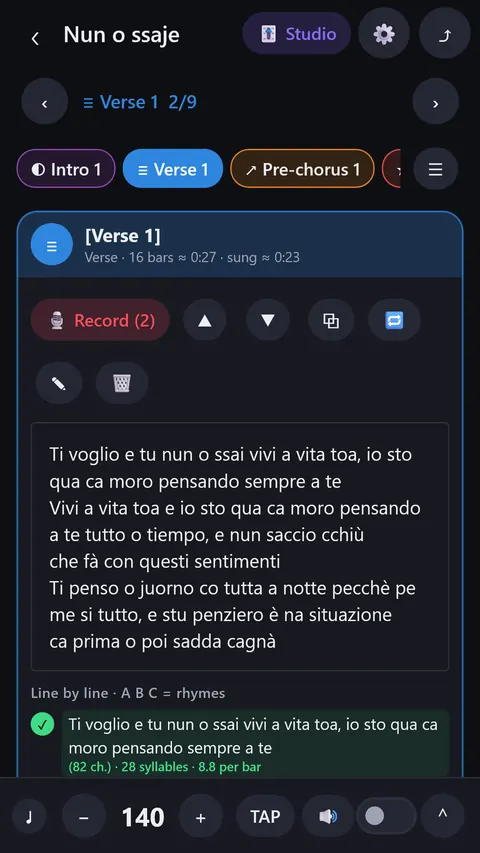
- Title and Genre: changing the genre changes the BPM, the line limits and the singing speed; the sections stay as they are.
- − 140 BPM +: the song's tempo.
- 🎼 Key: 12 notes and 6 scales (major, minor, harmonic minor, major pentatonic, minor pentatonic, blues). It's used by the scale keyboard, the piano roll and 🎤 Sing & create: these are the song's "right" notes.
- ⏱ Estimated length · sung ≈: the length comes from the bars of each section and the BPM; "sung" estimates how long the sung lyrics last, based on the words and the typical speed of the genre.
- At the top: 🎚 Studio opens the Studio (chapter 6), ⤴ sends the song as a JSON file (as a copy or for another phone).
Sections#
At the top there's a row of section tabs with a colour and an icon (so you can tell them apart even without seeing the colours). The ☰ / ▭ button switches between All sections as a list and One section at a time (tabs).
| Section | Colour | Icon |
|---|---|---|
| Intro | purple | ◐ |
| Verse | blue | ≡ |
| Pre-chorus | orange | ↗ |
| Chorus | red | ★ |
| Post-chorus | pink | ✦ |
| Bridge | green | ⌒ |
| Interlude | grey | ♪ |
| Outro | brown | ◑ |
Each section shows "type · N bars ≈ m:ss · sung ≈ m:ss" and a To write badge if it's empty. Its buttons:
- 🎙 Record (N): records the section (chapter 5); N is the number of takes.
- ▲ / ▼: moves it up or down.
- ⧉ Duplicate: an independent copy.
- 🔁 Repeat (linked): a repeat right after it that changes together with the original ("🔗 Repeats…"); with ✂ Detach to vary it it becomes independent.
- ✎ Rename and 🗑 Remove section.
- ⟲ Restore original for that section only.
Below there's Add section, with a button for each of the 8 types. New sections number themselves (Verse 2, Chorus B…).
Line length#
This is the heart of the editor: every line is counted (accented letters count as 1) and coloured.
| Colour | State | Meaning |
|---|---|---|
| 🟢 ✓ | ok | between the minimum and maximum length |
| 🟡 – | short | below the minimum ("N short") |
| 🔴 ! | long | above the maximum ("N over") |
| ⚪ ○ | empty | a line with no text |
- Minimum length (10–50) and Maximum length – split long lines (40–120): when you move the sliders, the lines are always refitted from the original text, so you can tighten and widen without losing anything. Long lines are split at the last suitable space, and consecutive short lines are joined as long as they fit; words are never broken and linked sections are left alone. 📐 Resized: min–max characters appears for a moment.
- The original is the text you type: one second after you stop typing, it becomes the new original.
- Switches: Fit lines automatically, Automatic analysis, Autosave, Show suggestions (📍). If you turn them off, 📐 Resize now, 🔍 Analyse now and 💾 Save appear.
- Buttons (they ask for confirmation): ✂️ Apply all breaks, ⟲ Restore original, ⚙ Reset settings (24–88), 📄 Example (puts in the example lyrics), 🧹 Clear (empties the lyrics, the sections stay).
- At the bottom: Total lines and how many are ok, short, long and empty.
📍 Where to break the line#
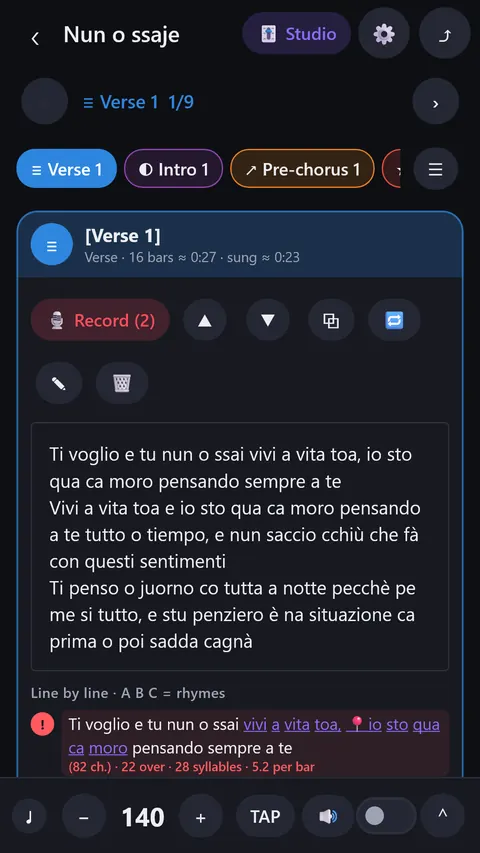
On long lines (with Show suggestions (📍) on) the app suggests the best place to break the line: first after punctuation, then between two words, always trying to get two pieces within the limits.
- 📍 break here splits the line there; ↩️ remove takes the break away.
- The underlined words are the other good spots: tap a word to break the line there.
- ⚠️ Still too long warns you if a piece is still over the limit.
💡 Breaks added with 📍 are kept in memory only while the app is open: to keep them, tap ✂️ Apply all breaks, which writes them into the lyrics.
Rhymes and syllables#
In the Line by line · A B C = rhymes preview, each line gets a coloured circle A, B, C… when its rhyme appears at least twice in the same section (the rhyme is worked out from the stressed vowel: it works best with Italian, Neapolitan and Spanish, and only roughly with English). Under each line: N syllables · X per bar, so you can see whether the line fits the metre.
4. The metronome#
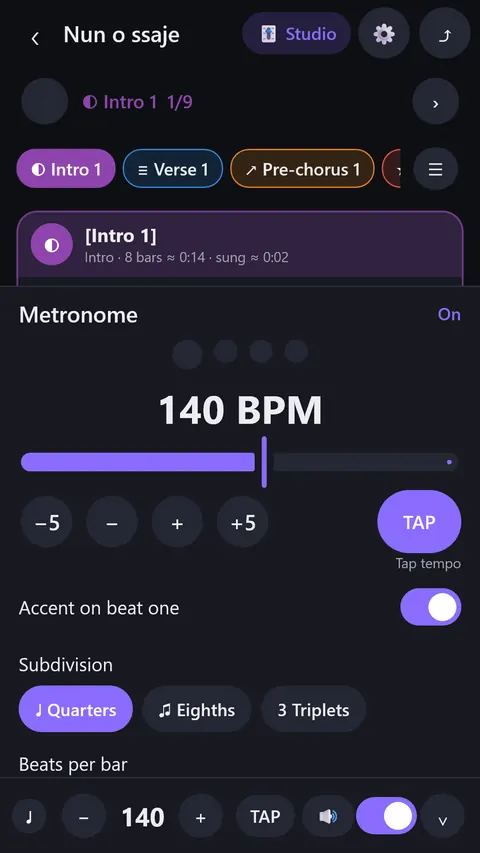
The bar at the bottom is always within reach: the flashing dot (red on beat one), − BPM +, TAP, 🔊 volume, the on/off switch and ⌃ to open the panel.
| Control | What it does |
|---|---|
| BPM | from 40 to 220, with the slider or with −5, −, +, +5 |
| TAP (Tap tempo) | tap at least 3 times in time: the app works out the BPM |
| Accent on beat one | the first beat sounds different |
| Subdivision | ♩ Quarters, ♫ Eighths, 3 Triplets |
| Beats per bar | 2, 3, 4, 5, 6 or 7 |
| Count-in before recording | none, 1 bar or 2 bars |
| Volume | 🔊 as a percentage |
🎧 Use headphones: the metronome click never ends up in the recording.
In the Studio the click follows the song's grid: it stays in time with the beat even if you start the music halfway through, and you always hear the count-in.
Time signature and BPM with decimals#
The time signature tells you how many beats there are in each bar and how you count them: 4/4 is the most common (you count "1 2 3 4"), 3/4 is the waltz one ("1 2 3"), 6/8 is counted in two groups of three ("1 2 3 4 5 6"). In the Studio, tap the BPM in the transport at the bottom: the tempo dial opens.
- Tap the number to type the BPM yourself, decimals included (for example 92.5): handy when an imported backing track isn't on a round number.
- Time ▾ picks the song's time signature: 4/4, 3/4, 2/4, 6/8, 5/4, 7/8, 12/8, 9/8, 2/2, 7/4, or Other… to type one in (for example 7/8).
The time signature changes the bars on the ruler, the grid, the count-in and the metronome (in 6/8 the click beats the eighths, with the accent on the first of the bar). The vocal takes stay attached to their section: if you change the BPM or the time signature, each take moves along with its verse or chorus.
5. Recording a section and takes#
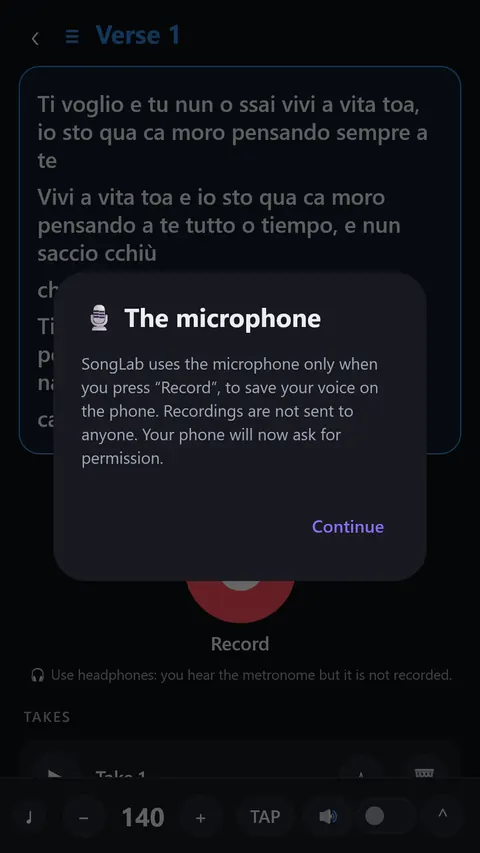
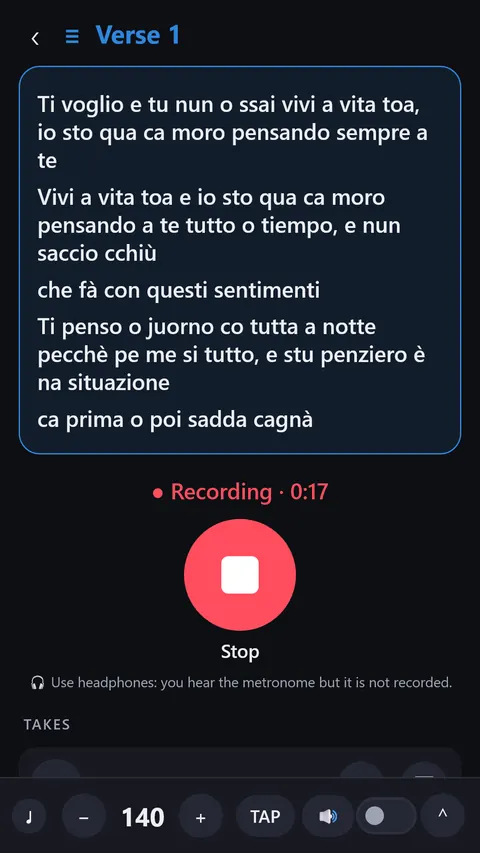
- In the section, tap 🎙 Record.
- The first time, the app explains what the microphone is for (The microphone, Continue button) and then Android asks for permission. If you said no, Phone settings takes you where you can change it.
- The section's lyrics are shown in large type. Tap Record: with a count-in you'll see Get ready… N, then ● Recording. Tap Stop.
- Each recording is a take (Take 1, Take 2…): ▶ play, ☆ Mark as best (only one per section, "★ Best"), 🗑 delete.
Takes are saved as M4A (AAC, 44.1 kHz) on the phone; the screen stays on while you record.
6. The Studio#
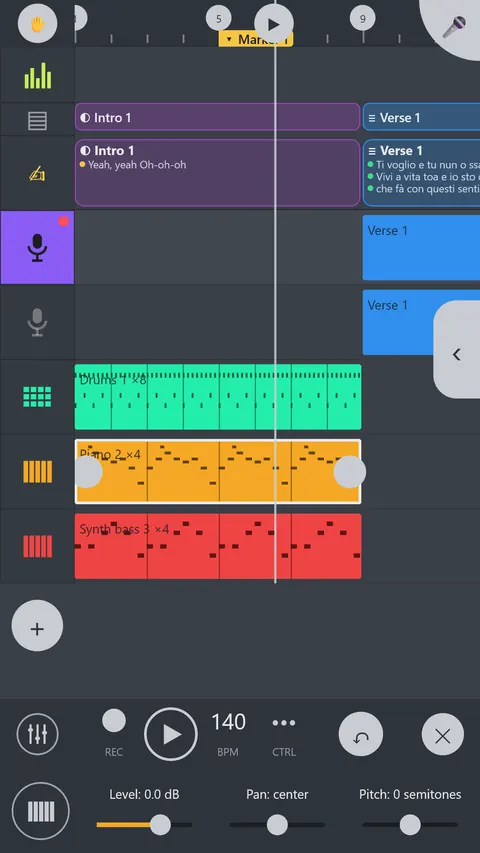
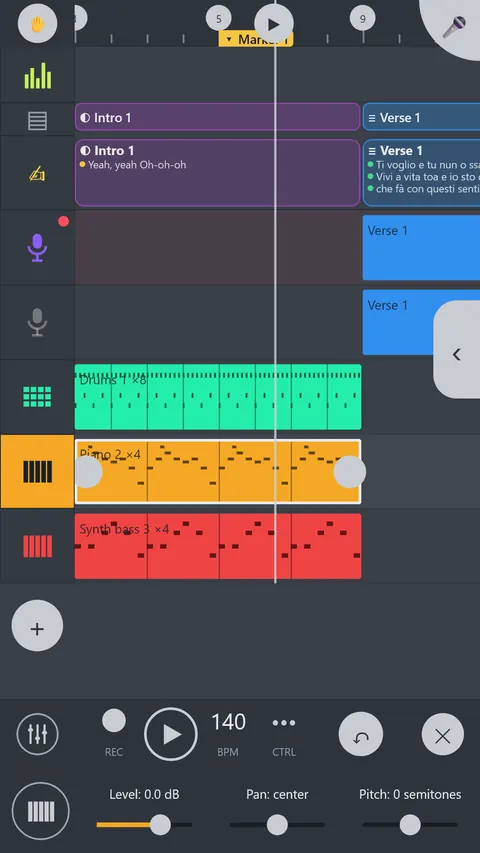
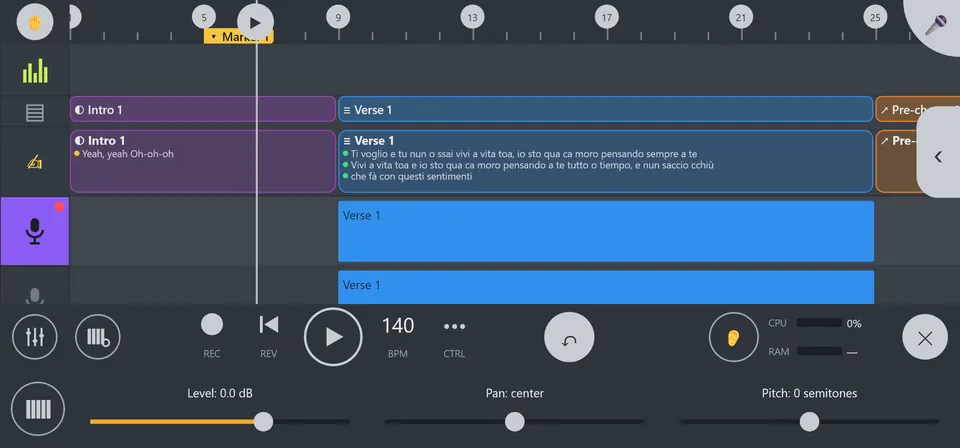
The Studio is where you put the song together, and it's built like FL Studio Mobile: a single screen, with the tracks on the left, the ruler at the top and the transport fixed at the bottom. You get there with 🎚 Studio in the editor (or from the Vocal recording template). It works in portrait and, if you turn the phone, in landscape, where you see more bars.
How it's laid out#
- Tracks on the left, one per row, with the icon of their type in the track's colour: Structure (the sections), Lyrics, Vocals, Other takes, the instruments. Tap the icon = selects the track (the Rack shows it; a second tap opens it); long-press = the track menu: Rename, Change instrument, Colour, Scale keyboard, + New clip, ● Arm for recording, ▲ / ▼, Delete. Pinch vertically to make the tracks taller or shorter.
- The ruler at the top: tap = the playhead goes there; drag = moves the playhead; drag in the lower half = selects a range of time, then the range's (+): Deselect, 🔁 Loop it, Select the clips, Insert space, Duplicate, Delete, Delete space, Trim to selection. Two fingers = zoom.
- The round button at the top left: the Playlist tools (as in FL Studio Mobile) and the snap (none, 1/16, 1/8, beat, bar).
- The round 🎤 button at the top right opens the Home menu with the SONGS tab (your other songs, New song, 👥 Join with a link), PROJECT (⚙ Song, 🎯 Coach, 🎤 Sing & create, 📄 All the lyrics, 🎹 Scale keyboard), SETTINGS, FILES (📦 Browser, ⬇ Export, 🖥️ Open on PC, the sync status), HELP and TOGETHER (👥 Collaborate, chapter 31), plus SAVE, always within reach.
- The ‹ tab on the right edge opens the Rack: the channels of the selected track (sound, Mixer, samples) and, from there, the 📦 Browser.
The Lyrics track and the Structure#
The Lyrics track shows the song's sections as clips, with the first lines of the lyrics inside them: tap = opens that section so you can write it, so you write and listen to the beat in the same place. The Structure above it is the coloured ribbon of the sections: tap = the playhead goes there, double tap = that section loops.
Clips#
- One tap on a clip selects it: the handles appear at its edges, along with the bubbles Copy, Delete, Snap (puts it back on the grid), Edit (double tap = the editor: the step grid for drums, the piano roll for everything else) and ⋯ More.
- Drag the clip to move it, even onto another track. The handles lengthen or shorten the clip's window (as in FL Studio: the notes stay in time, they don't stretch).
- Paste: after Copy, press and hold on an empty spot and the copy goes there.
- At the bottom, the clip panel: Level, Pan and Pitch (in semitones); for audio clips also Speed, REV (reversed) and SYNC (the clip follows the song's BPM).
- ⋯ More: Cut, Paste, Duplicate, ▶ Use this take and 🔀 All takes together / 1️⃣ This take only (the takes at the same spot, see below), Mute / Unmute, 🎨 Colour, Repeat, Extend to the whole song, Make unique, Render as audio clip (and Render and replace) for MIDI clips, 🔪 Slicer and ⏱ Detect tempo for audio clips.
- 🔪 Slicer: chops an audio clip (a drum loop, for example) on its hits; each slice becomes a sample on a new Drums track, already playing just as before.
- Render as audio clip: the MIDI clip becomes audio with its instrument and effects, on a new track; with Render and replace the MIDI clip is muted.
- Fades: audio clips can come in and go out gently (you make the fades on the PC, with the clip's top corners) and you hear them the same way on the phone. If you split a clip, the fade-in stays on the left piece and the fade-out on the right one.
- No audio lost by mistake: when you remove a clip, a track or a take, the recording's file isn't deleted straight away. With ↶ (or by going back to an earlier version) it returns to its place; it's only deleted once no song, version or history uses it any more.
Ruler, markers and loops#
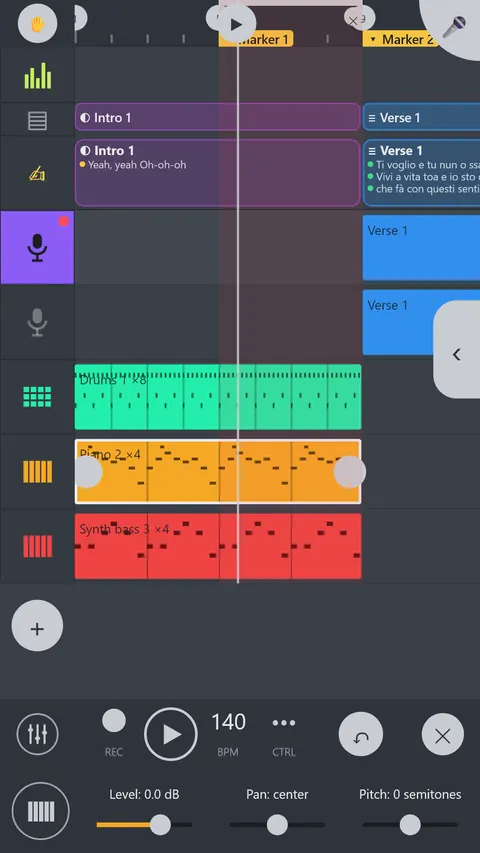
- The yellow markers "▾ Name" are added at the playhead with CTRL ▸ ▾ Add a marker. Tap = go there, double tap = loops up to the next marker (or section), long-press = removes it. If two markers are close together, the label gets shorter so it doesn't cover the other one.
- The loop shows up as a band on the ruler and above the tracks; ✕ removes it. While playing, when it reaches the end the song starts again from the beginning of the loop: handy for repeating a chorus while you write or try out the vocals.
Recording: takes, punch and loop takes#
- ● arms recording; ▶ starts (or ● while playing records on the fly from the playhead). The take goes into the armed track (if no track is armed, into the Vocals track), with the song playing underneath and the count-in.
- With the ● on and while you record, the microphone level appears above the transport: a bar that's green, yellow when you're getting close to the maximum, red when it's too loud. If it often reaches red, move a little further away from the phone.
- If the phone supports it, the take is recorded in stereo (left and right kept separate); otherwise in mono, as always.
- If the song has lyrics, the teleprompter with the line to sing also appears while you record a track (chapter 11).
- Several takes at the same spot stack up: the last one plays, the others stay there and you pick them with ▶ Use this take.
- With a loop, the ⇥ sign at the start of the loop opens the options:
- ⇥ Punch: record only inside the loop: "punch" means redoing just one piece. The music starts a little earlier, but only the part inside the loop is recorded, and recording stops by itself at the end. For redoing a single line without touching the rest.
- Pre-roll and Post-roll (0, 1, 2 or 4 bars): how many bars of music you hear before the loop, to catch the entry, and after the loop, to finish the line naturally. Only the part inside the loop is ever recorded.
- 🎙️ Loop takes: one per pass: the song loops and every pass becomes a new take in the same group ("N takes, one per pass"). Sing the verse five times in a row, then pick the best one.
- 🔀 Blend takes: all of them play: the new takes all play together instead of only the last one, for backing vocals and vocal doubles. From the clip menu you can go back to This take only whenever you like.
- ✂ Comp by sections (from the ⋯ More menu of a take recorded in a loop): it's what studios call "comping", that is putting together the best pieces of several takes. Each take becomes a row: drag along a take's row and that take plays in that stretch (the others go quiet); a tap picks the whole stretch. That way you take the first line from take 2 and the second from take 4; at the joins the app smooths out the cut.
The transport at the bottom#
| Sign | What it does |
|---|---|
| 🎚 | The Mixer (it opens in place of the tracks) |
| REC ● | Arms recording (see above) |
| REV ⏮ | To start |
| ▶ / ■ | Play from the playhead / stop |
| BPM | Tap = the tempo dial: −1, +1, −10, +10, the BPM typed in (decimals too) and the time signature (chapter 4). Long-press = the Studio metronome: TAP, on/off, volume, count-in bars |
| CTRL ⋯ | ♩ Metronome, 🎹 Play with the keyboard (in key) (the keyboard at the bottom, chapter 9), ▾ Add a marker, 🔍 zoom, 🎙️ Record whole song (teleprompter), 🗂 Arrangements…, 🕘 Edit history, 🎹 Recover the notes you played, ⏱ Recording latency, 👂 Listen to the selected clip only, sync and versions (chapter 14). On a narrow phone there are also ⏮ Playhead to start and ↷ Redo |
| ↶ | Undo (long-press = Redo; on wide phones there's also ↷): every gesture is one step. The button always keeps its place, so BPM and CTRL don't move |
| CPU / RAM | How hard the phone is working (as in FL Studio Mobile) |
All the Studio buttons are big enough to tap comfortably with a finger, and the full-screen editors (drums, piano roll, keyboard) have the same transport bar at the bottom.
💡 Recording latency: "latency" is the small delay between what you hear and what the phone records. If your takes land late against the beat, open CTRL ▸ ⏱ Recording latency: with − / + you correct it in steps of 5 ms, or tap 🎯 Measure latency and the app measures it by itself. For the measurement, take your headphones off (the microphone has to hear the speaker), turn the volume up and keep quiet: three clicks play. If it can't hear them, it tells you.
🕘 History (CTRL): the list of changes, newest first, with their names ("Move clip", "Recording", "Effects"…): tap an item to go back to before it.
📦 The Browser#
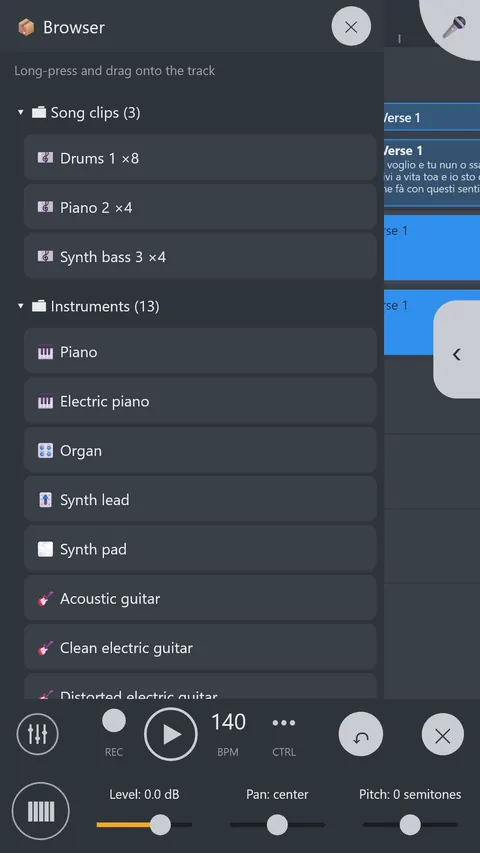
The Browser (from the Rack or from Home ▸ FILES) has the folders Song clips, Instruments, Sound presets, Saved loops and Effects. Tap = an instrument becomes a new track, anything else goes onto the selected track at the playhead; long-press and drag = you drop it yourself on the track (and the bar) you want.
🗂 Multiple arrangements#
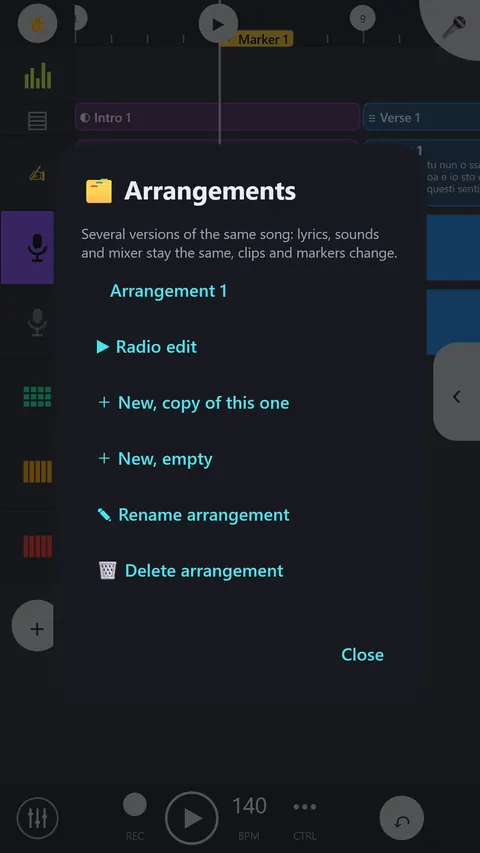
From CTRL ▸ 🗂 Arrangements… you make several versions of the same song: for example the long one and the "radio edit", or a try-out with the verse moved. Lyrics, sections, instruments and mixer stay the same; each arrangement has its own clips and markers. Tap an arrangement to switch to it; + New, copy of this one starts from the current clips, + New, empty from scratch; then Rename and Delete. Everything can be undone with ↶.
The mixer and effects#
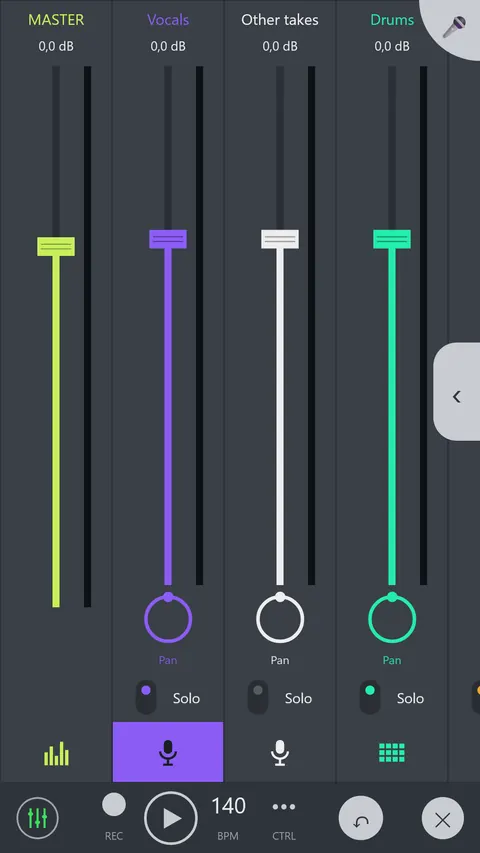
- 🎚 shows the Mixer in place of the tracks: Master (the final output, that is the whole song together) and one strip per track with fader, Pan, Solo and the track icon (tap = mute).
- The fader is the volume slider: the value is shown in dB (0 dB = the volume as it is, negative numbers turn it down) and a double tap puts it back to 0 dB. You hear the volume and pan change while you drag, even with the music playing.
- The pan moves the sound further left or right in your headphones; in the centre the volume stays the same.
- Next to every strip there's a meter: a bar that's green, yellow from −12 dB and red from −3 dB, with the peak staying lit for a moment. If the Master often reaches red, turn the loudest tracks down a little.
- Under the Master you read the loudness in LUFS: it measures how loud the song sounds to the ear (not just its peaks). The first number is the loudness of the last 3 seconds, I that of the whole listen.
- A safety limiter always works on the Master: a "ceiling" that stops the sound from going over the maximum and crackling. It's the same on the phone and on the PC, and what you hear is what you export.
- The Rack of the selected track (the ‹ tab on the right) is built from modules, as in FL Studio Mobile: Mixer (Level, Pan, Mute, Solo, ● Arm; from the ☰ 🎨 Colour and Reset the track), the Instrument (sound and preset, or your own sample), a module for each effect with its own on/off light, + to add more, the Sends, the Sidechain and the saved chain.
- Up to 8 effects per track and on the Master: Equalizer, Compressor, Filter, Distortion, Delay, Reverb, Limiter; for vocals also Pitch correction, De-esser, Vocal EQ, Saturation, Doubler, Harmonizer, Pitch & formants, Chorus, Telephone / radio, Bitcrusher, Gate. Each effect has its own knobs plus Mix and its own presets.
- Send to Reverb (R) and Delay (E) on every track, and ↩ Returns on the Master: reverb size and damping, delay time and feedback, Return level.
- Sidechain (duck with…): the track ducks when another one plays, for example the 808 bass under the kick, as in trap.
- Save the chain / Load a chain: a track's effects become a chain you can reuse.
- Effects, sends, returns and swing can be changed while the song is playing, without stopping it.
🎤 Vocal effects and pitch correction#
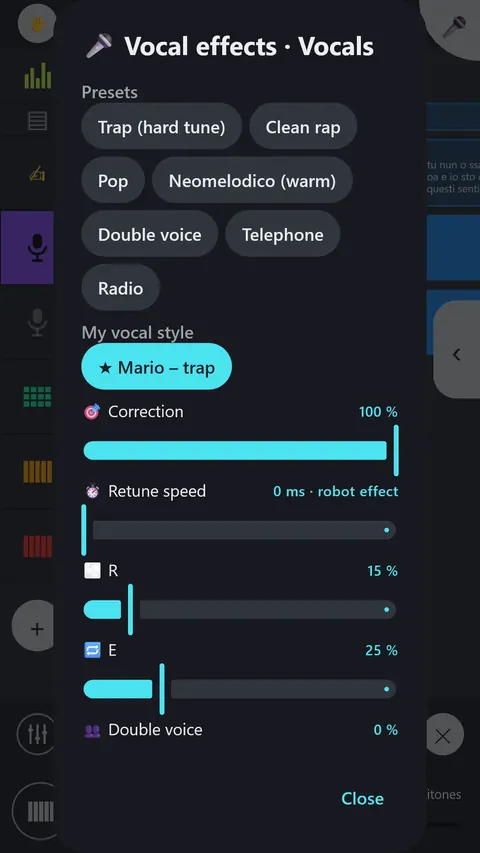
In the Vocals track's Rack → 🎤 Vocal effects:
- Ready-made Presets: Trap (hard tune), Clean rap, Pop, Neomelodico (warm), Double voice, Telephone, Radio.
- Five big controls: 🎯 Correction, ⏱ Retune speed, R (reverb), E (delay), 👥 Double voice. Below them, This track's chain with all the effects in order.
- Pitch correction moves your voice onto the right notes: Retune speed (0–400 ms; close to zero you get the famous "robot effect"), Humanize (keeps the vibrato), Transpose, Formants, Mix and the Notes: The song's key or All notes (chromatic).
- Below the chain, FX ⏻ switches all the track's effects off (and back on): you hear the voice with and without effects in one tap.
- Apply to the whole song copies the chain to the other Vocals tracks.
🎧 Live monitoring#
In the 🎧 Live section of the vocal effects:
- Monitor with effects in headphones when the track is armed: arm the track (●) and you already hear yourself with the effects while you sing. Live correction uses a low-latency version (about 14 ms); the take and the export use full quality. If the delay is high the app tells you: use wired headphones (Bluetooth ones add more delay).
- Record with effects: when it's off, the clean voice is recorded and the effects stay editable; when it's on, the take already contains the effects.
- ✓ Apply effects (new take): creates a new track "… · with effects" with the processed voice; the original one stays, muted.
⭐ My vocal style#
When you like the chain, tap ⭐ Save as my style. The first style you save becomes the default (★): every new Vocals track and every new song gets it, on the phone and on the PC (if the genre has a vocal style of its own, that one wins). In My styles… you choose the default and rename, export, import or delete styles; you can also find it in ⚙ Settings → Voice and genres → ⭐ My vocal style.
7. Step drums#
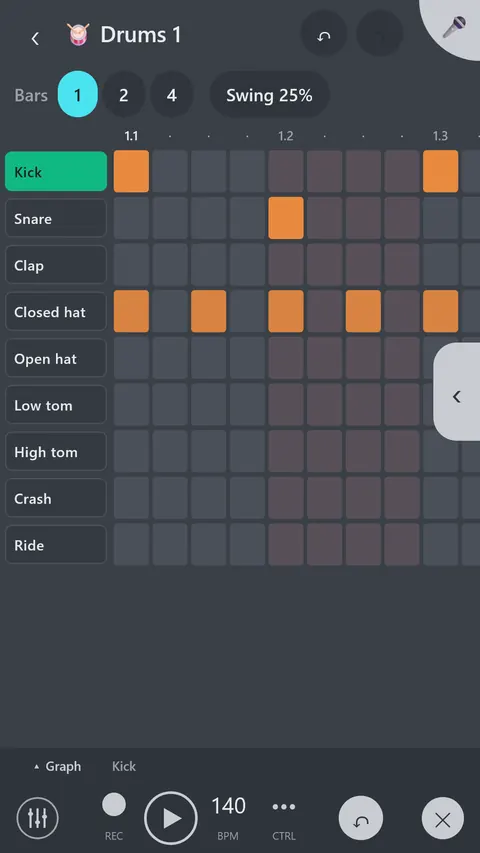
- Bars 1 / 2 / 4 and Swing (delays the off-beat sixteenths, for the whole song).
- A grid of 16 steps per bar for 9 kit pieces: Kick, Snare, Clap, Closed hat, Open hat, Low tom, High tom, Crash, Ride. Tap = on/off, long-press = accented hit.
- Tap the name of a piece: Fill every 2 / 4 / 8 steps, 🗑 Clear the row or ⭐ My samples (a sound of your own on that piece).
- ▴ Graph: the Velocity of each step (how hard it hits), drawn with your finger; Repeat: a step played 2, 3 or 4 times (the rolls and fast hi-hats of trap); Pan (the hit further left or right) and Pitch (the hit higher or lower, in semitones). Double tap on a bar = the normal value.
- Below, the 3×3 pads to play with your finger; ● Record by playing the pads records what you play.
- A new beat starts with kick, snare and hi-hat already in place.
🎚 Your own samples: in a track's Rack you load an audio file (a kick, a vocal chop, a sound you recorded): it becomes the track's instrument, to play with the piano roll and the keyboard, or a piece of the drum kit. The ones you've already used appear in ⭐ My samples.
8. Piano roll#
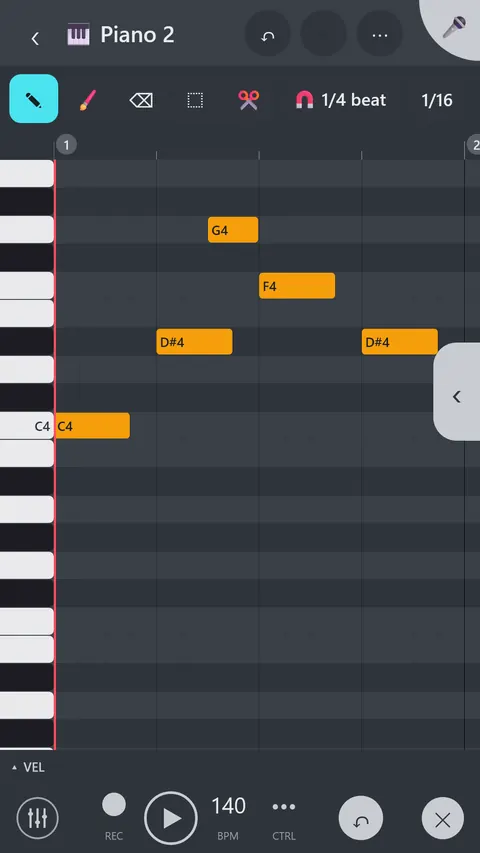
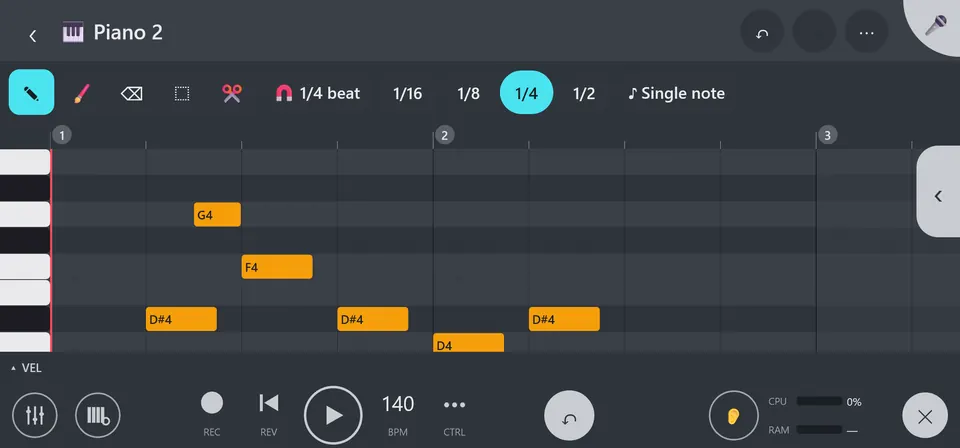
- The piano roll is horizontal, like FL Studio Mobile: time runs to the right, pitch goes up (the vertical keyboard on the left), the ruler stays fixed at the top and the grid follows the playhead while it plays. At the bottom left, VEL opens the panel under the notes (see below).
- Pinch: horizontally it changes the time zoom, vertically the height of the rows.
- Tools: ✎ pencil (tap = note), 🖌 brush (paints notes one after another), ⌫ erase, ⬚ select (a box; then the commands for all the selected notes), ✂ slice; the snap and the length of new notes (1/16, 1/8, 1/4, 1/2); the chord stamp (single note, triads…).
- Drag a note with your finger to move it (together with the other selected notes, if it's one of them).
- Tap a note: ⧉ Copy, 🗑 Delete, ↗ Slide (the note glides from the previous one, like trap 808s), 🔇 Mute, ⇤ / ⇥ (the left edge), ✥ Drag, + / -.
- With several notes selected: ×2↑ / ×2↓ (double an octave up or down), 🎲 Humanize, = (all as long as the first one), 🔇.
- Press and hold and drag on the ruler = a loop of that part (✕ removes it). The song's markers show up here too.
- The panel under the notes (from the bottom-left corner) has three tabs, with one bar for each note:
- Velocity: how hard the note plays.
- Pan: the note further to the left (L) or to the right (R). For example a chord that opens out from one headphone to the other.
- Pitch: the note a little higher or lower, in cents (100 cents = one semitone): to fix a note that's slightly "out of tune", or for an effect.
Drag the bars with your finger; if you've selected some notes, only those change. Double tap or long-press = the normal value, ⟲ puts the normal value back on all the selected notes. Pan and pitch are kept in exported MIDI files too. - In the background, the ghost notes (in grey) of the other MIDI clips playing on the same beats: write the melody while seeing the chords and the bass. The note name is written on the note when there's room. - ⋯ menu: Legato, Quantize (1/16) (puts the start and the length of the notes in time), Quantize start only (1/16) (puts only the start in time, the length stays as it was), Snap to scale (moves the notes you've written onto the scale), Voice waveform (your take behind the notes, so you can write the melody over the vocals), Snap to scale as a switch (notes always land on the song's scale), 👻 Ghost notes, 🎹 Chord progression… (the progressions of the key, ready to place), ▾ Marker, 🎼 Guess scale (the song's key from the notes you've written), Octave up / down, Arpeggiate, Strum, Chop, Flam, Randomize, Flip, Glue, 🎹 Record with the keyboard.
9. 🎹 Scale keyboard: chords and melody#
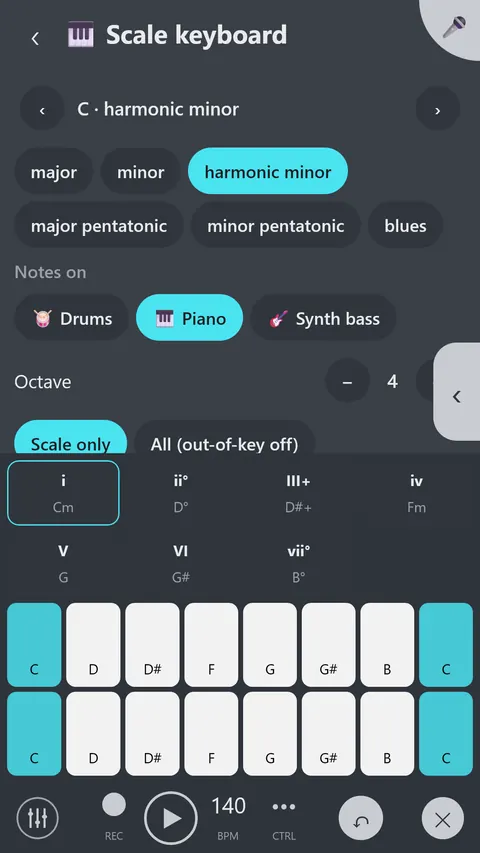
The 🎹 Scale keyboard lets you play without hitting a wrong note, even if you've never studied music: it has only the notes of the song's key, and next to them the chord pads that go well with that key. One hand plays the chords, the other the melody.
You open it from the Studio's Home menu (PROJECT ▸ 🎹 Scale keyboard), from the track menu, or from the keyboard at the bottom of the Studio (CTRL ▸ 🎹 Play with the keyboard) with its 🎼.
The choices at the top
- Key: ‹ and › move it by a semitone, the pills change the scale with one tap; ↺ The song's key goes back to the song's key.
- Notes on: the track (the instrument) that plays the notes. Octave: higher or lower.
- Scale only shows only the keys of the key; All (out-of-key off) shows the whole keyboard, with the out-of-key keys switched off, to help you find your way.
- 🎼 Chords + notes turns on the chord pads: the chords on the left (or at the top, with the phone in portrait), the notes on the right (or at the bottom).
The chords
A chord is a group of notes played together. Each pad has its name: C, Dm ("m" = minor, more melancholic), B° and so on. You can choose:
- Held (they sound as long as you keep your finger down), Repeated in time (they repeat in time with the music) or Arpeggiated (the notes of the chord one after another); for the last two choose how often: 1/4, 1/8 or 1/16.
- With the seventh: adds a fourth note, for a richer sound.
- Close inversions: each chord is played in the position closest to the previous one, so moving from one chord to the next sounds smoother.
- Chord octave and Chords on: the chords can go on the same track as the notes or on another one (for example a piano for the chords and a synth for the melody).
Recording
- Choose how to record: Quantize recorded notes ("quantizing" means putting the notes in time on the grid: None leaves them as you played them, 1/16 snaps them to the sixteenths…) and Note velocity: From touch (the lower you touch the key, the louder it plays) or fixed (64, 100 or 127).
- Tap ● Record melody: count-in, then play over the song. ■ Stop to finish. While you play you see how many notes you've recorded.
- With a loop on the ruler the song keeps going round: in Loop passes choose whether each pass Adds the notes you play (and you hear the earlier ones) or Replaces the previous pass. ↶ Remove the last pass deletes only the last pass.
The whole recording is undone with a single ↶. Your choices (quantize and velocity) are remembered for next time.
10. 🎤 Sing & create#
Sing & create is for people who have a melody in their head but can't play it. You hum the melody (or make the beat with your mouth) and SongLab turns it into a part played by an instrument: the notes go into the song's scale and in time. Then you find it as a normal clip, to edit in the piano roll.
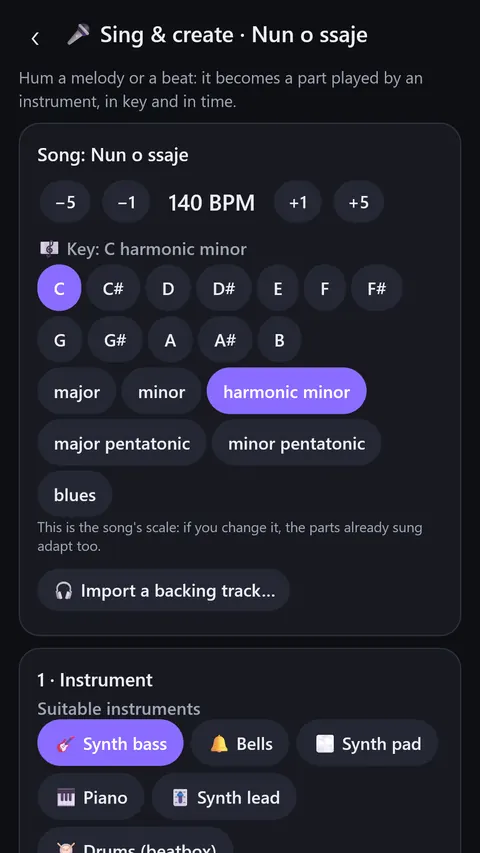
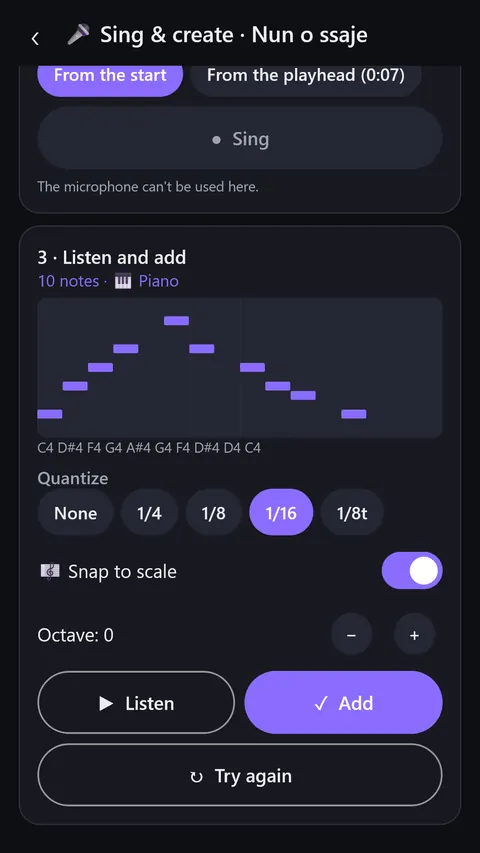
You open it from Home (🎤 Sing & create, for a new song) or, inside a song, from the Studio's Home menu (PROJECT ▸ 🎤 Sing & create).
Where do you start? (only for a new song)
- From a genre: choose the genre; the app suggests the typical BPM, the key and the suitable instruments, all of which you can change. Then ▶ Start.
- From a backing track (MP3, WAV, M4A): with 🎧 Import a backing track… you load a music file of your own. The app listens for its tempo (the BPM) and its key and shows them to you ("Backing track: 92 BPM, A minor"): fix them if needed. If the tempo isn't clear, type in the BPM yourself.
1 · Instrument. Choose the instrument from the Suitable instruments for the genre or the Other instruments. For the beat choose 🥁 Drums (beatbox) (see below).
2 · Hum in time. Choose From the start or From the playhead, and whether you want the 🥁 Metronome in headphones. Tap ● Sing: after the count-in, sing in time. In your headphones you hear the metronome, the backing track and the parts already added; the metronome isn't recorded. Tap ■ Stop (up to 5 minutes per take). It's better with headphones, so the microphone doesn't hear the metronome.
3 · Listen and add. You see how many notes (or hits) it picked up and the notes on the grid. You can still change:
- Quantize: how much to put the notes in time (None leaves them as you sang them, 1/16 snaps them to the sixteenths…).
- 🎼 Snap to scale: moves every note to the nearest note of the scale. That way, even if you sing a little out of tune, the part sounds right.
- Octave − / +: the part higher or lower.
Then ▶ Listen (you hear it over the song), ✓ Add (it becomes a new track, with the clip ready in the piano roll) or ↻ Try again. After Add you can sing another part straight away: the bass, then the melody, then the drums…
🎼 The scale is the song's: if you change it later, the parts already sung adapt too to the new notes (if you haven't edited them by hand).
🥁 Drums with your voice#
With 🥁 Drums (beatbox) you make the beat with your mouth: "boom" for the kick, "pa" or "cha" for the snare, "ts" for the hi-hat. Every hit becomes a real drum hit, in time.
🎯 Calibration (optional): if the app mixes up your sounds, teach it how you make them. Tap ● Record "boom" · Kick, make the sound 3–4 times and tap Stop; then do the same for the snare and the hi-hat. "✓ Calibration on your voice is on" appears; Remove calibration goes back to how it was.
💡 If the app doesn't hear anything, move a little closer to the microphone (for notes) or make the hits a little louder (for drums).
11. The whole song with the teleprompter#
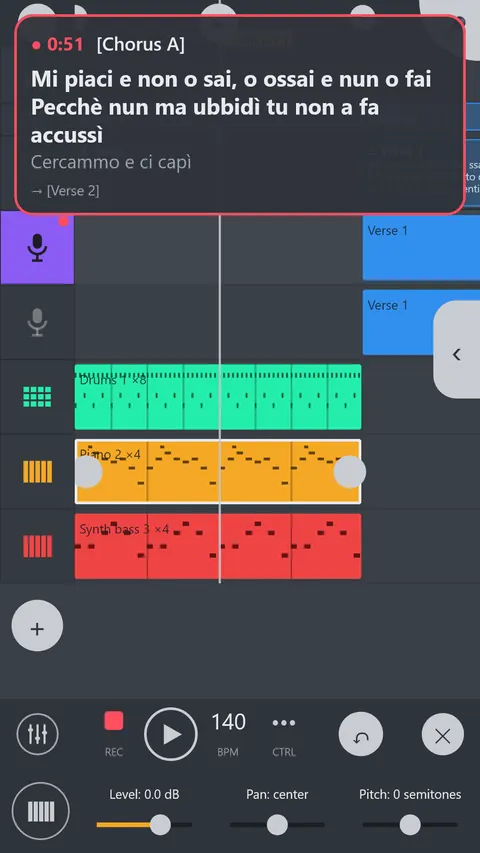
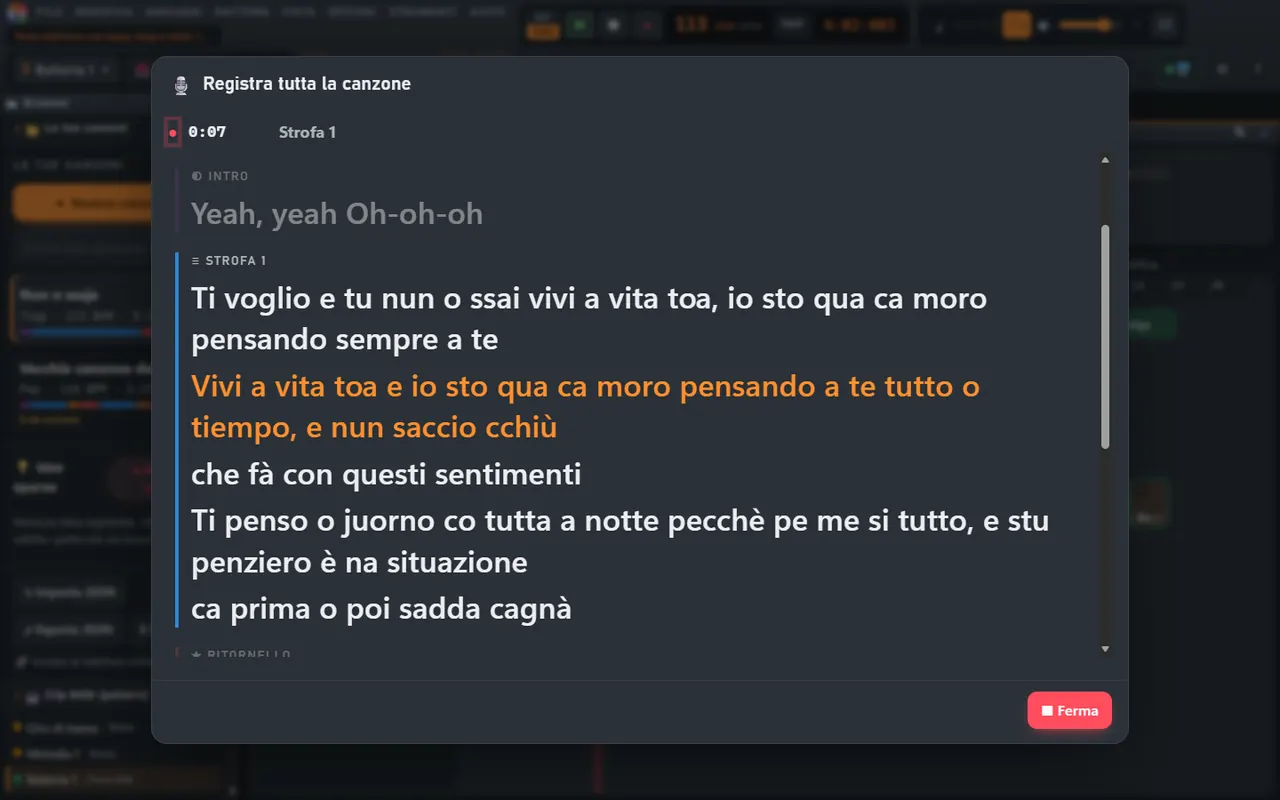
The teleprompter is the text that scrolls in front of the singer, as on TV. CTRL menu → 🎙️ Record whole song (teleprompter): it starts from the beginning with the count-in and the beat playing underneath. The teleprompter shows the section and the line to sing in bold, plus the start of the next section; it scrolls by itself, so the line to sing always stays in view, even in long verses. When you stop, the single take is split into one clip per section on the Vocals track ("🎙️ Take split into N sections").
The teleprompter also appears when you record a single track or a section in the Studio, if the song has lyrics.
12. 🎯 Singing coach#
The Singing coach listens while you sing and tells you where you're flat or sharp, early or late. It never changes the song: it only sets up the loop, the speed and the guide so you can practise. On the phone you open it from the Studio's Home menu (PROJECT ▸ 🎯 Singing coach) or from ⚙ Settings → 🎯 Singing coach; on the PC from Tools ▸ 🎯 Singing coach.
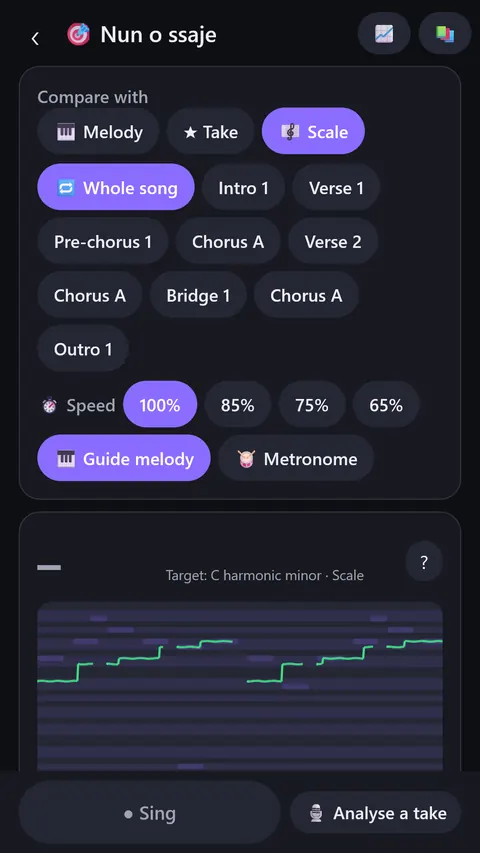
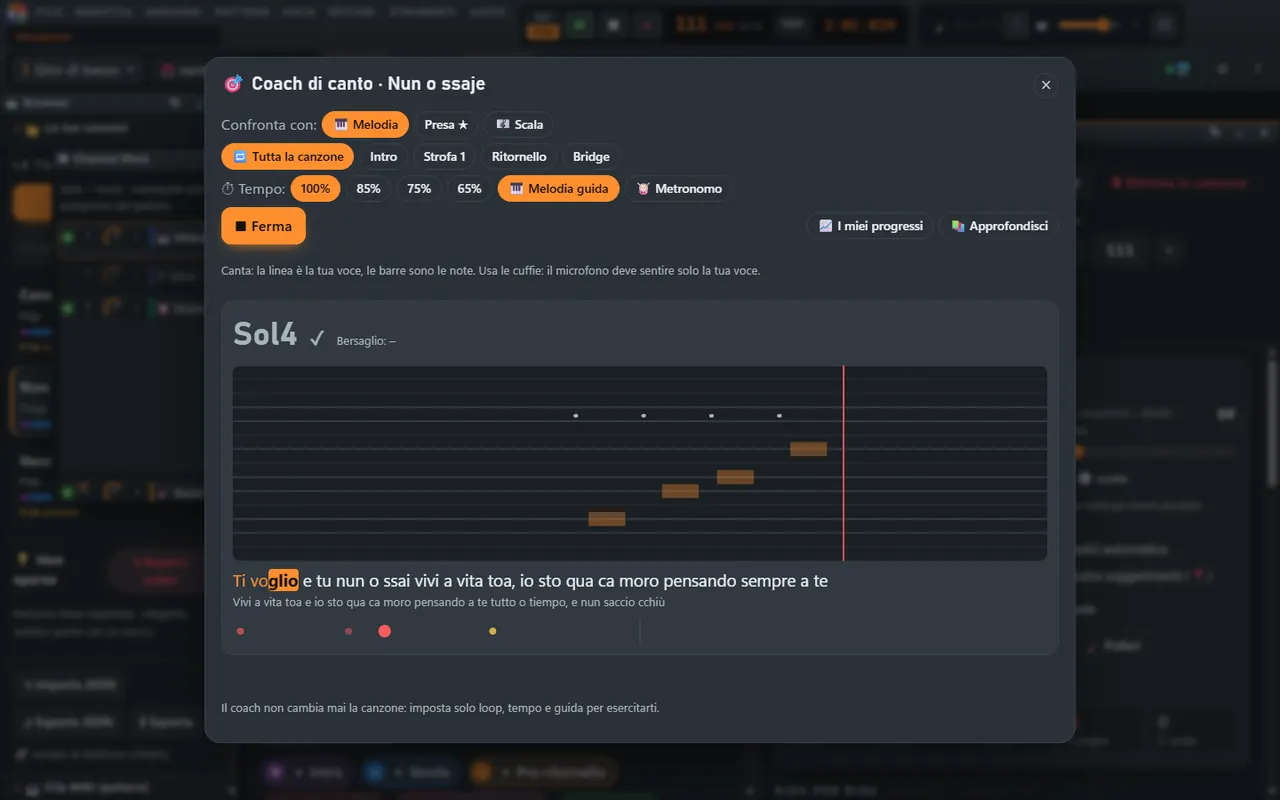
- Compare with: 🎹 Melody (the song's notes), ★ Take (your best take) or 🎼 Scale.
- Choose what to loop: the Whole song, a section or a bar; ⏱ Speed 100, 85, 75 or 65 % (below 100 % only the guide and the metronome play); 🎹 Guide melody and 🥁 Metronome.
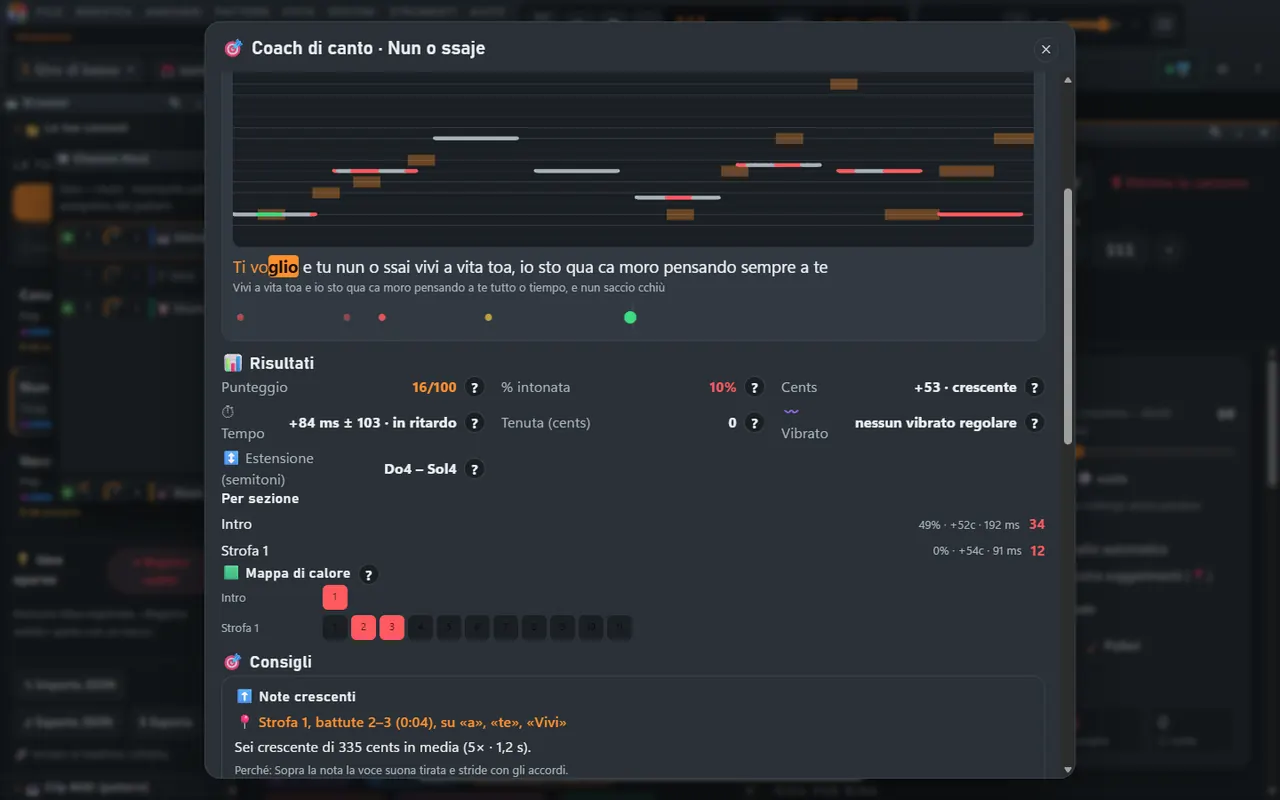
- ● Sing: the line of your voice is green when you're in tune (within 25 cents), yellow when you're slightly off, red when you're far off; you see the note, the cents and the ↑↓ arrow, the timing dots (early, on time, late) and the karaoke with the syllable to sing. You can also 🎙️ Analyse a take you've already recorded.
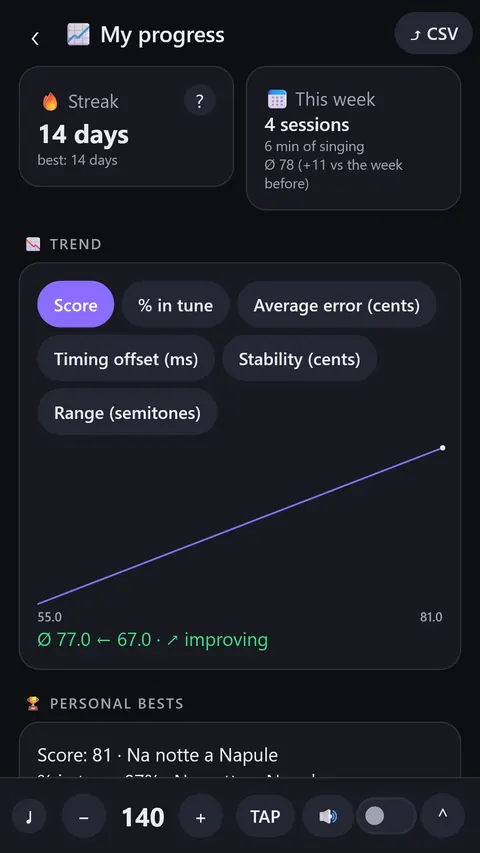
- Results: a score from 0 to 100 (70 % pitch, 30 % timing), % in tune, cents, timing offset, stability, vibrato, range, the values by section and a heat map. Each value has a ? that takes you to the right lesson.
- Tips: in Coach tips choose Off, Only on request (tap 🎯 Give me tips) or Automatic: 3 to 5 precise tips (where, what was measured, why, what to do), with ▶ Apply (sets up the exercise), 👍 Helpful, Dismiss and 🚫 Don't show again.
- 🎼 Exercises: Five-note scale, One-octave scale, Arpeggio, Thirds, Long note, Rhythm and flow, in the key and at the BPM you want, for your voice type.
- 📈 My progress: your streak of days, this week, the trend of each measure, your personal bests, the weak spots to work on and your goals; it all exports to CSV.
- 📚 Learn more: 17 short lessons (breath support, posture, warm-up, intonation, registers, range, vibrato, diction, timing and groove, rap flow, melisma, dynamics, the microphone, headphones and monitors, vocal health, how to read the charts, glossary), each with 🎯 Try it and the related exercises.
- With Live indicators outside the coach (pitch, timing, karaoke) you see them while recording in the Studio too.
🔒 The coach analyses your voice only on the phone or in the browser: it doesn't save the audio, only the numbers of the results, which stay on the device (and travel encrypted only in the link with the PC). You can switch off 📈 Track my progress or delete the history whenever you like.
13. Export#
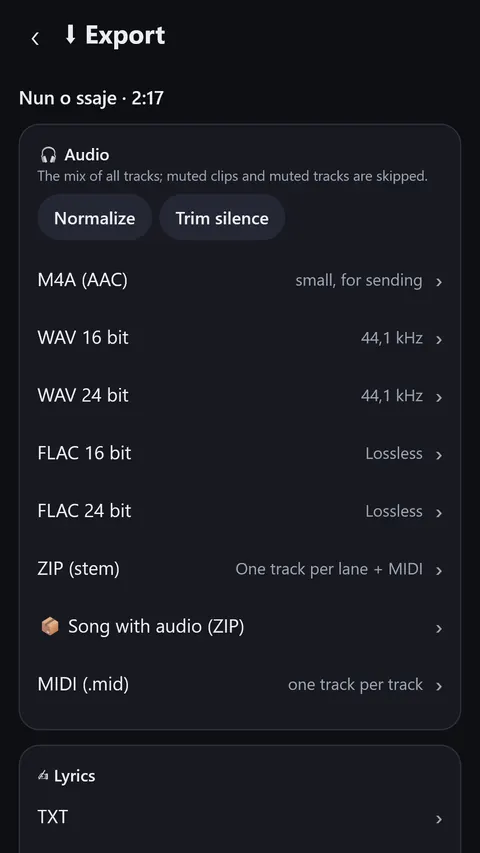
From the Studio: Home menu → FILES ▸ ⬇ Export. You can share each file with the app of your choice (WhatsApp, Drive, email…).
| Format | What's inside |
|---|---|
| M4A (AAC) | the song mix, small, for sending |
| WAV 16 bit / 24 bit | the mix in full quality (44.1 kHz), with title, genre and BPM |
| FLAC 16 / 24 bit | the lossless mix, lighter than WAV |
| ZIP (stems) | one audio track per track, plus the MIDI |
| 📦 Song with audio (ZIP) | the whole song with its recordings: it reopens on another phone or on the PC (⚙ Settings ▸ Import) |
| MIDI (.mid) | the song's notes, to open in another music program: one track per MIDI track, drums on channel 10, with BPM and time signature; muted tracks, clips and notes are left out |
| TXT, PDF, DOCX (Word) | the lyrics with their sections |
| JSON | from ⤴ in the editor or in Settings: lyrics, sections and settings, no audio |
Before the audio you can choose Normalize, Trim silence and Selection only (the range on the ruler). Effects go into the file at full quality; muted clips and tracks are left out of the mix. If the song contains an imported backing track, before exporting the audio the app reminds you to check your rights to it (Continue). For MP3, Opus and more options, use the PC (chapter 25).
Importing a MIDI file. A .mid file contains only the notes (not the sound): for example a melody or a beat made with another program. You can import it into the song on the phone too: in the Studio tap + and then 🎹 Import a MIDI file…. Each channel of the file becomes a track with the closest SongLab instrument (drums stay drums), the notes become clips you can edit in the piano roll, and the file's markers arrive on the ruler. If you change your mind, a single ↶ removes everything. (On the iPhone this item will come later.)
14. 🖥️ Open on PC#
With 🖥️ Open on PC (on Home or in Settings) you carry on with the song on your PC. You don't need an account: just scan a QR code.
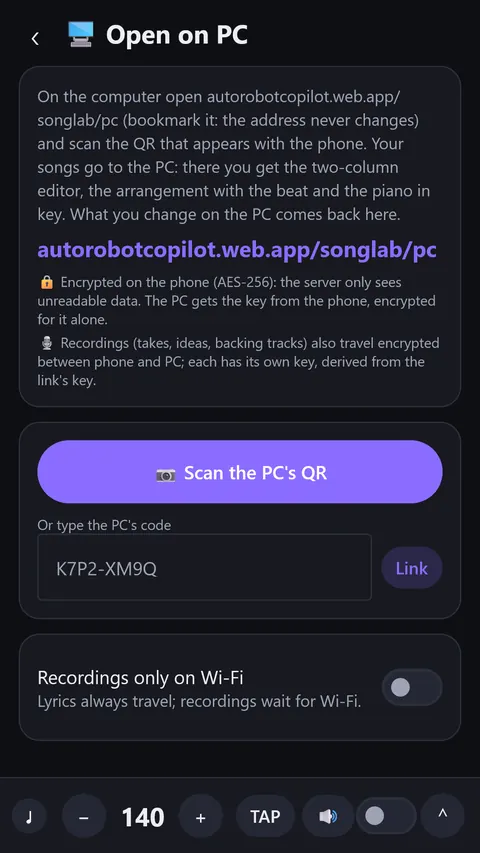
- On the PC, open autorobotcopilot.web.app/songlab/pc: a QR code and an 8-character code appear (valid for 10 minutes).
- On the phone, tap 📷 Scan the PC's QR (or type the code and tap Link).
- Done: your songs appear on the PC. Phone and PC sync by themselves about every 90 seconds; ⇅ Sync now does it straight away.
Other items:
- Recordings only on Wi-Fi: takes wait for Wi-Fi (and those over 25 MB stay on the phone); you can see how many are "waiting".
- Linked PCs, with name and last access. The link is valid for 30 days and renews itself at every sync.
- Unlink all PCs (new link): the previous PCs can't read anything any more.
- Unlink the PCs / Delete from the server: deletes the encrypted copy and the recordings from the server; everything stays on the phone.
Sync, versions and backup#
In the Studio's CTRL menu (and in the PC menus):
- ⇅ Sync with PC, ⬇ Take from PC (takes the PC's version), ⬆ Send to PC.
- If the phone and the PC have both changed the same song, the changes are merged (clips, sections, tracks); if both have changed the same thing, the app asks which one to keep (📱 Phone, 🖥️ PC or Both).
- 💾 Save version (with a name, it's kept forever), 🕘 Versions (the last 30, with the reason: "saved by hand", "before merging with the PC", "automatic backup"…) and Go back to the last saved version. Before anything is overwritten the app saves a "before…" version, so you can always go back.
- Automatic backup: every 10 minutes of work on the song, an "automatic backup" version is added.
15. Suggestions and bug reports#
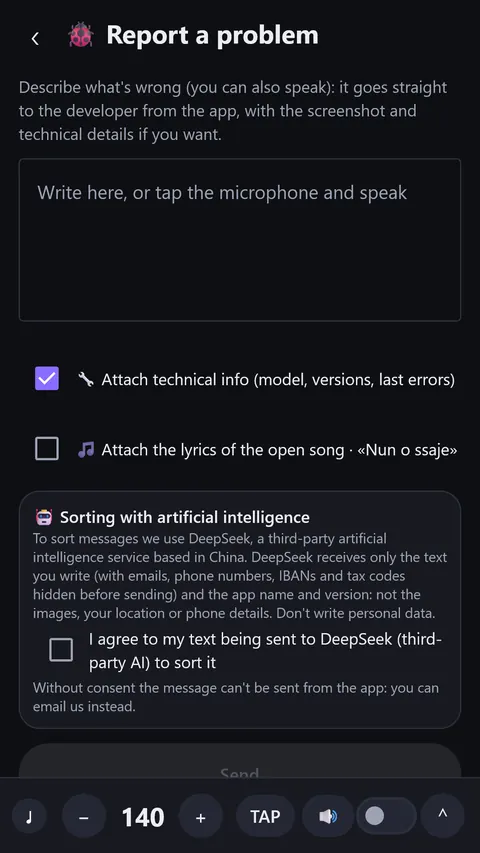
From the 💬 button on Home (or from Settings): 💡 Suggest an idea or 🐞 Report a problem.
- Type or 🎙️ Dictate (up to 5,000 characters).
- You can attach a screenshot of the app, up to 5 images from the phone, the technical info (model, versions, last errors) and, if you like, the lyrics of the open song.
- 🤖 Sorting with artificial intelligence: messages are sorted with DeepSeek (a third-party service based in China), which receives only the text (with emails, phone numbers, IBANs and tax codes hidden before sending) and the app name and version. Without the consent tick the message isn't sent; you can untick it whenever you like.
- Tap Send. If you're offline, the message goes out by itself later.
If the app closes because of an error, the next time you open it, it asks whether you want to send a report (Send report / Not now).
16. Settings#
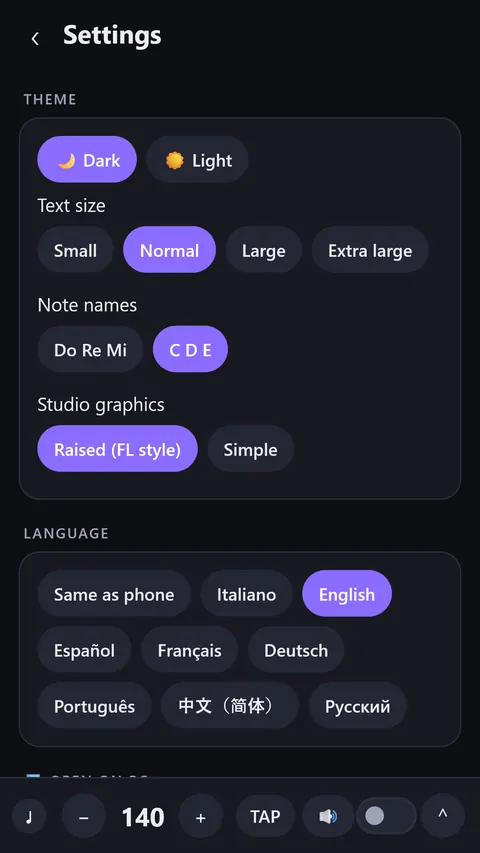
| Item | What it does |
|---|---|
| Theme | 🌙 Dark or ☀️ Light |
| Text size | Small, Normal, Large, Extra large |
| Note names | Do Re Mi or C D E |
| Studio graphics | Raised (FL style) or Simple (flat, lighter) |
| Language | Same as phone, or Italian, English, Spanish, French, German, Portuguese, Chinese, Russian |
| 🖥️ Open on PC | the link to the PC (🔗 when it's active) |
| Voice and genres | ⭐ My vocal style and 🎼 Genres (chapters 2 and 6) |
| 🎯 Singing coach | 📈 My progress, 🎼 Exercises, 📚 Learn more and the coach preferences (chapter 12) |
| Export and import | ⤴ Export the song (JSON), ⤵ Import a song (JSON) (vocal takes don't travel in the JSON) and ⤵ 📦 Song with audio (ZIP) (with the recordings) |
| 🧹 Clean up unused audio files | shows the recordings that no song, version, idea, loop or recently deleted song uses any more and how much space they take, and deletes them after you confirm (after that they can no longer be brought back with ↶) |
| 💡 / 🐞 | suggestions and bug reports |
| ❓ Quick guide | the 5 pages from the first launch |
| 📖 Full guide | this guide, in the app's language |
| 👪 The other apps in the family | the other apps by the same developer |
| 🔒 Privacy | a short summary of what stays on the phone and what doesn't, and the link to the full Privacy policy |
The version number is at the bottom.
🖥️ Part 2 · The PC#
17. Opening SongLab on the PC and linking the phone#
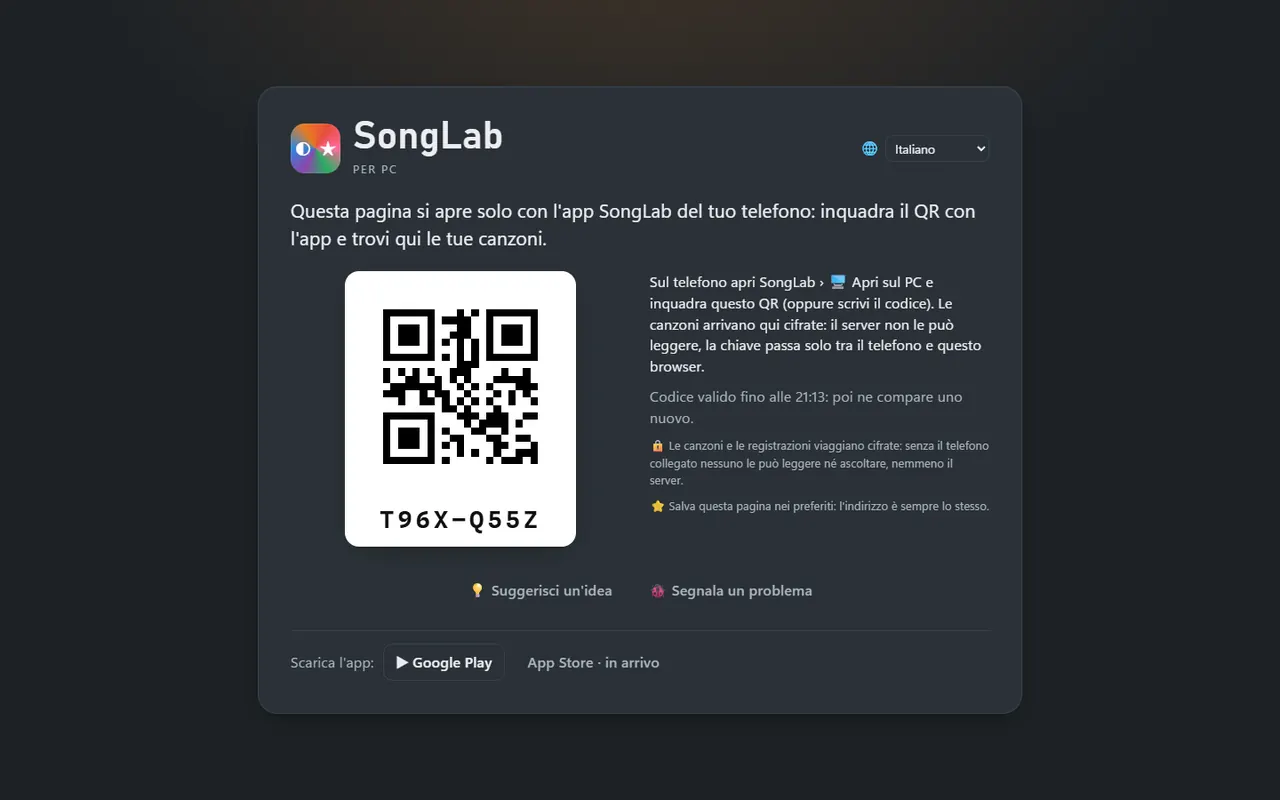
Open autorobotcopilot.web.app/songlab/pc in an up-to-date Chrome, Edge, Firefox or Safari. Nothing to install, no account.
- The page only opens with the phone linked. Until then you see only the QR code and the code: on the phone, 🖥️ Open on PC → 📷 Scan the PC's QR (chapter 14). The code is valid for 10 minutes, then a new one appears (or click ↻ New code).
- ⭐ The address never changes: bookmark it.
- Once linked, at the top there's 🖥️ Connect your phone with a status light: it shows how long the link is valid, ⇅ Save and Unlink this PC (which deletes this browser's copy; everything stays on the phone).
- Offline, you keep working on the PC's copy (📴): it syncs as soon as the network is back. When a new version arrives from the phone, it's merged with yours (📱).
- If the phone unlinks the PC (or the link expires), the page deletes its copy and goes back to the QR code.
18. How the page is laid out#
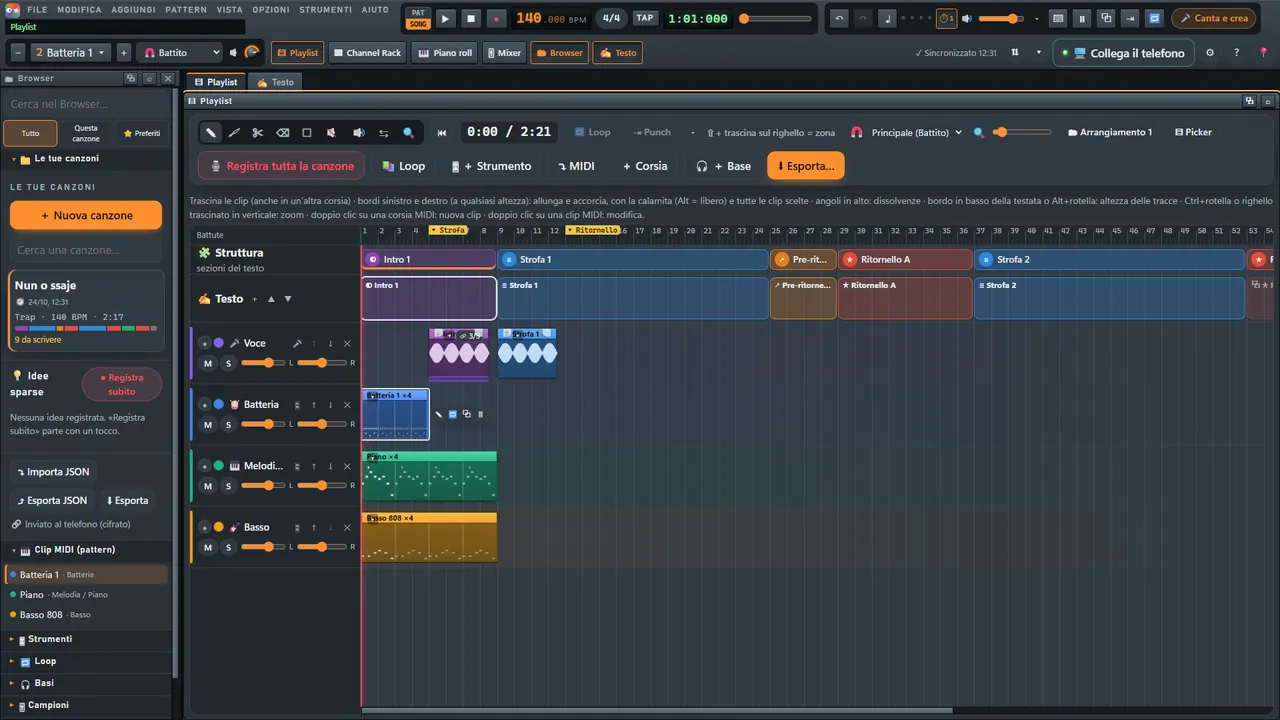
The page copies FL Studio's layout, menus, workflows and shortcuts (with its own graphics and sounds), plus the parts songwriters need: the Lyrics window, the sections ribbon, the teleprompter and the vocal takes.
- At the top, the menus: File, Edit, Add, Patterns, View, Options, Tools, Help. Below them, the hint bar explains the control under the mouse.
- The Browser on the left, Playlist and Lyrics in the centre (as tabs), Channel Rack and Piano roll floating, the Mixer at the bottom.
- On narrow screens (under 1000 pixels) you see one window at a time, as tabs, and the Browser becomes a drawer (☰).
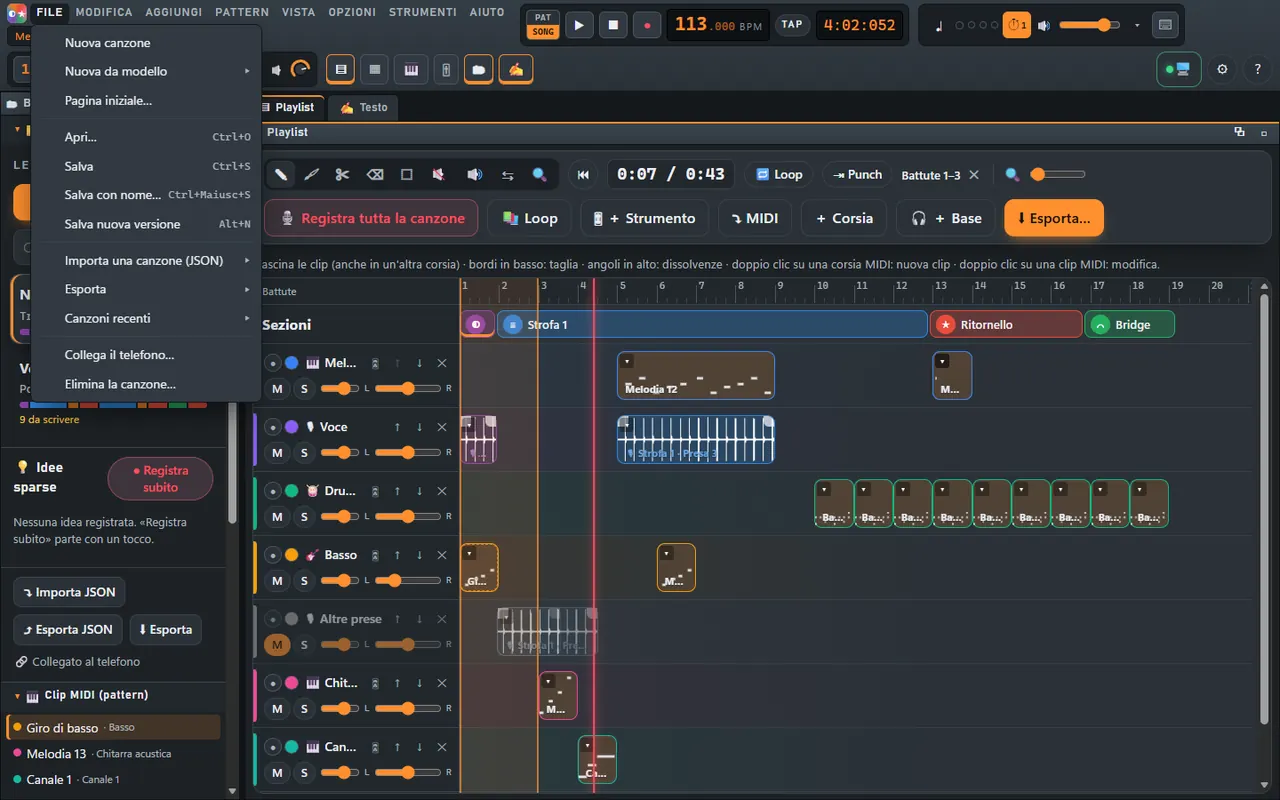
| Menu | Main items |
|---|---|
| File | New song, New from template ▸ (the 8 genres and yours, Vocal recording, ⭐ My vocal style…, 🎼 Genres…), Start page, Open, Save, Save as, Save new version ("Title (2)"), Go back to the last saved version…, Import ▸ (JSON song, song with audio (ZIP), MIDI file, backing track mp3/wav/m4a, which is added as a Backing track track next to the ones already there, lyrics with labels), Export ▸ (also 📦 Song with audio (ZIP)), Recent songs, 🗑 Recently deleted (30 days), Connect your phone, 👥 Collaborate…, Delete the song |
| Edit | Undo (Ctrl+Z, press again to redo), Undo step by step, Redo, 🕘 History (the list of changes: click = go back to before that one), Cut, Copy, Paste, Duplicate, Delete: they act on the active window |
| Add | Channel (instrument) (F8), Track ▸ (Vocals, Melody / Piano, Bass, Drums, Backing track), Effect ▸ (on the selected Mixer track), Marker at playhead, New pattern (F4), Add section ▸, Import backing track, Your loops |
| Patterns | Find next empty (F4), Rename (F2), Open in Piano roll, Select in Playlist, Transpose ▸, Next / Previous pattern |
| View | The 6 windows, Plugin picker (F8), Song info, Hint bar, Close all windows, Reset layout, Start page, Theme ▸ Dark / Light |
| Options | Settings, MIDI settings (the connected MIDI keyboards, the default one for armed tracks, the last-note indicator), Song info, toggles: Play with the keyboard (in key), Metronome, Count-in, Wait for input, Blend recorded notes, Step edit mode, Loop recording (zone), Auto scrolling |
| Tools | 🎯 Singing coach ▸ (Singing coach, Exercises, My progress, Learn more), 🎤 Sing & create… (chapter 23), Browser find (Ctrl+F), One-click recording ▸ (the whole song, Record now into Loose ideas), Macros ▸ (Stop all sound, Cancel recording, Select unused channels, 🧹 Clean up unused audio files, 🎹 Recover the notes you played), 💡 Suggest an idea, 🐞 Report a problem |
| Help | Shortcuts and help (F1), Guide, 📖 Full guide (this page), Start page, About and licences |
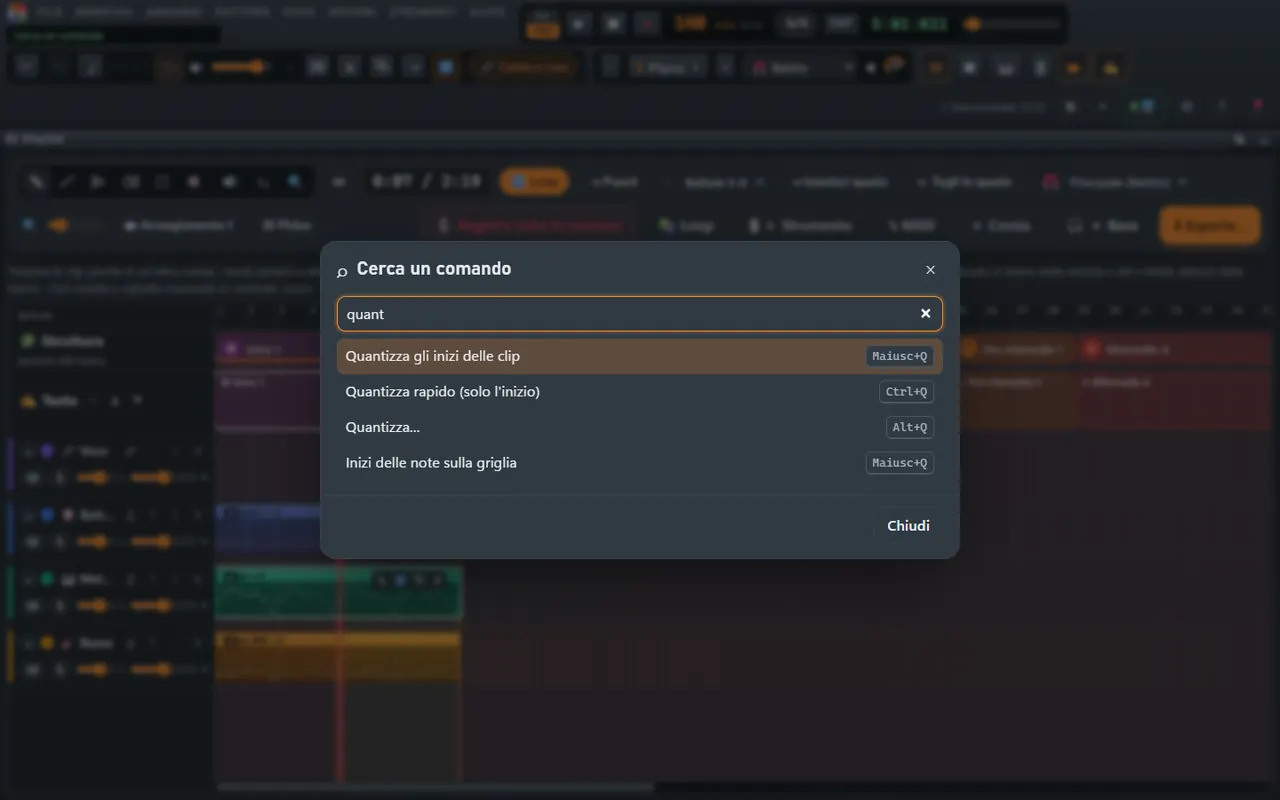
⌕ Search commands (Ctrl+K)#
Can't remember which menu a command is in? Press Ctrl+K (on a Mac ⌘K) and Search commands opens: type part of the name (for example "metro" or "export"), pick with the ↑ ↓ arrows and press Enter (or click). Next to each command you see its key, if it has one, so next time you can use it directly. The commands are the same as in the phone's menus and in the shortcuts table.
19. The top bar#
| Control | What it does |
|---|---|
| PAT / SONG (L) | PAT loops only the selected pattern, SONG plays the whole Playlist |
| ▶ / ❚❚, ■, ● | Play/stop (Space), pause (Ctrl+Space), stop (the playhead goes back to where it started; double-click = stop all sound), record (R). The ● records according to the active window: the section in Lyrics, the melody in the Piano roll, the armed tracks everywhere else. Right-click on the ●: record audio, record notes, Disarm on stop |
| Tempo "140.000 BPM" | drag up/down (with Ctrl for finer steps), mouse wheel, click to type: you can type the BPM with decimals too, with a point or a comma ("92.5"); right-click: Tap tempo, half / double speed, values from 80 to 160. TAP sits next to it |
| Time signature "4/4" | the song's time signature (4/4, 3/4, 6/8…, or Other… to type one in), as on the phone (chapter 4) |
| LCD "1:01:000" | position in bars or in minutes; click to switch |
| Metronome | on/off (Ctrl+M), one light per beat, ⏱ count-in (Ctrl+P), 🔊 volume always visible, ▾ options: subdivision, time signature, count-in bars, accent, metronome while recording |
| ⌨ | Play with the keyboard (Alt+T): the computer keyboard plays in key, chords on the left and notes on the right (chapter 22) |
| 🎤 Sing & create | hum a melody or a beat and it becomes a played part (chapter 23) |
| Pattern "N · name ▾" | picks the pattern (the MIDI clip) to place; New pattern (F4), Rename (F2) |
| 🧲 Snap | snapping: none, 1/16, 1/8, beat, bar. ⌫ turns it on and off, holding Alt bypasses it |
| 🔈 Monitor volume | only for listening, it doesn't go into the export |
| Song position | the slider for moving around the whole song |
| ✓ Synced ▾ | the status of the sync with the phone and the 🕘 Versions, 💾 Save version, Go back to the last saved version menu (chapter 29) |
| On the right | the window buttons, 🖥️ phone, ⚙ Settings, ? help |
20. The windows#
| Window | Key | What it's for |
|---|---|---|
| Playlist | F5 | the arrangement: tracks, clips, sections ribbon |
| Channel Rack | F6 | the channels: step drums, melody previews |
| Piano roll | F7 | the notes of the selected pattern |
| Mixer | F9 | volumes, pan, effects, sends |
| Browser | Alt+F8 | songs, ideas, instruments, loops, backing tracks, MIDI clips |
| Lyrics | Alt+6 | the lyrics in sections, with the line analysis |
Every window has ⧉ (detach/dock), □ (maximize, also by double-clicking the title) and ✕. Floating windows can be dragged and resized; the layout is remembered. Esc closes the active window, Tab moves to the next one, Enter maximizes the Playlist, Alt+0 closes the Rack, Piano roll and Mixer, Ctrl+Shift+H resets the layout.
Browser#
The All, This song (the clips, backing tracks, samples and history of the open song) and ⭐ Favourites tabs (right-click an item ▸ ⭐ Add to favourites), and at the top Search the Browser (Ctrl+F). Folders: Your songs (search, + New song, the list with the sections strip, 💡 Loose ideas with ● Record now, import and export), Instruments (click = preview, double-click or Enter = new channel, or it replaces the selected one; right-click = Send to selected channel or Open in new channel), Loops, Backing tracks, MIDI clips, Samples, Effects and Sound presets. Shift+↑↓ steps through the items and plays them. Everything can be dragged onto the Playlist (or an effect onto a Mixer slot).
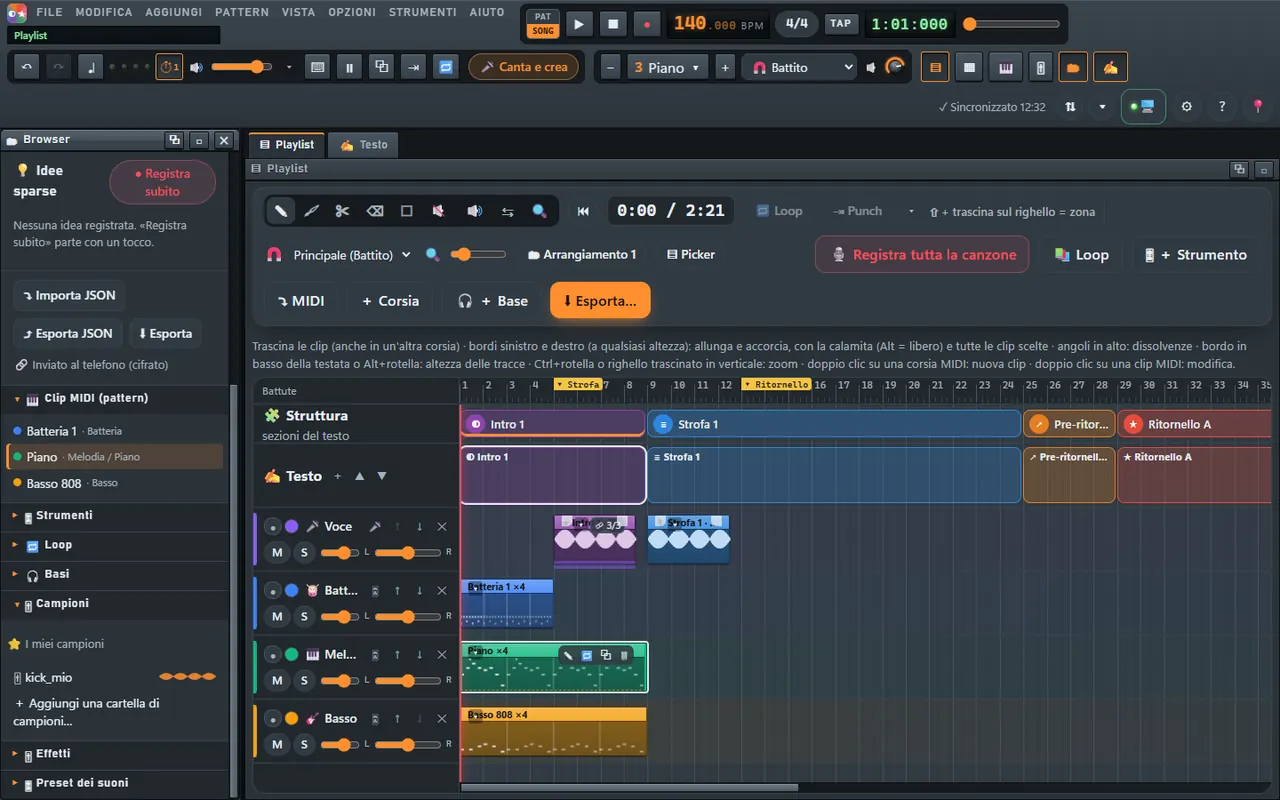
- Samples: ⭐ My samples (the ones already used in your songs) and the computer folders you add with + Add a sample folder (Chrome and Edge). Click = preview, double-click = onto the selected channel (in the drums, choose the piece). Next to every sample and every backing track there's its waveform.
Playlist#
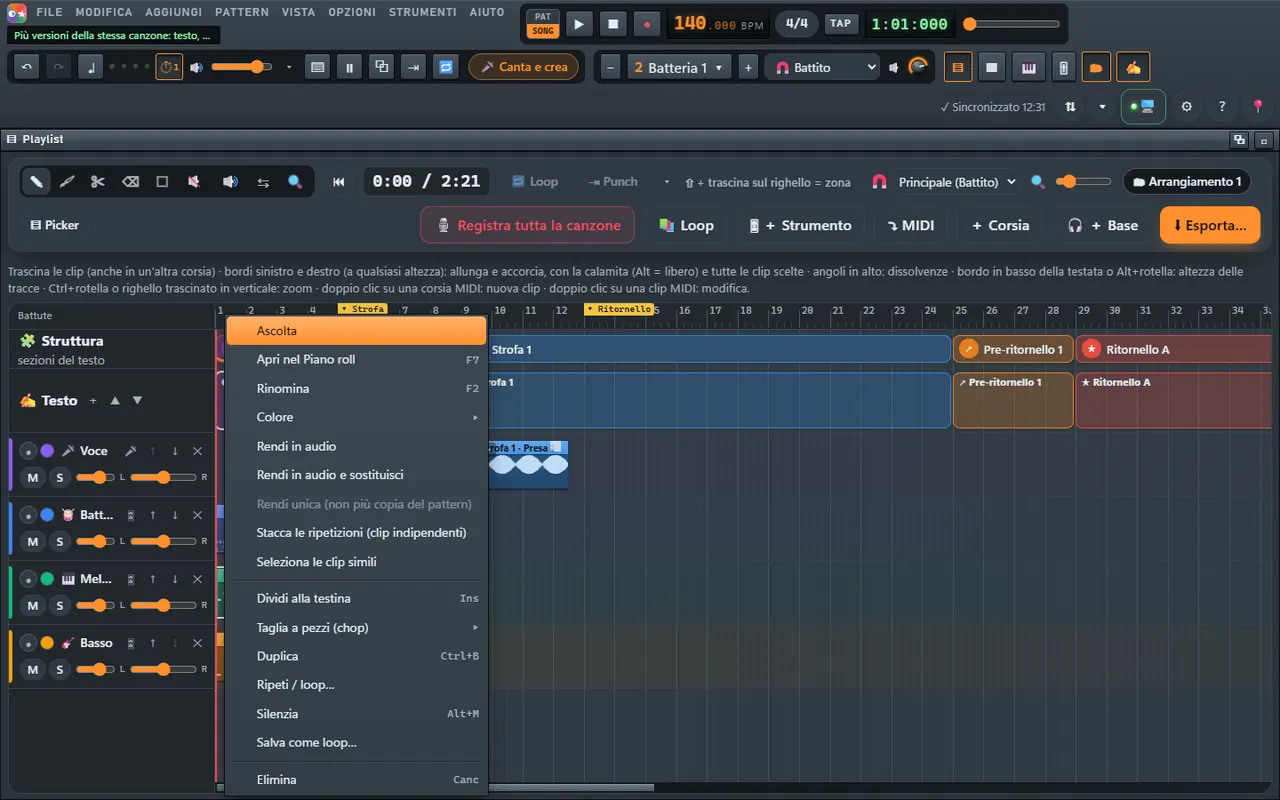
- Tools: P Draw (click on empty space places the selected pattern, drag moves it), B Paint (paints copies one after another), C Slice, D Delete, E Select, T Mute, Y Playback, S Slip (moves the content inside the clip), Z Zoom. Right-click on a clip = delete (with Draw, Paint, Delete); Ctrl+drag = selection box; Shift+drag = copy; Alt = no snapping; double-click on a MIDI clip = Piano roll.
- Playlist bar: ⏮, time, 🔁 Loop, ⇥ Punch, the selected region (with Insert space and Delete space), this window's snap, zoom, 🗂 Arrangement, ▤ Picker (Alt+P), 🎙️ Record the whole song, 📚 Loops, 🎛 + Instrument, ⤵ MIDI, + Track, Export….
- Clips as in FL Studio: the left and right edges lengthen or shorten the clip's window, not its content (the notes stay in time); the top corners make the fades of audio clips; copies of a pattern stay linked (change the notes in one and they all change) until you use Make unique. Ctrl+wheel or dragging the ruler vertically = zoom; Alt+wheel on the header = track height.
- Clip menu (▾ on the clip or right-click): Play, Open in Piano roll, Rename, Colour ▸, Render as audio clip / Render and replace (MIDI clips), Make unique, Split the repeats, Select all similar clips, Split at playhead (Ins), Chop ▸, Duplicate, Repeat / loop…, Mute / Unmute, Save as loop (MIDI), Choose the take, Delete. Audio clips also have Speed, REV (reversed), SYNC (follows the song's BPM), ⏱ Detect tempo (the file's BPM, and "fit to tempo") and 🔪 Slicer (chops on the hits: each slice becomes a sample of a new channel, already playing just as before).
- ▤ Picker (Alt+P): a list of the song's patterns and audio files, to drag onto the Playlist; double-click = Piano roll.
- Track header: ● arm, colour, name, 🎛 sound (MIDI tracks), ↑ ↓ ✕, M, S, volume, pan. Right-click: Rename, Change instrument, Sound, Arm, Mute / Unmute all clips, move, Delete track.
- 🎛 Track sound: the instrument, the preset (for the distorted guitar Crunch or Lead, for the clean one Chorus), tone, attack, release and the quick effects 🔥 Distortion, 🌊 Chorus, 🔁 Delay, 🌫 Reverb (one click puts them in or takes them out of the track's Mixer slots; 🎚 Mixer… to adjust them). You can also change the preset on the fly from the ⌨ panel and from the Piano roll keyboard. Among the instruments there is the 🎷 Saxophone (alto, tenor, breathy). When you play with the computer keyboard you hear the track's effects and volume, as in playback.
- Sections ribbon: click = the playhead goes there and the section opens in Lyrics; double-click = brings the Lyrics window to the front.
- Ruler: click or drag = the playhead; drag vertically = zoom; Shift (or Ctrl) + drag, or drag in the lower part = the loop / punch region; double-click or ✕ clears it. With the loop on, the parts outside the region turn red. Right-click on the ruler = Marker here and the list of markers.
- Markers: Alt+Shift+T adds one at the playhead; click = go there, double-click = selects up to the next marker (or section) and loops it, right-click = Rename, Select up to the next marker, Move to playhead, Delete; Alt+Shift+←/→ jumps between markers. If two markers are close together, the first one's label gets shorter.
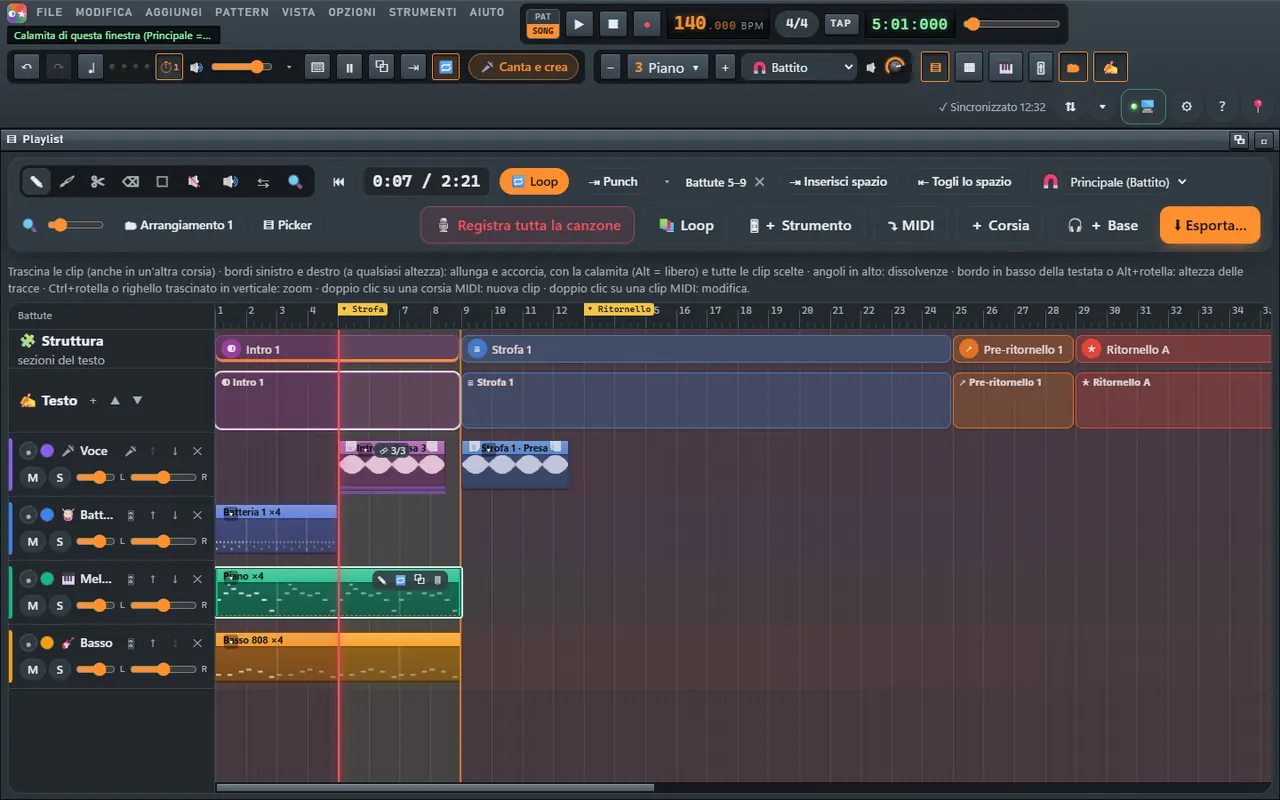
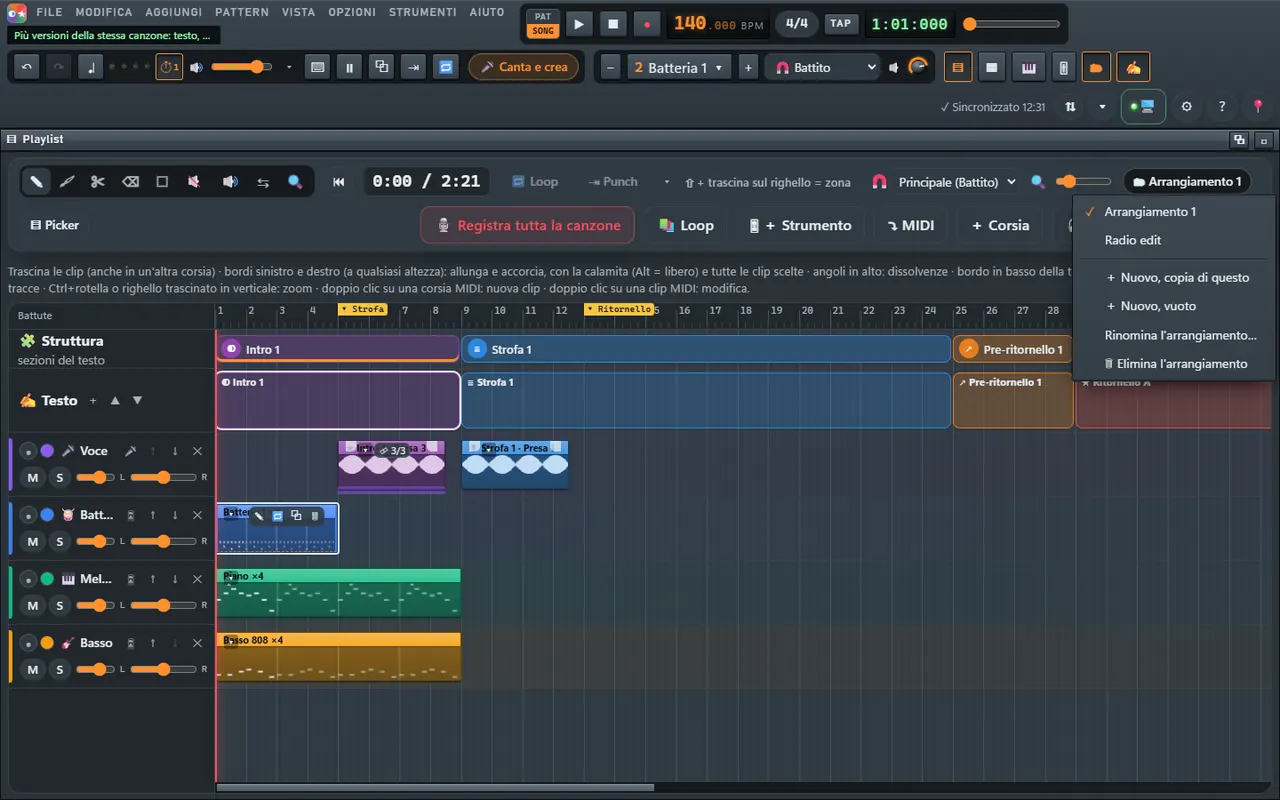
- 🗂 Arrangements (PL34, like FL Studio's "Arrangements"): several versions of the same song, with the same sections, the same channels and the same mixer but their own clips and markers. From the 🗂 Arrangement N button: switch to another one, + New, copy of this one, + New, empty, Rename arrangement…, Delete arrangement. Undo with Ctrl+Z.
Channel Rack#
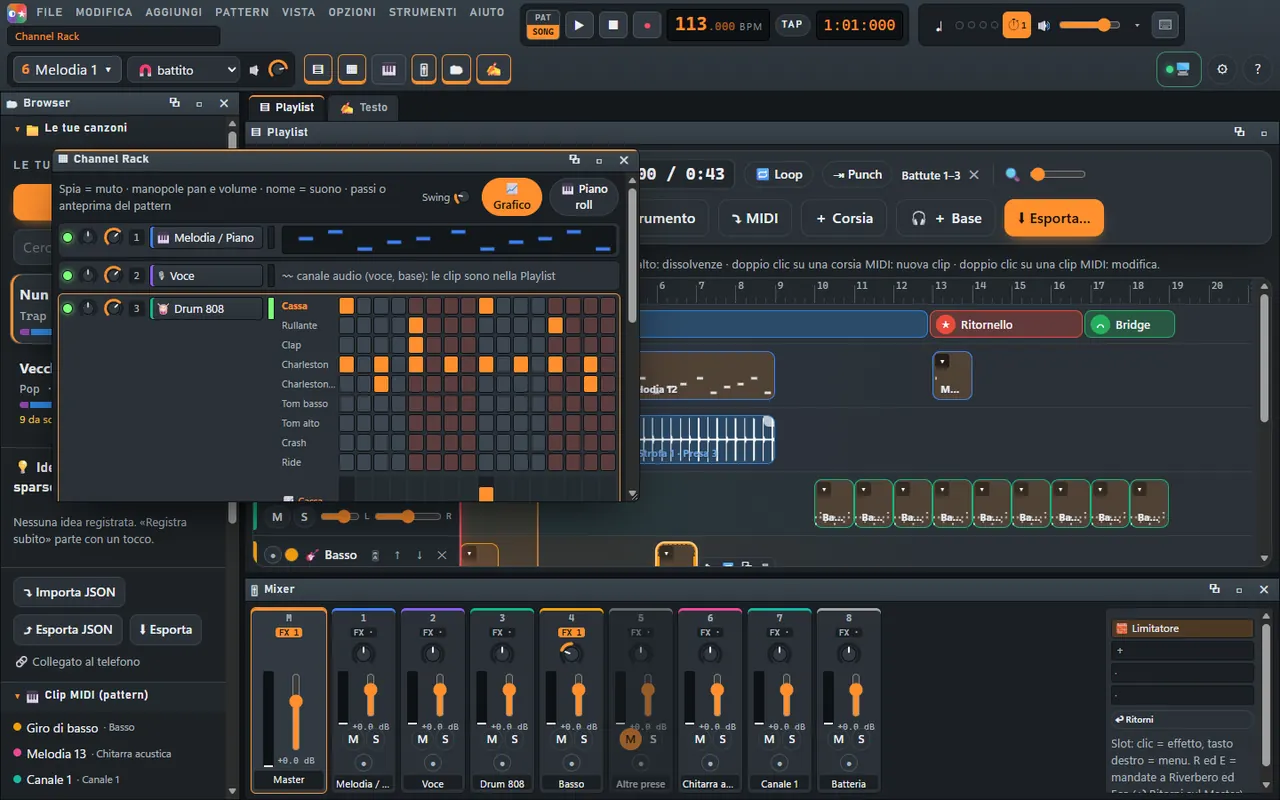
- One row per channel: mute light (click; right-click or Ctrl+click = solo), pan and volume knobs, Mixer track number, name (click = sound, right-click = channel menu).
- Drums: 16 steps for each kit piece; click on, right-click off, Shift+click = accent. Swing knob (it applies on the phone too) and 📈 Graph for the velocity, the pan and the pitch of each step (as on the phone: double-click = the normal value, the pitch snaps to semitones). The pattern's bars follow the song's time signature.
- Channel menu: Piano roll, Rename, Colour, Replace, Clone channel (Alt+C), Sound, Fill every 2 / 4 / 8 steps, Rotate left / right, Copy / Paste steps, Cut itself (one note stops the previous one: for 808s), move, delete.
- ⇔ N to the right of the steps: drag it to change the pattern length one step at a time (1–64); right-click = 1, 2, 3 or 4 bars. The − + arrows next to the pattern in the bar switch to the previous or next pattern.
- Samples: every channel (and every drum piece) can play an audio file of your own: drag it onto the channel or use "Load a sample"; My samples and the ones from your folders come from the Browser.
- In the drum editor: Pattern bars 1 / 2 / 4 and ✨ Starter beat.
Piano roll#
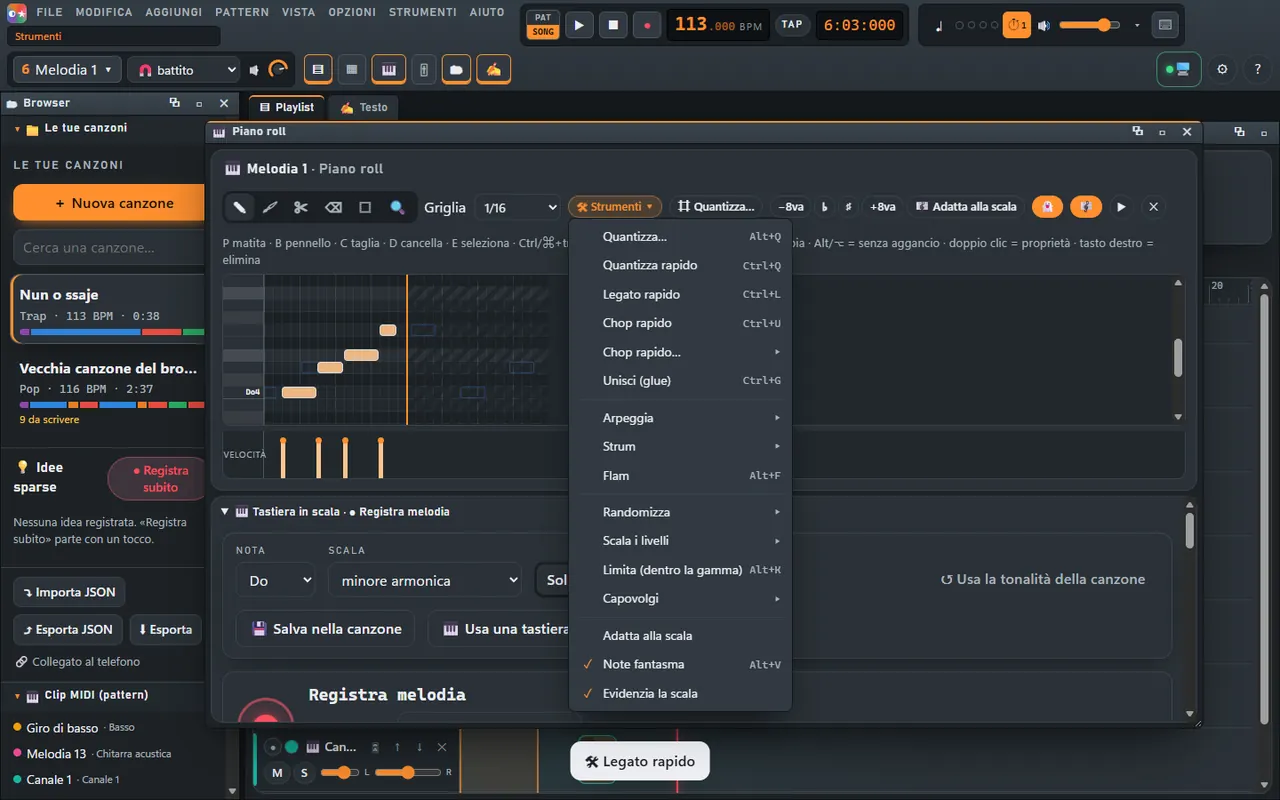
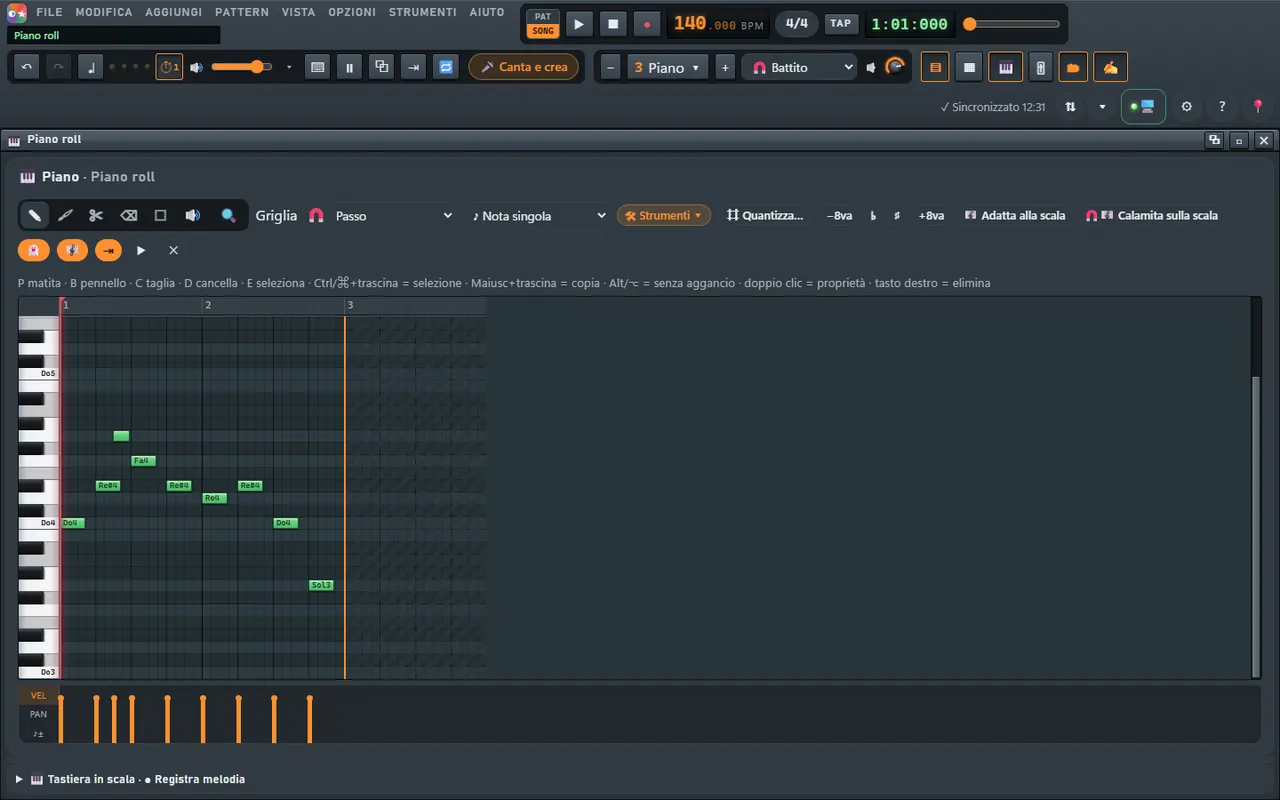
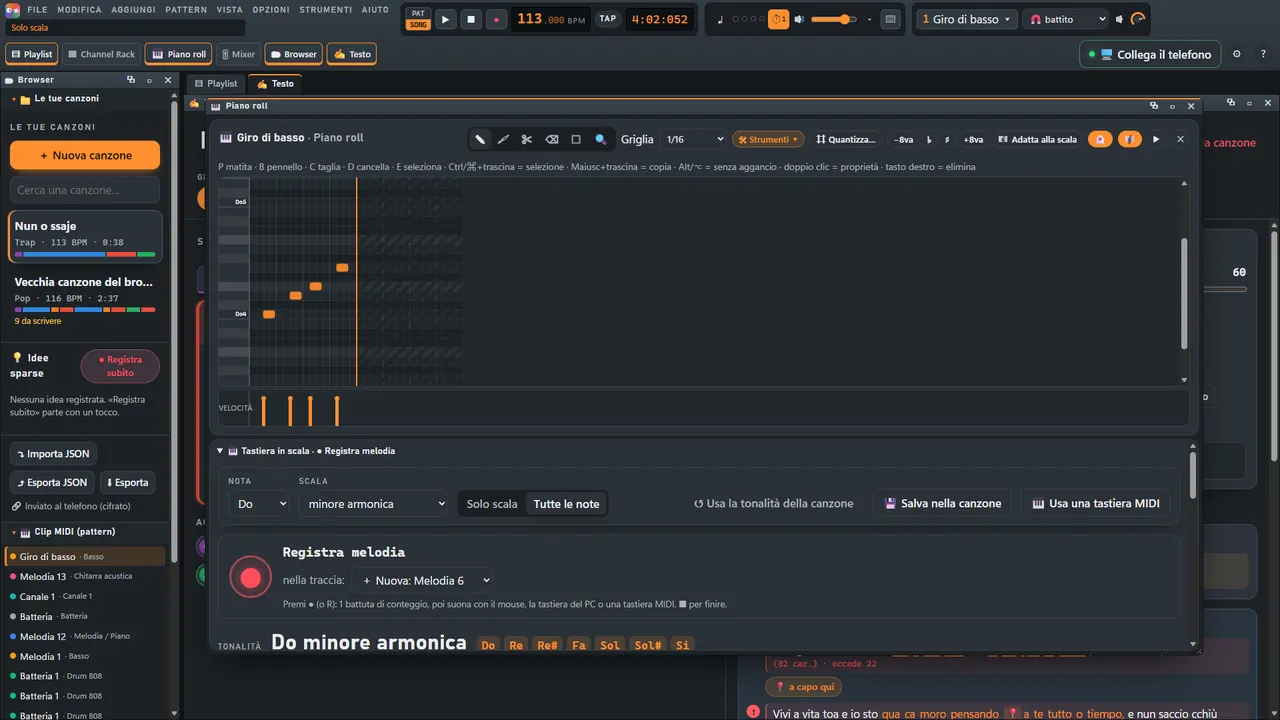
- Tools P B C D E Z as in the Playlist; double-click on a note = properties (velocity, note, start, length, pan and pitch in cents). Grid from 1/4 to 1/32 plus triplets; right-click on the snap = the length of new notes.
- The note name is written on the note when there's room (Tools ▸ Note names on notes to turn it off). Alt+wheel on a note = its velocity; right-click on the empty grid = deselect all; click on a ghost note = opens its clip.
- Slide (the note glides from the previous one, like trap 808s), Mute (T: the note stays but doesn't play), the notes' left edge (Ctrl+Alt+Home), Double an octave up or down, Same length, 🎼 Guess scale (the song's key from the notes), Chord progression…, Snap to scale and the voice waveform behind the notes.
- The song's markers also appear in the piano roll ruler; dragging on the ruler makes a loop of that part.
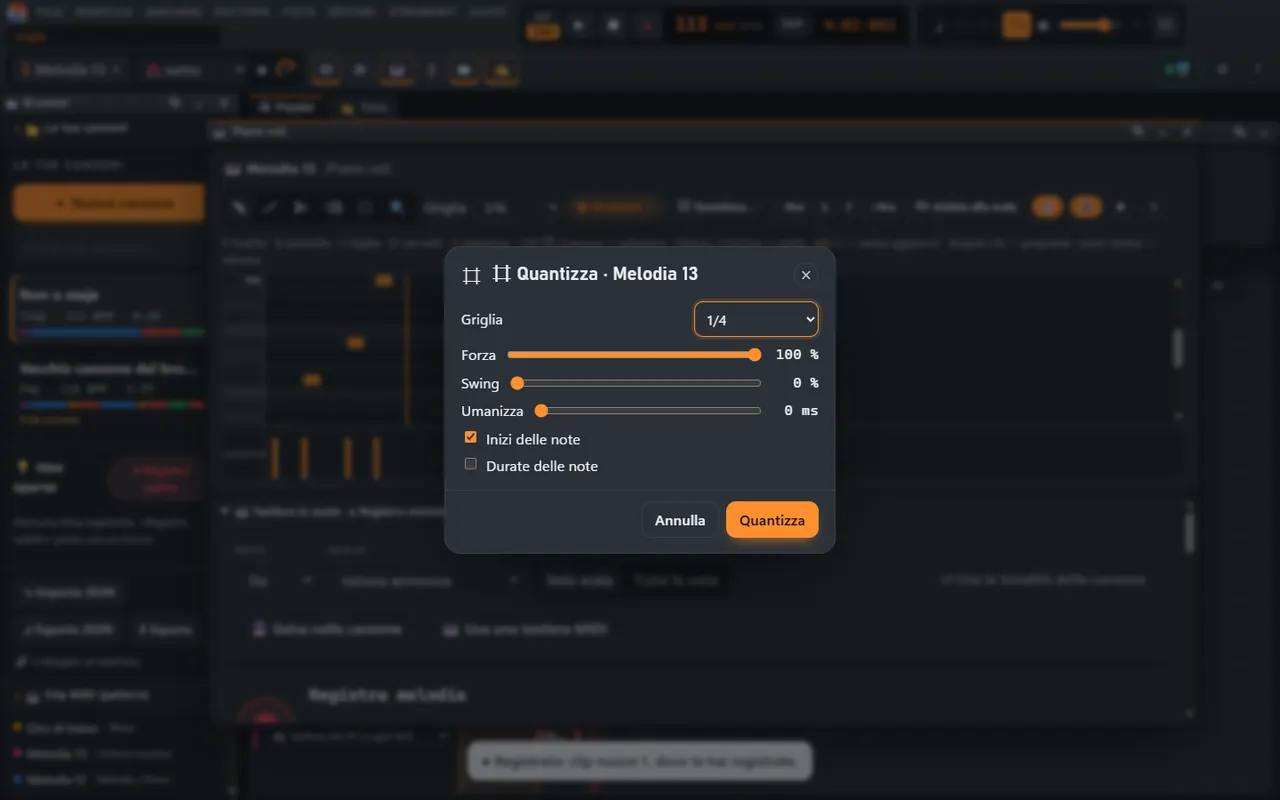
- Tools menu: Quantize… (Alt+Q: strength, swing, starts, lengths, humanize), Quick quantize (Ctrl+Q: only the start of the notes, the length stays), Quick legato (Ctrl+L), Quick chop (Ctrl+U) and Chop ▸, Glue (Ctrl+G), Arpeggiate ▸, Strum ▸, Flam, Randomize ▸, Scale levels ▸, Limit (into range), Flip ▸ (in time, vertically), Fit to scale, Ghost notes (Alt+V: the notes of the other clips), Scale highlighting (out-of-scale rows are darker).
- Under the notes, the Graph editor, the panel with the values of each note, with the Velocity, Pan and Pitch tabs (the same as on the phone, chapter 8): drag to paint the values; with some notes selected, only those change. Double-click or Alt+click = the normal value; the pitch snaps to semitones, and holding Alt makes it free.
- Further down, the scale keyboard (chapter 22) with the chords of the key and ● Record melody.
Mixer#
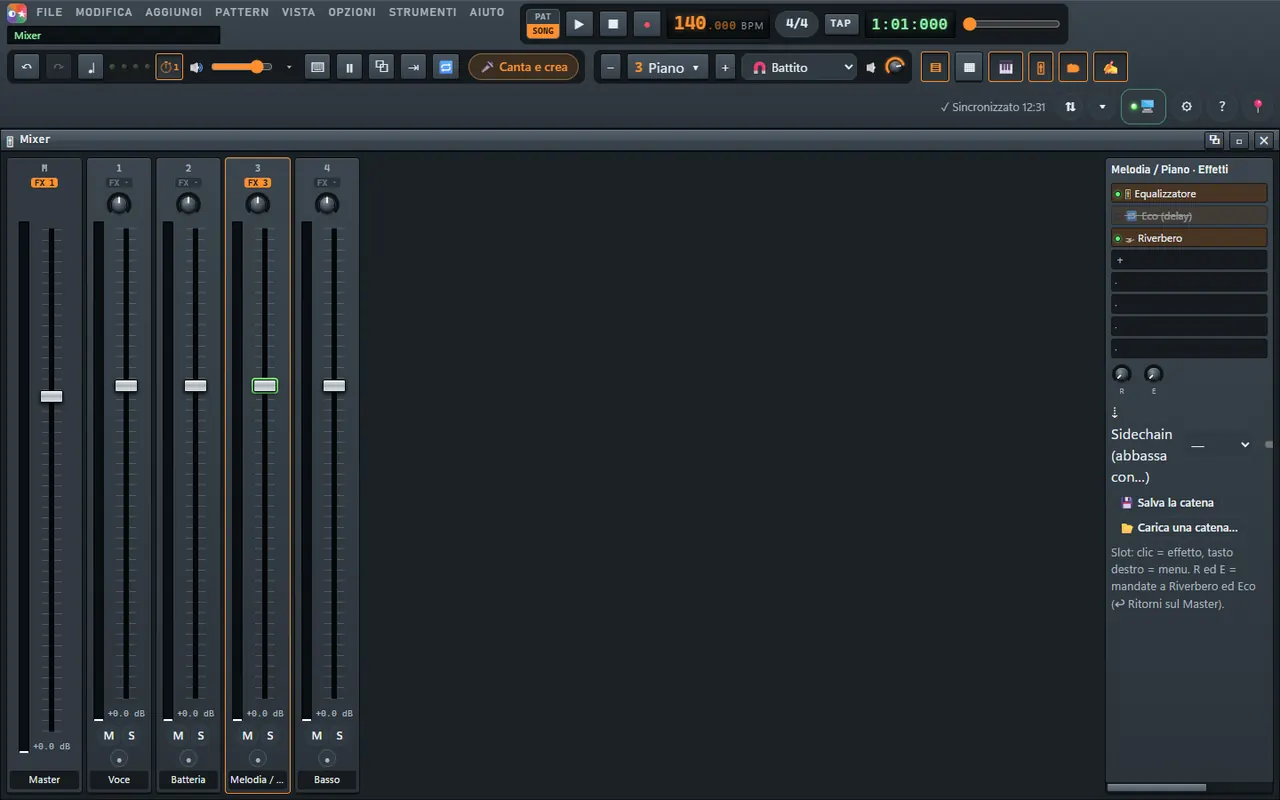
- Master and one strip per track: meter (one per channel, with the dB scale and the peak staying lit for a moment), fader (double-click = 0 dB), pan, M / S, ● arm, name (F2).
- Under the Master's meter, the loudness in LUFS (how loud the song sounds to the ear): that of the last 3 seconds and, after I, that of the whole listen. The same safety limiter as on the phone always works on the Master, and what you hear sounds like the export.
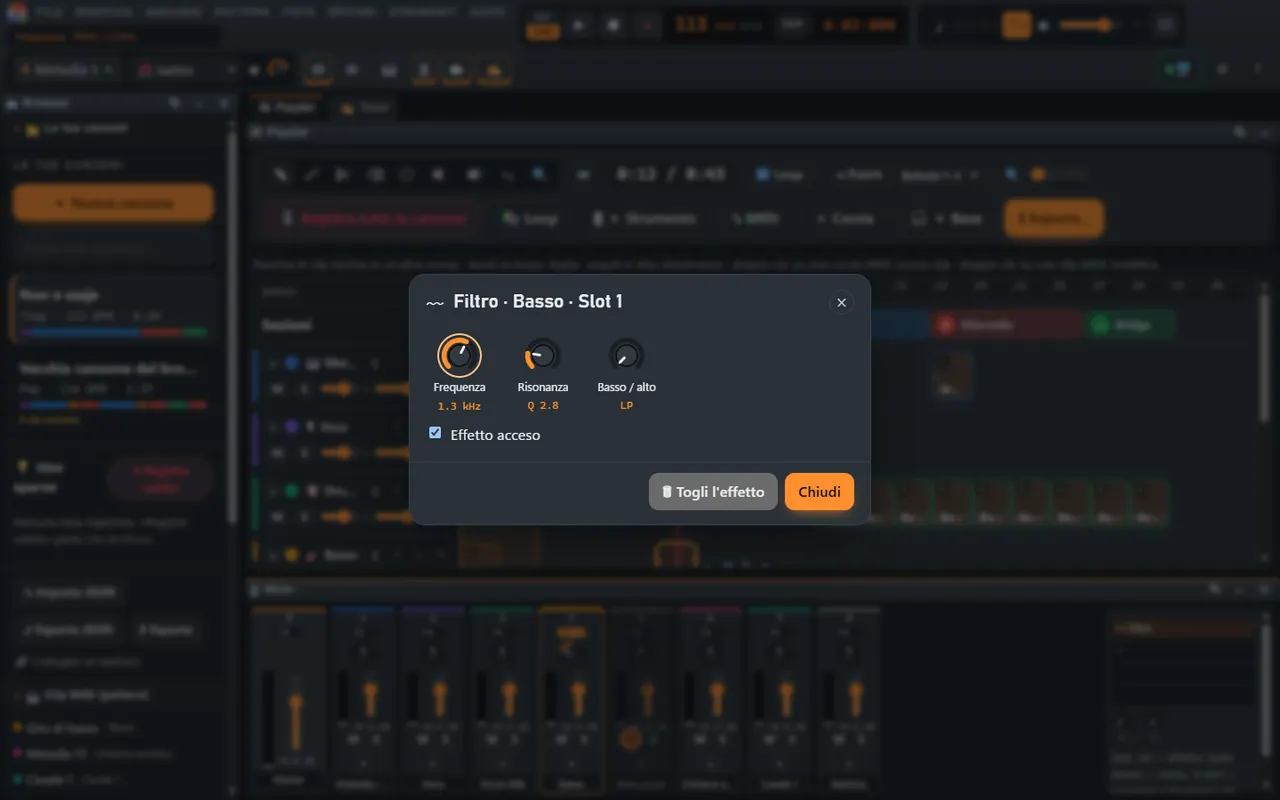
- 8 effect slots per track and on the Master: click = knobs; right-click = on/off, effect presets (save your own), move, remove; you can drag them from one slot to another. Every filled slot has an on/off light; FX at the top of the strip switches all the track's effects off or back on. The effects are the same as on the phone, including the vocal ones, and each one has a Mix knob.
- Sidechain (duck with…), Save the chain / Load a chain; right-click on the strip = Rename, Colour, Reset the track; right-click on the M = solo.
- 🎤 Vocals (on the Mixer strip, or the 🎤 button in the track header in the Playlist) opens the vocal effects as on the phone: presets, Pitch correction, My vocal style, 🎧 Live (monitoring in headphones with the effects, recording clean or with effects) and Apply effects (new take) (chapter 6).
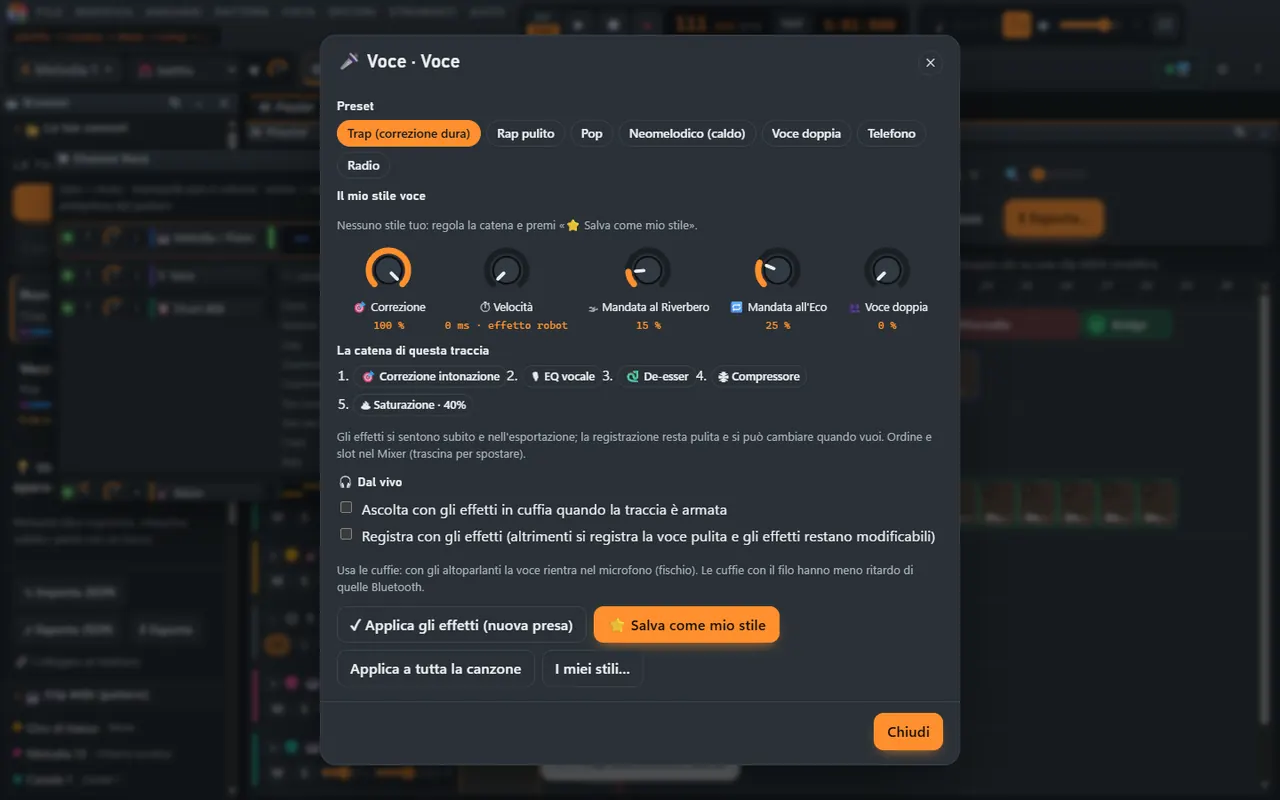 - R and E sends to the shared Reverb and Delay; ↩ Returns on the Master with the return level.
- S = solo the selected track, Alt+←/→ moves it.
Lyrics#
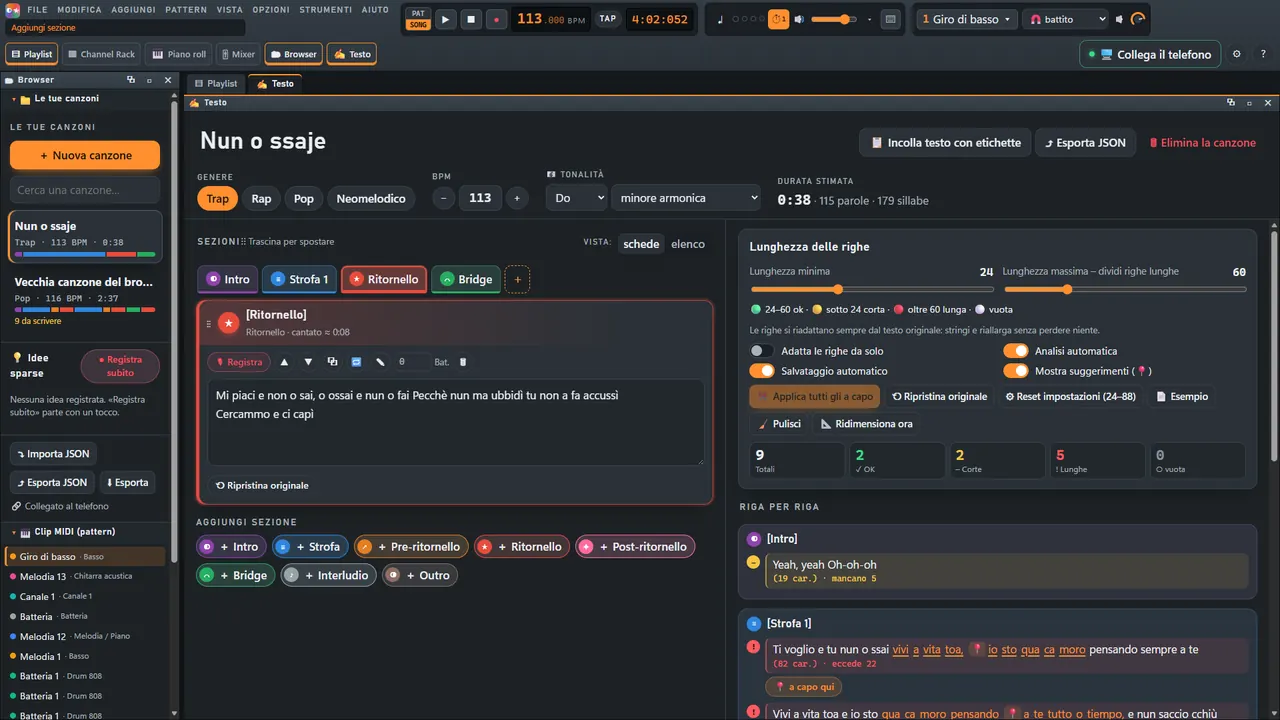
It's the phone editor, only bigger: sections as tabs (or as a list), ←/→ and 1…8 to switch between them, line analysis with the colours, 📍, Line length sliders with "📐 Resized", Paste lyrics with labels, restore, example, clear. R records the selected section (with count-in, metronome, and takes with ★ Mark as best and 🗑), T taps the tempo.
21. Recording on the PC#
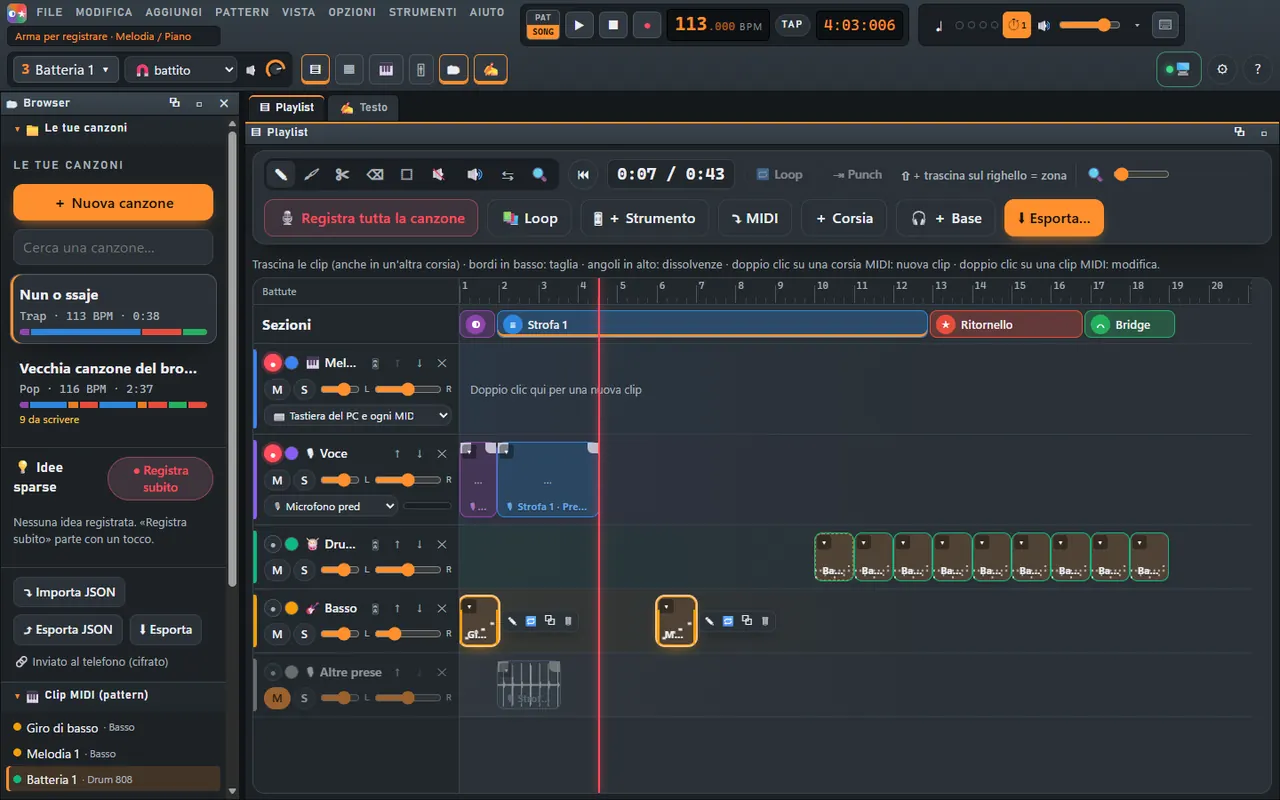
- Arm one or more tracks (●): on audio tracks choose the microphone (with its meter), on MIDI tracks the PC keyboard, a MIDI keyboard or 🎤 Guitar/voice → notes (microphone) (you sing or play one note at a time and it becomes MIDI). Audio and MIDI can be recorded together.
- R (or ●) records from the playhead into all armed tracks, with the song playing underneath and the count-in. If no track is armed, the Vocals track arms itself. Ctrl+Z undoes the whole recording in one go.
- Loop takes: with 🔁 Loop and a region on the ruler, every pass becomes a take in the same group; the clip shows "🎞 k/n", and from the clip menu Choose the take lets you pick the one to use.
- Blend (Ctrl+B, FL Studio's "Blend"): the takes from each pass all play together (backing vocals, doubles) instead of only the last one; it works for MIDI notes too, which go into the clip that's already there. In the Choose the take window: 🔀 All takes together or 1️⃣ This take only.
- ✂ Comp by sections (in the Choose the take window, when the takes come from a loop): each take is a row; drag along a row and that take plays in that stretch, a click picks the whole stretch. That way you put together the best pieces of several takes (chapter 6).
- Punch (redoing just one piece): with ⇥ Punch and a region, you record only there. From the ▾ next to Punch choose the pre-roll and the post-roll (0, 1, 2 or 4 bars): how much music you hear before and after the region.
- Latency (the small delay between what you hear and what gets recorded): the page compensates for the browser's and the audio interface's latency by itself. If your takes land late, type the Recording latency in ⚙ Settings (in steps of 5 ms) or press 🎯 Measure latency: take your headphones off, turn the volume up, keep quiet and the page measures it by itself with three clicks.
- No take lost: while you record, the page saves the take on the PC one piece at a time. If the page closes by mistake halfway through, when you reopen it the take is safe among the Loose ideas ("Recovered recording").
- For MIDI, in Options: Wait for input (starts at the first note), Blend recorded notes (into the clip that's already there), Step edit mode (green cursor in the Piano roll, one note at a time).
- 🎹 Recover the notes you played (Tools ▸ Macros): played something great without recording? SongLab remembers the last notes from the keyboard and puts them in a clip.
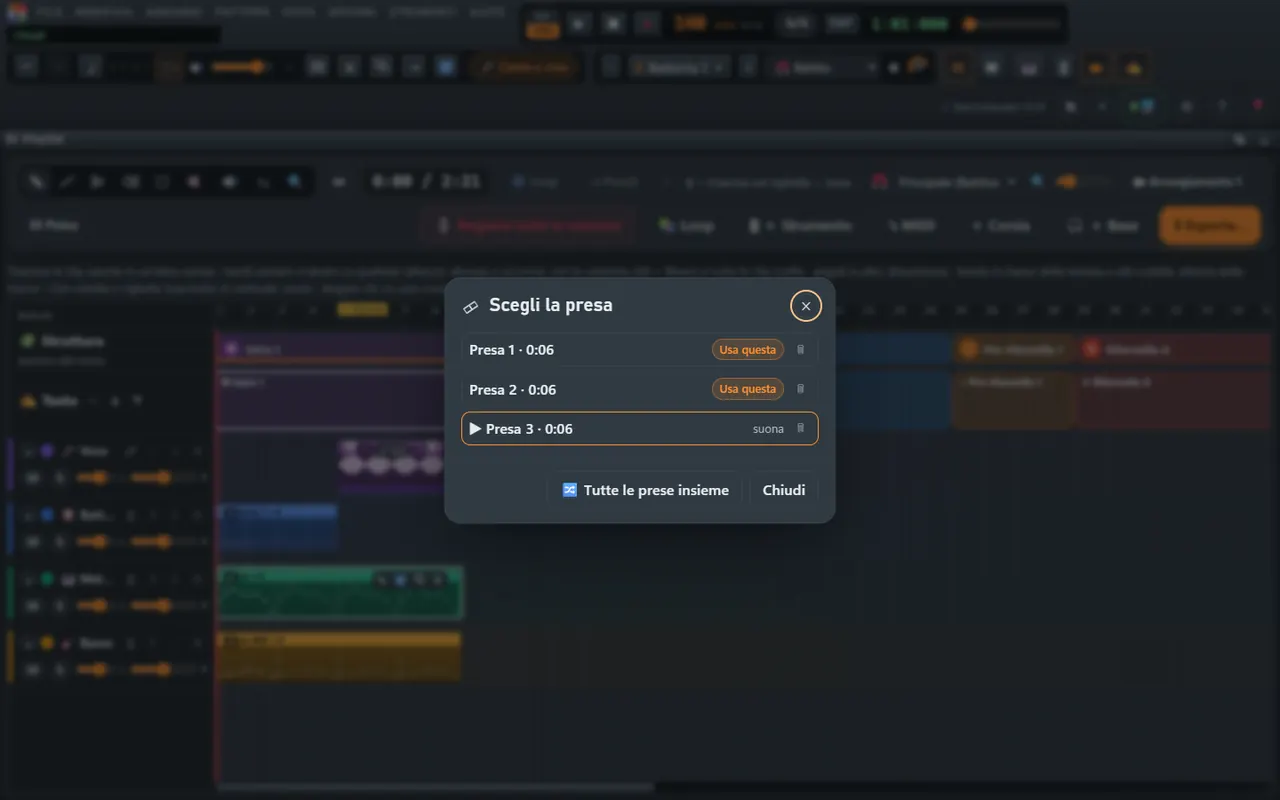
One-click recording (Tools menu or 🎙️ in the Playlist): Record the whole song starts from bar 1 with the beat, shows the teleprompter with the current section and line, and at the end splits the take by section on the Vocals track; Record now records an idea into Loose ideas.
22. Instruments, MIDI and the PC keyboard#
- 13 synthesized instruments, the same as on the phone, with presets (for example Bright, Soft, Honky-tonk for the Piano; 808 or Acoustic for the Drums) and the sound panel (preset, tone, attack, release). F8 opens the plugin picker.
- MIDI keyboard: with Chrome or Edge (Web MIDI) you choose it on the armed track, or once and for all in Options ▸ MIDI settings; the browser asks for permission the first time.
- The Piano roll's scale keyboard: with Play with the keyboard off, when you work in the Piano roll the computer keys play the keyboard under the notes, as in FL Studio. In Scale only the whole keyboard is used and you can't play a wrong note: the home row A S D F G H J K L ; ' (on an Italian keyboard Ò À Ù) plays the notes of the scale, the row above (Q W E R…) one octave up, the numbers (1 2 3…) two octaves up, the row below (Z X C V…) one octave down. In All notes the notes are free, with no key, like FL Studio's typing keyboard: the Z X C V… row is one octave (S D G H J L ; are the black keys), the Q W E R… row the octave above (2 3 5 6 7 9 0 the black keys). The ↑ ↓ arrows change octave. Shift or Caps Lock = sustain (the note keeps going).
⌨ Play with the keyboard (Alt+T)#
Play with the keyboard turns the computer keyboard into an instrument in key, all over the page: with your left hand you play the chords, with your right hand the melody, and a wrong note never comes out. It's made for people who don't have a music keyboard and can't play the piano.
You switch it on with ⌨ in the top bar or with Alt+T (on a Mac ⌃T): the ⌨ Play with the keyboard panel appears at the bottom of the page, with the ⌨ PLAY light.
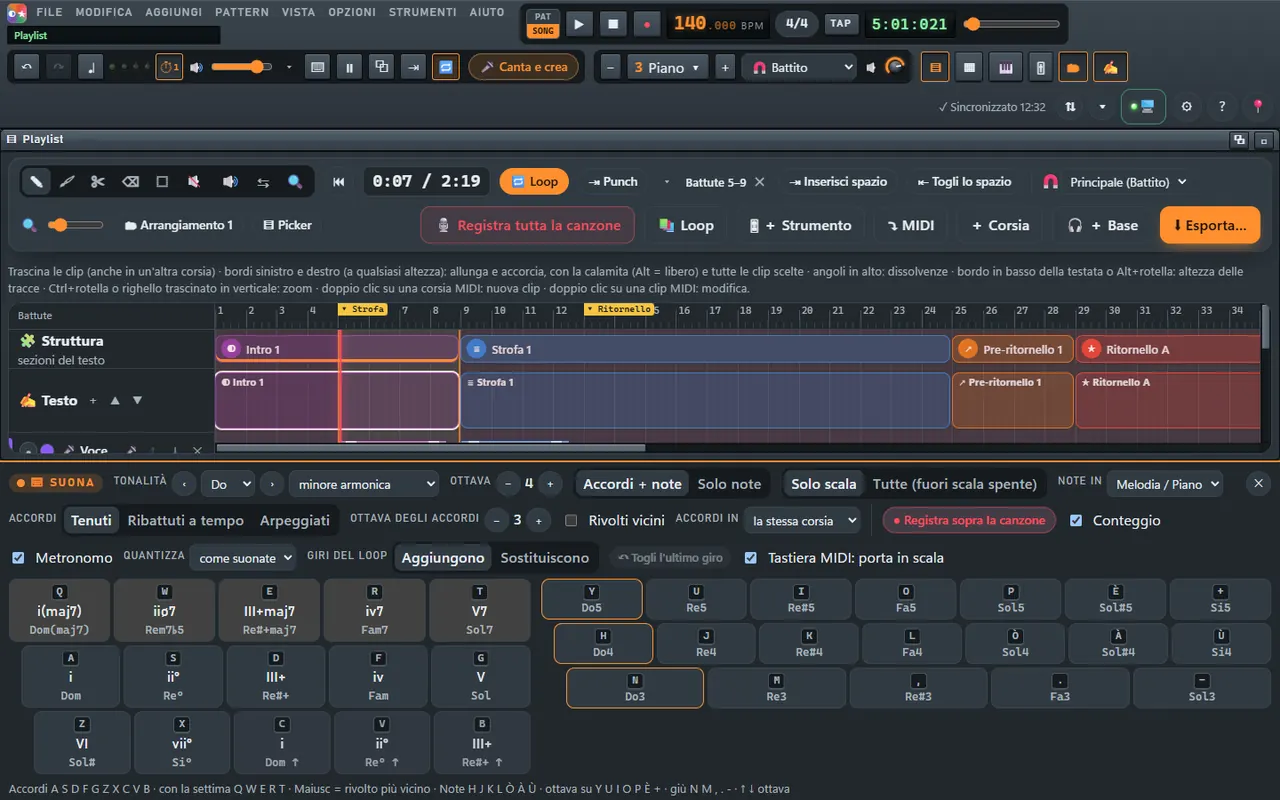
The keys work by position, so they're fine with any keyboard (US, UK, Italian, French…); the panel's keys show the letters of your own keyboard. The table uses a US keyboard.
| Mode | Left hand | Right hand |
|---|---|---|
| Chords + notes | A S D F G and Z X C V B: the chords of the scale; Q W E R T: the same chords with the seventh; with Shift the chord is played in the position closest to the previous one | H J K L ; ' \: the notes of the scale; the row above (Y U I O P [ ]) an octave higher, the row below (N M , . /) an octave lower |
| Notes only | the whole keyboard plays the melody: the home row the notes of the scale in order, the row above an octave higher, the row below an octave lower |
The ↑ ↓ arrows change octave. In the panel you also choose:
- Scale only or All notes (free): in “Scale only” the whole keyboard plays in key (the numbers too, two octaves up), in “All notes” the notes are free, with no key (with “Notes only” like FL Studio's typing keyboard, with “Chords + notes” a piano on the right: H J K L ; ' \ the white keys, U I P [ ] the black keys); the key with ‹ › and the scale with one click (usually The song's key).
- The chords Held, Repeated in time or Arpeggiated (with their Step), With the seventh and Close inversions, as on the phone (chapter 9), and the Chord octave.
- Notes on and Chords on: the track for the notes and the one for the chords (the same track, another one, or + new track). The tracks arm themselves.
- MIDI keyboard: snap to key: if you play a connected MIDI keyboard, an out-of-key note goes to the nearest note of the scale.
Recording. Press ● Record over the song: with Count-in and Metronome if you want them, and the Quantize you've chosen (also "as played"). With 🔁 Loop on the song keeps going round: in Loop passes each pass Adds the notes (and you hear those of the earlier passes) or Replaces the previous pass; ↶ Remove the last pass deletes only the last one.
💡 While Play is on, the letters play instead of triggering shortcuts (shortcuts with Ctrl, Alt and Space always work). In text fields, in the Lyrics window and with a dialog open, the keys type as usual. When you switch Play off (Alt+T again) the shortcuts come back and the tracks it armed are disarmed.
MIDI files and quantize#
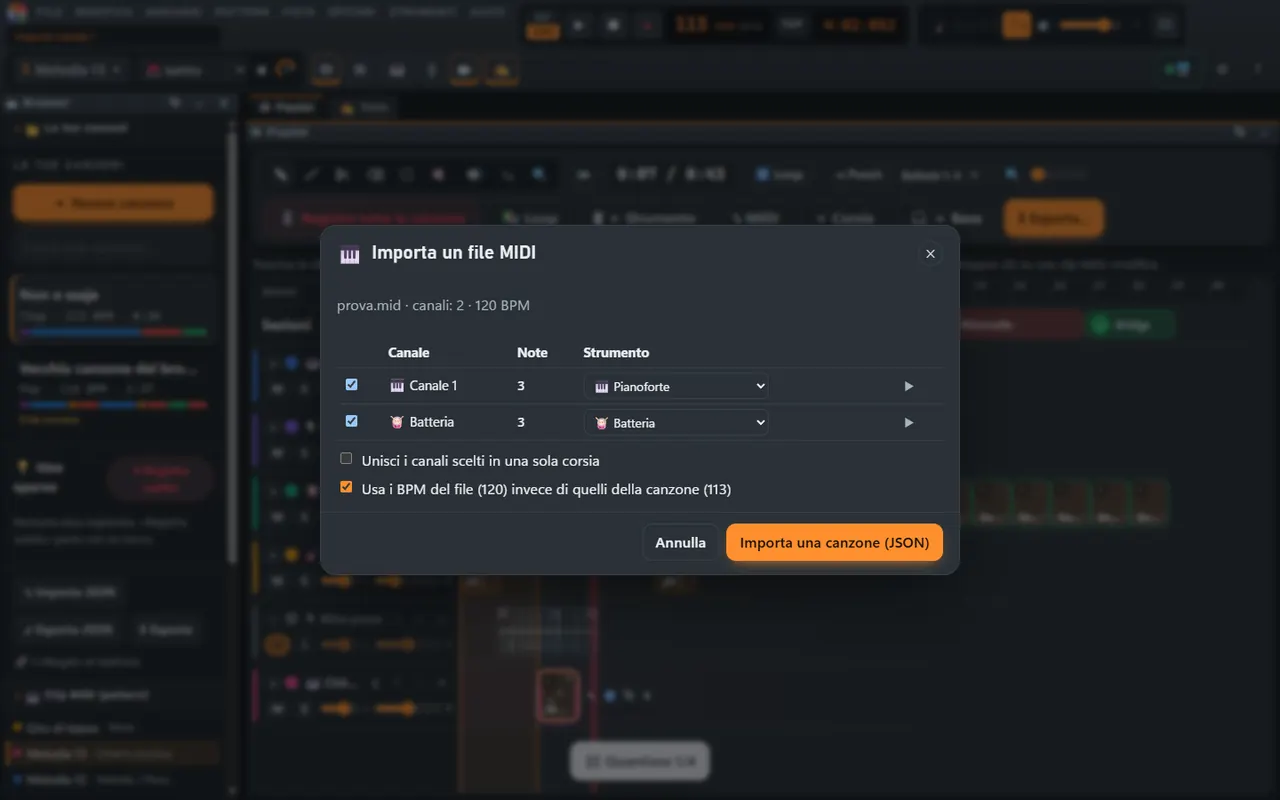
- MIDI files: import (Ctrl+M in the Piano roll, ⤵ MIDI or File ▸ Import), choosing the channels, merging them into one track and using the file's tempo or not; General MIDI instruments become SongLab instruments. If the file changes tempo halfway through, the window tells you how many times: the notes stay at their place in time, but the song plays at a single tempo. The file's pan, pitch and time signature are read too. Export the whole song or one track: one MIDI track per track, drums on channel 10, the song's BPM and time signature, with the pan and pitch of the notes; muted parts are left out.
- General MIDI drums: 36 kick, 38 snare, 39 clap, 42 closed hat, 46 open hat, 45 low tom, 48 high tom, 49 crash, 51 ride.
- Quantize with strength, swing and humanize; Shift+Q quantizes the clip starts in the Playlist.
23. 🎤 Sing & create on the PC#
On the PC 🎤 Sing & create works just like on the phone (chapter 10): you hum a melody or make the beat with your mouth and it becomes a part played by an instrument, in key and in time. You need a microphone (the laptop's is fine; with headphones it's better, so the microphone doesn't hear the metronome).
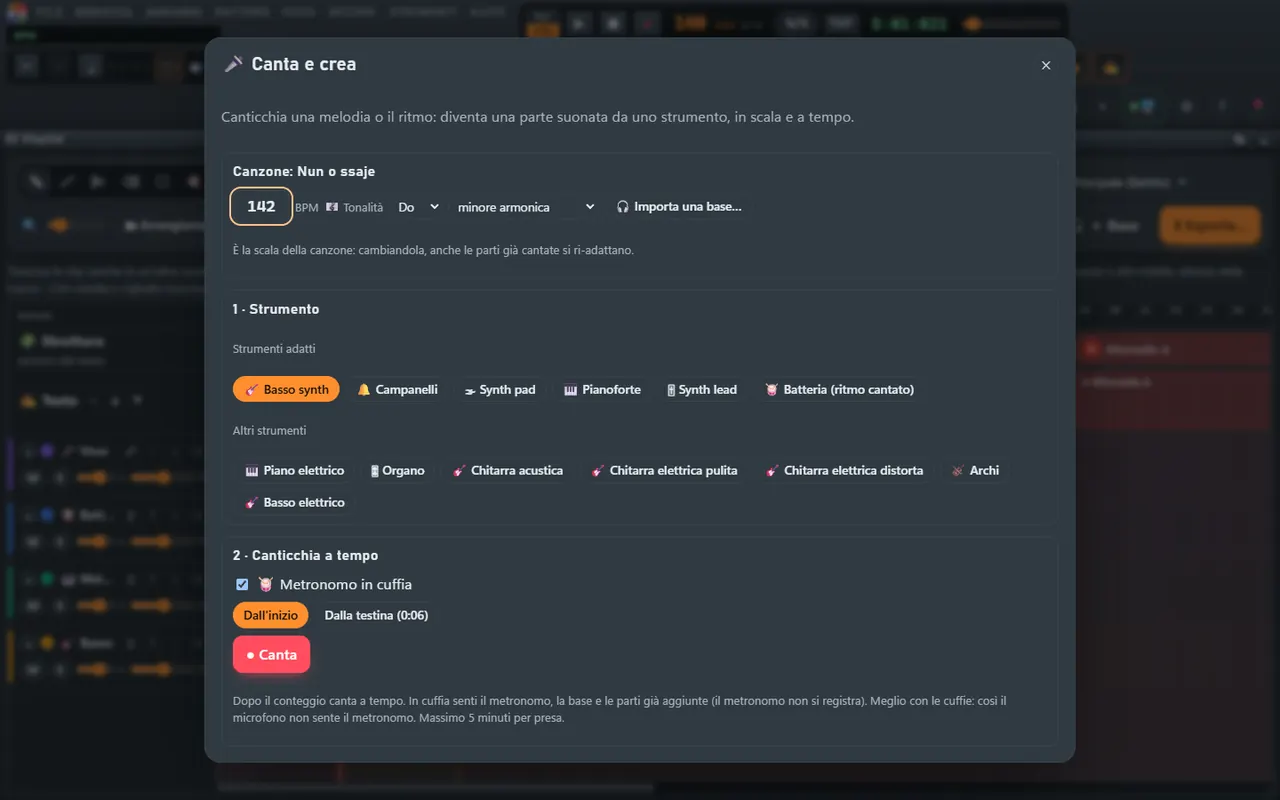
- You open it with 🎤 Sing & create in the top bar or from Tools ▸ 🎤 Sing & create… (on the open song), or from the Start page with the 🎤 Sing & create card (for a new song, from a genre or from an MP3, WAV or M4A backing track whose BPM and key the page detects).
- The first time, the browser asks for permission to use the microphone, after SongLab's message with Continue.
- The steps are the same: 1 · Instrument (or 🥁 Drums (beatbox), with the optional calibration on your voice), 2 · Hum in time (● Sing, then ■ Stop), 3 · Listen and add (Quantize, Snap to scale, Octave, then ▶ Listen, ✓ Add or ↻ Try again).
- The added part is a new track with a normal clip: you open it in the Piano roll with a double-click and edit it however you like. If you change the song's scale, the sung parts adapt too (if you haven't changed them by hand), on the PC and on the phone.
24. Extending to the whole song, and loops#
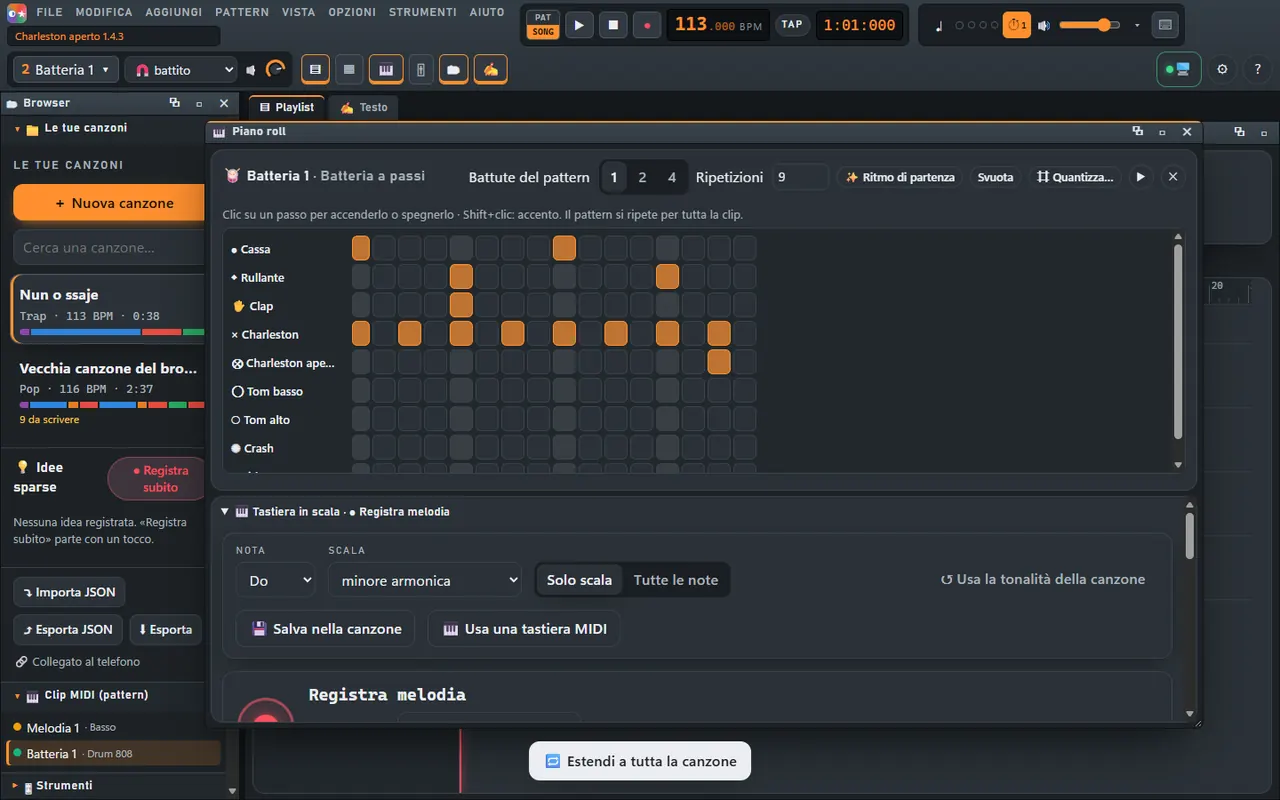
- From the clip menu, Repeat / loop…: 🔁 Extend to the whole song (the repeats stay linked: change the original and they all change), a number of repeats, ✂ Detach the repeats (independent clips), 💾 Save as loop (MIDI clips).
- 📚 Loops: your loop library; + Insert places them at the playhead. Loops travel to the phone too, where they show up in + → Your loops.
25. Exporting from the PC#
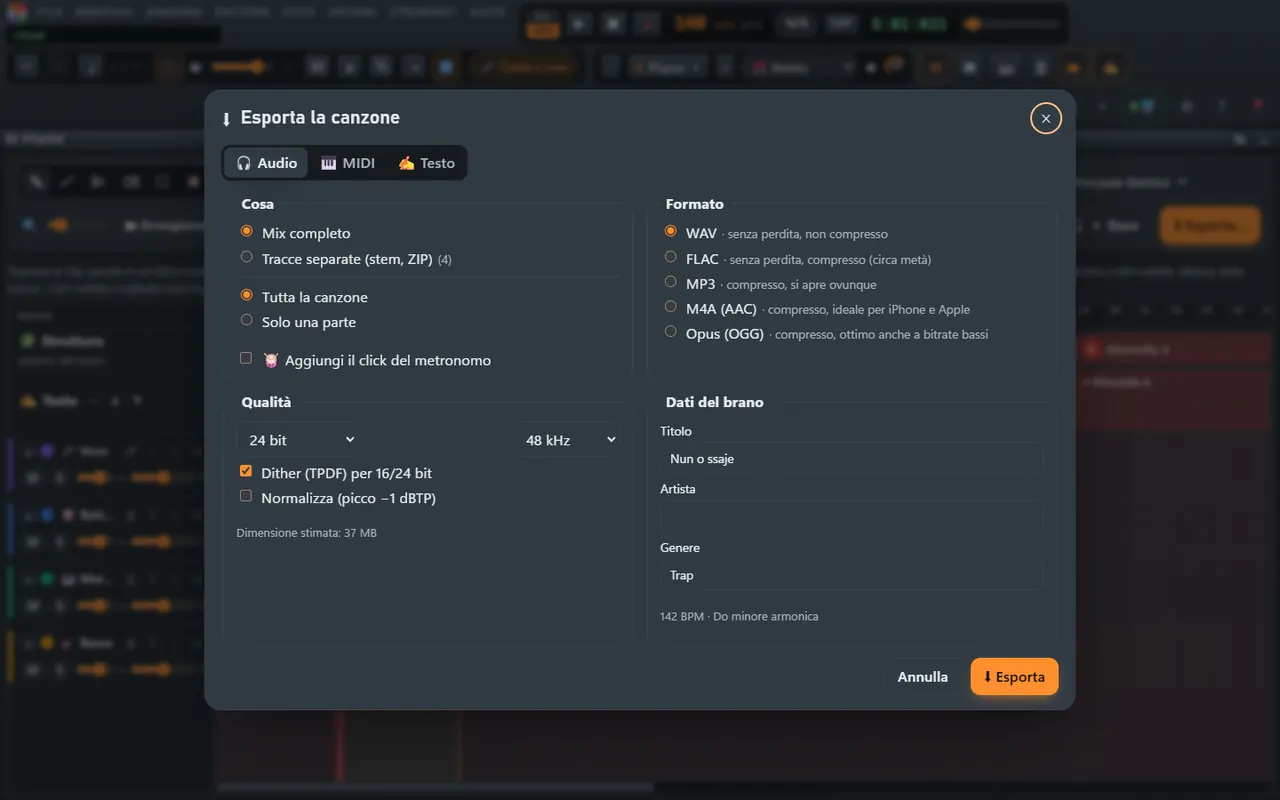
File ▸ Export (or Alt+R for WAV) opens Export the song:
| Tab | Options |
|---|---|
| 🎧 Audio | Full mix or Separate tracks (stems, ZIP), also with the click; whole song or only a part (from bar… to bar…); metronome click in or out |
| Formats | WAV 16 / 24 bit / 32 bit float · FLAC 16 / 24 bit (44.1–96 kHz) · MP3 128–320 kb/s · M4A (AAC) and Opus (OGG) where the browser supports them (recent Chrome, Edge; otherwise they're greyed out) |
| Quality | Dither (16/24 bit), Normalize (peak −1 dBTP), estimated size and a warning if the peak is too high |
| Track info | Title, Artist (remembered), Genre, plus BPM and key, written into the file (WAV, FLAC, MP3, M4A, Opus) |
| 🎹 MIDI | the whole song or one track, with BPM, time signature, and the pan and pitch of the notes |
| ✍️ Lyrics | TXT, DOCX, PDF and the printable song sheet (title, BPM, key, structure with bars, start and length, then the lyrics); for the PDF choose "Save as PDF" in the print dialog |
What you export sounds like what you hear on the page (808 slides, your own samples and latency compensation included), and the click, if you put it in, follows the time signature. If the song contains an imported backing track, the export reminds you to check your rights to it. The song's JSON is in File ▸ Export and at the bottom of the Browser. 📦 Song with audio (ZIP) puts the song and all its recordings (from every arrangement) into a single file: you reopen it with File ▸ Import on the PC or on the phone, even without a link.
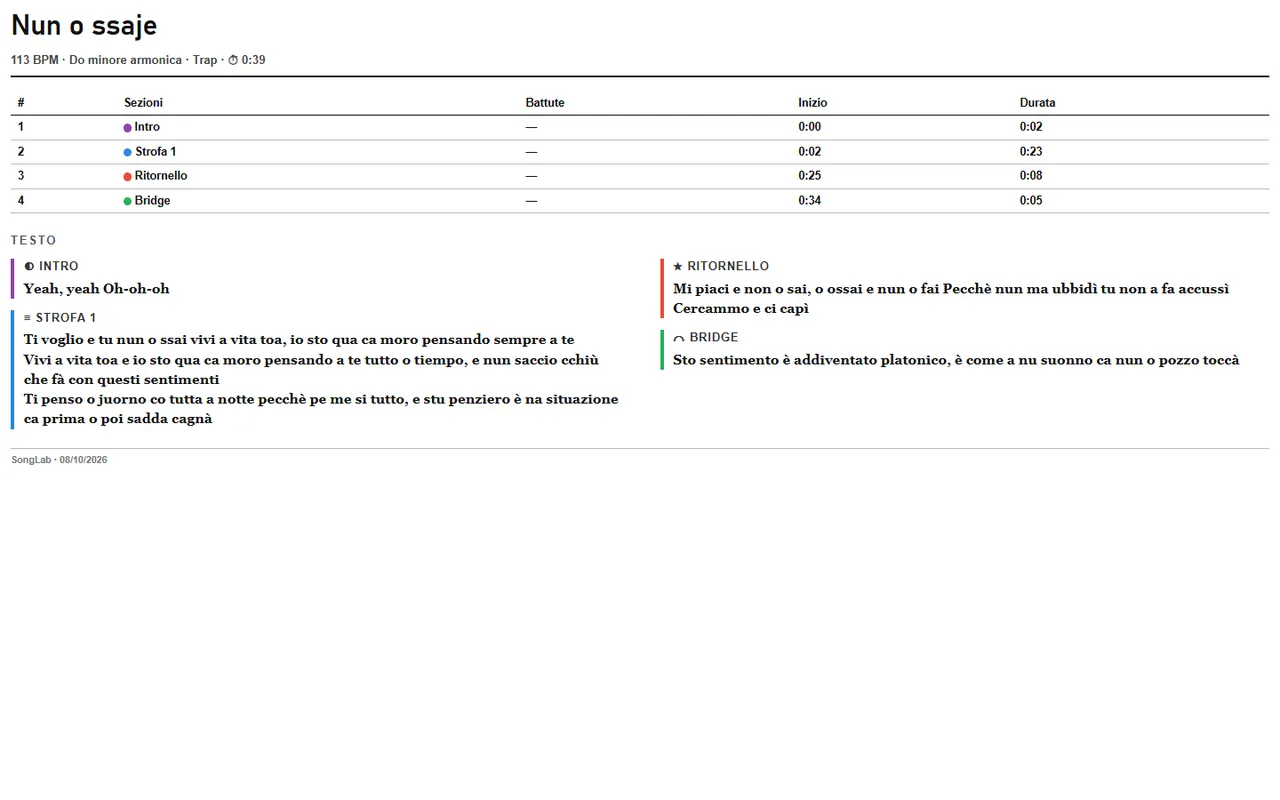
26. Start page#
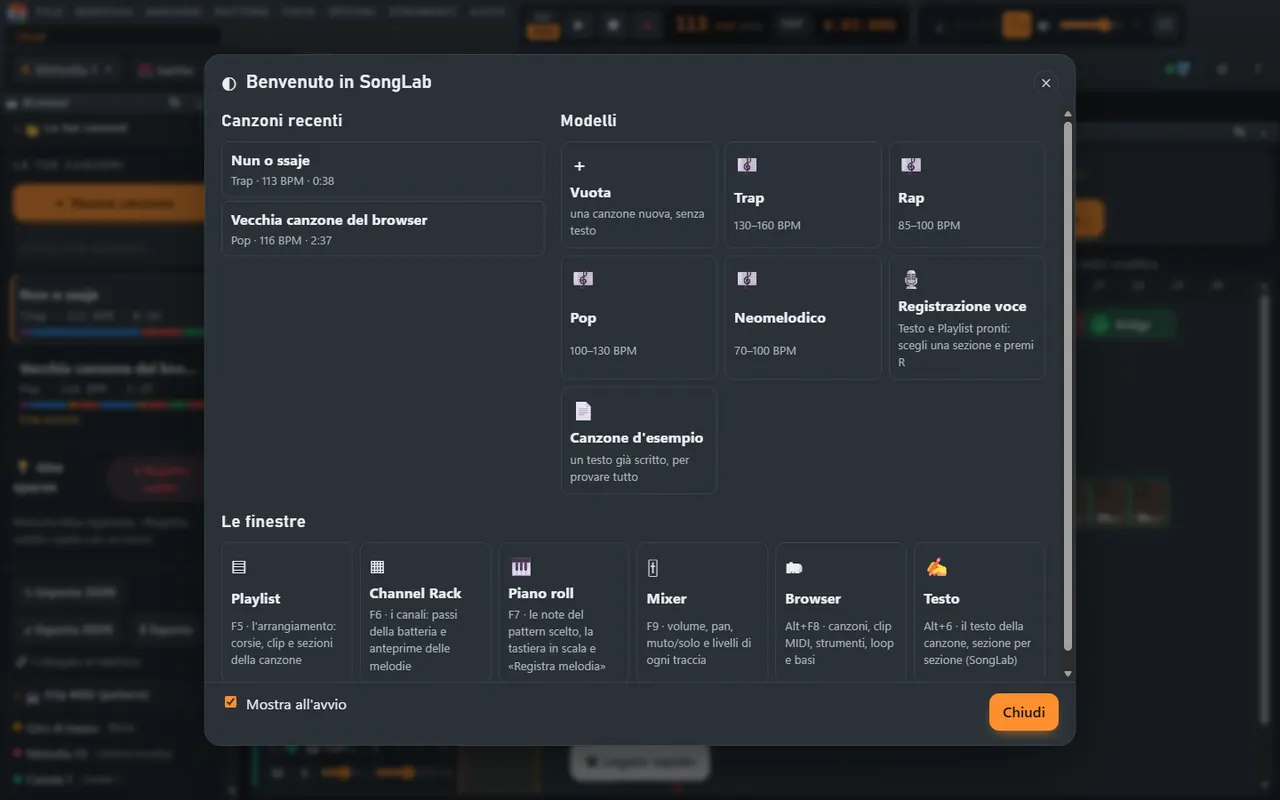
At startup (and from File, View or Help ▸ Start page): your Recent songs, the Templates (+ Empty, 🎤 Sing & create (chapter 23), the genres with their BPM and yours, + New genre, 🎙️ Vocal recording with lyrics and Playlist ready to go, 📄 Example song) and The windows with their keys. Untick Show at startup if you don't want it.
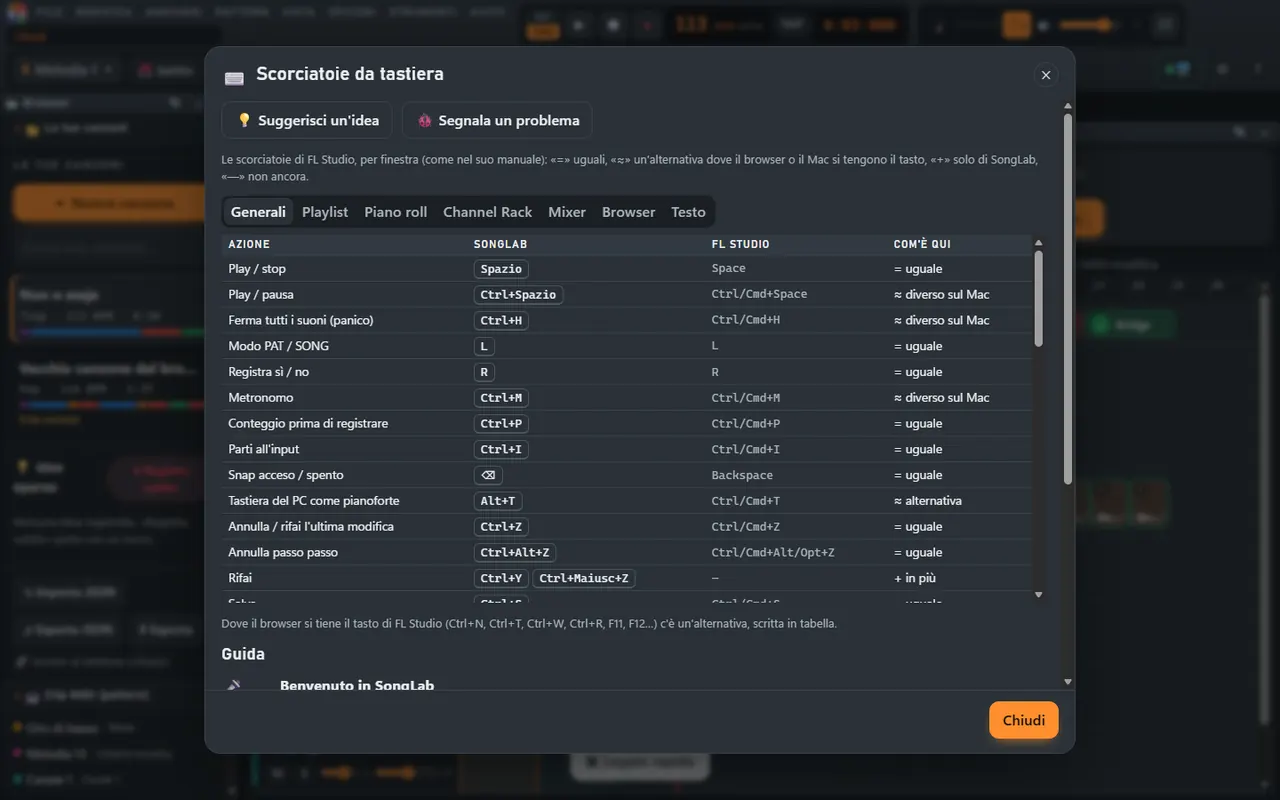
27. The most useful shortcuts#
On a Mac, Ctrl becomes ⌘ and Alt becomes ⌥; when macOS or the browser keeps a key for itself, SongLab uses an alternative (shown in the table). The full table, window by window and compared with FL Studio, is in Help ▸ Shortcuts and help (F1). If you can't remember a key, Ctrl+K searches for the command by name and shows it to you (chapter 18).
| Action | Windows | Mac |
|---|---|---|
| Play / stop | Space | ␣ |
| Play / pause | Ctrl+Space | ⌥␣ |
| Record | R | R |
| PAT / SONG | L | L |
| Metronome | Ctrl+M | ⌃M |
| Count-in before recording | Ctrl+P | ⌘P |
| BPM +1 / −1 | = / − | = / − |
| Play with the keyboard (in key) | Alt+T | ⌃T |
| Search commands | Ctrl+K | ⌘K |
| Undo / redo | Ctrl+Z | ⌘Z |
| Save | Ctrl+S | ⌘S |
| Save as | Ctrl+Shift+S | ⇧⌘S |
| Save new version | Alt+N | ⌃N |
| Open a song | Ctrl+O | ⌘O |
| Export WAV / MP3 | Alt+R / Alt+Shift+R | ⌃R / ⌃⇧R |
| Export MIDI | Alt+Shift+I | ⌃⇧M |
| Playlist / Channel Rack / Piano roll / Mixer | F5 F6 F7 F9 (or Alt+1…4) | F5 F6 F7 F9 (or ⌥1…4) |
| Browser / Lyrics | Alt+F8 / Alt+6 | ⌥F8 / ⌥6 |
| Plugin picker | F8 | F8 |
| Help and shortcuts | F1 | F1 (fn) |
| Stop all sound (panic) | Ctrl+H | ⌃H |
| Toggle snap | ⌫ | ⌫ |
| Draw / Paint / Slice / Select | P B C E | P B C E |
| Split clip at playhead | Ins | ⌥↩ |
| Quantize… (Piano roll) | Alt+Q | ⌥Q |
| Marker at playhead | Alt+Shift+T | ⌥⇧T |
| Lyrics: record the section / tap tempo | R / T | R / T |
28. Suggestions and bug reports from the PC#
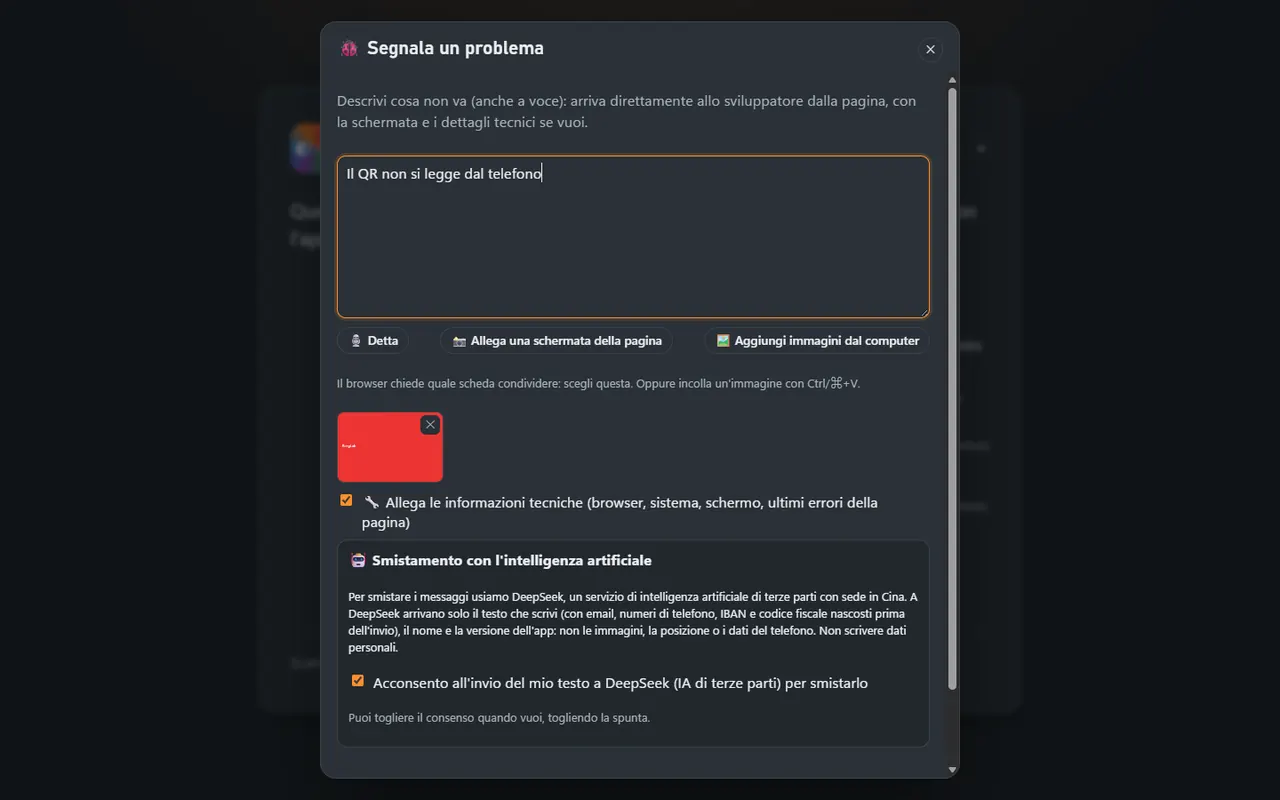
From Tools, from the ? panel, from ⚙ Settings or even from the QR screen: 💡 Suggest an idea or 🐞 Report a problem. Type or 🎙️ Dictate (if the browser allows it), attach a screenshot of this tab or up to 5 images (you can also paste them with Ctrl+V), the technical info and, if you like, the song lyrics. As on the phone, you need to tick the consent box for sorting with DeepSeek (only the text, with personal data hidden).
🔗 Part 3 · Phone and PC together#
29. How they work together#
| On the phone | On the PC |
|---|---|
| Quick ideas, lyrics, line length, takes per section, Sing & create, the scale keyboard, a quick Studio at your fingertips | Precise arranging, full Piano roll, Play with the keyboard, MIDI keyboard, effects and sends, professional exports |
| Open on PC and scan the QR code | The page unlocks and finds your songs |
- There's only one copy of each song: lyrics, sections, tracks, MIDI clips, mixer, ideas and loops sync by themselves in both directions. Recordings travel as separate files (with Recordings only on Wi-Fi they wait for Wi-Fi).
- If you change the same song on both, the changes are merged (clips, sections, tracks); if both have changed the same thing, you're asked which one to keep. Before every merge a "before…" version is saved.
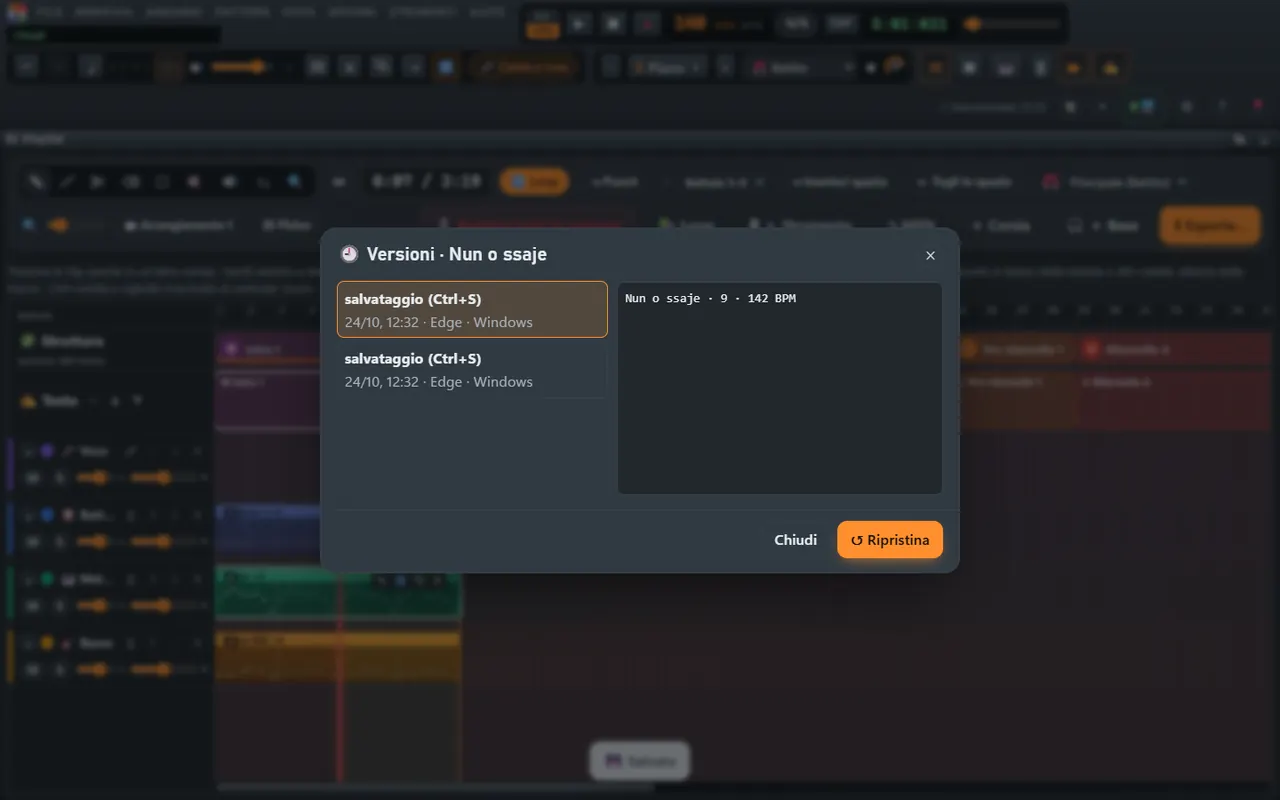
- 🕘 Versions: the last 30 versions of each song, with the reason (saved by hand, Ctrl+S, before merging, automatic backup every 10 minutes of work…); click = the preview, ↺ Restore = go back to it (the current one stays among the versions). Deleted songs stay for 30 days in 🗑 Recently deleted.
 - Clips muted on the PC stay muted in the phone's mix too; loops saved on the PC show up in the phone's +; backing tracks imported on the PC arrive as a Backing track track (a new backing track is added, it doesn't replace the ones already there); the Sing & create parts adapt to the scale on both.
- Different versions of the app: if a song was saved by a newer version of SongLab (for example the PC is already updated and the phone isn't), it opens Read-only: you can see it and play it, but changes aren't saved, so nothing gets lost. Update the app to edit it. Songs made with earlier versions open as usual.
- A typical workflow: write and record your ideas on the phone → on the PC build the beat, fix the notes and the mix → back to the phone to sing with the teleprompter → export from the PC to WAV or MP3, and the lyrics to PDF.
30. Privacy and encryption#
- No account, no ads, no analytics. Songs, takes and settings stay on the phone (excluded from Google backup).
- Only if you link the PC do songs and recordings go through the developer's server (Google Firebase), but encrypted on the phone (AES-256-GCM): the key lives only in the link between phone and PC, handed to the PC encrypted for it alone (ECDH P-256 key exchange), and the server sees only unreadable data.
- The copy on the server expires 30 days after the phone's last upload (renewed at every sync), and a nightly clean-up deletes expired copies. Delete from the server deletes it straight away.
- On the PC the data is kept in the browser (IndexedDB) for as long as the PC is linked; Unlink this PC deletes it.
- Suggestions and bug reports are sent only when you tap Send, and DeepSeek receives only the text, with personal data hidden.
- The Singing coach results stay on the phone (and in the browser of the linked PC): the audio is never saved or sent.
All the details are in the privacy policy (on the PC the link is also in ⚙ Settings).
31. 👥 Collaborate: write and record together#
You can share a song with other people: each of them opens it on their own phone (or PC) and the changes are merged.
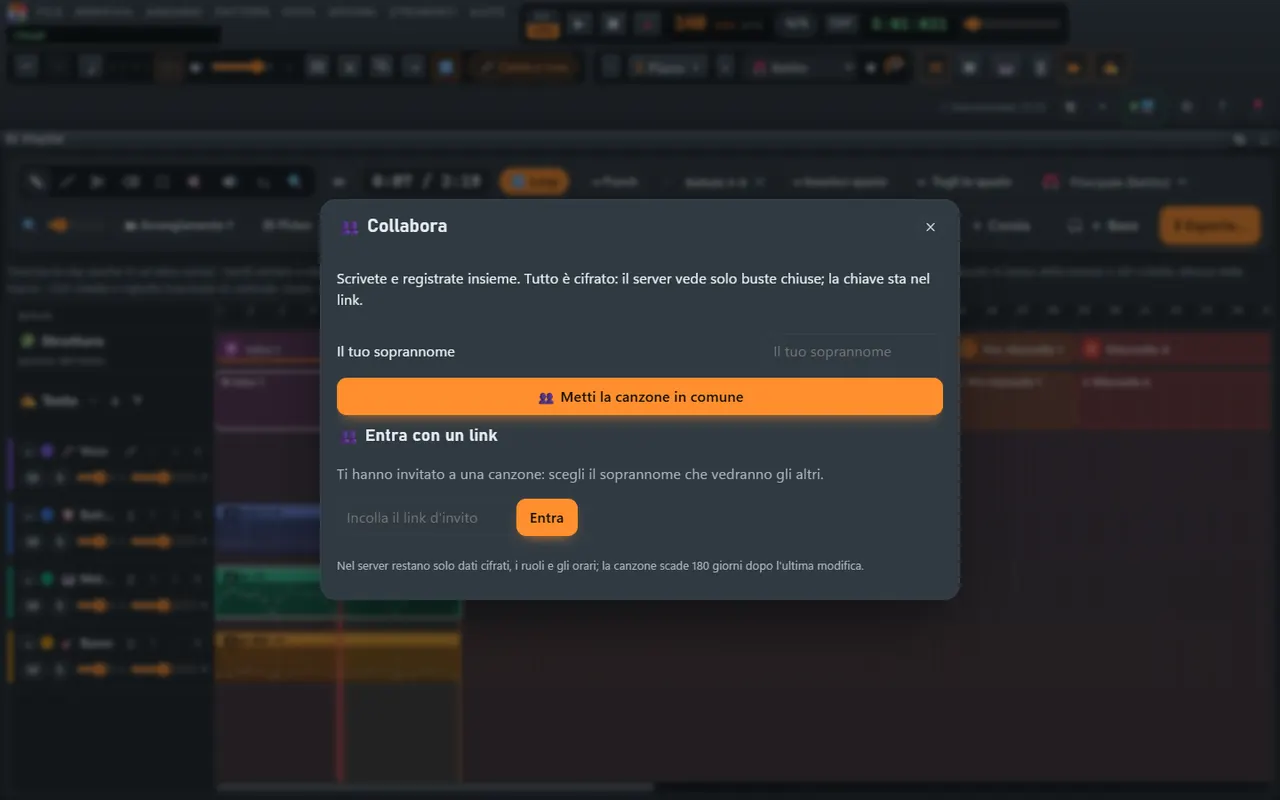
- Share: in the Studio open the Home menu (the round 🎤 button at the top right), TOGETHER tab, type your nickname and tap Share the song. You become the Owner.
- Invite: pick the role (Co-writer, Singer, Musician, Mixer/Producer, Listener) and how many people can use the invite, then Invite. The link is valid for 7 days: copy it, share it or let the other phone scan the QR with its camera. On the PC: FILE ▸ 👥 Collaborate…, same panel.
-
Join: open the link with the SongLab app (or Home menu ▸ SONGS ▸ 👥 Join with a link, where you can also 📷 scan the QR), choose a nickname and tap Join. On the PC, paste the link in the 👥 Collaborate window.
-
Roles: the Singer changes lyrics and vocals, the Musician the instruments, the Mixer the mixer and effects, the Co-writer everything, the Listener listens and comments. Changes outside your role are not applied.
- ⬇ Get changes brings in the others' changes (saving a version first), ⬆ Send my changes sends yours. While someone is recording (●) the song is locked for the others; the take reaches everyone as soon as it ends.
- Comments (also with @nickname), activity, versions and 🟢 In the song now (who has it open and in which section) are in the same tab. The dot on the menu means new comments.
- The Owner changes roles, removes someone (the key changes: whoever left can no longer read new versions) and can close the collaboration. Others can leave whenever they want. With ⚑ Report you send an offensive nickname or comment to the developer; swear words are shown masked, on the phone and on the PC.
- Privacy: everything is end-to-end encrypted (AES-256-GCM). The key is in the link, after the «#», and never reaches the server, which only sees sealed envelopes, roles and times. Every night a clean-up deletes closed or expired songs (180 days without changes), expired invites and versions beyond 30. Details in the privacy policy.
32. Frequently asked questions#
Can I use the PC page without the phone? No: it only opens with the SongLab app linked. Once it's linked, if the network drops you keep working on the PC's copy.
Does the metronome click end up in the recording? No. Use headphones: you hear the click, but it isn't recorded.
My takes land late against the beat. On the phone: Studio → CTRL → ⏱ Recording latency (− / + in steps of 5 ms, or 🎯 Measure latency). On the PC: ⚙ Settings → Recording latency or 🎯 Measure latency. For the measurement, take your headphones off and keep quiet.
I can't play an instrument: can I still make the beat? Yes: with 🎤 Sing & create you hum the melody or make the beat with your mouth and it becomes a played part (chapters 10 and 23); with the 🎹 Scale keyboard on the phone or ⌨ Play with the keyboard on the PC you only play right notes, with the chords ready to go (chapters 9 and 22).
A song opens as "Read-only". It was saved by a newer version of SongLab: update the app on the phone (or reload the page on the PC) to edit it.
I tightened the lines: have I lost my lyrics? No: lines are always refitted from the original text. ⟲ Restore original puts it back the way it was.
Can I export to MP3 from the phone? The phone exports M4A, WAV, FLAC, separate tracks (ZIP), MIDI and the lyrics; MP3 and Opus are exported from the PC. MIDI files can also be imported, on the phone and on the PC.
I've messed up the song: can I go back? Yes: ↶ undoes every gesture, 🕘 History goes back to before any change, and 🕘 Versions (with the automatic backup every 10 minutes) bring the song back to how it was. Deleted songs stay for 30 days in 🗑 Recently deleted.
My phone is filling up with old recordings. ⚙ Settings → 🧹 Clean up unused audio files shows the ones that no song and no version uses any more, and deletes them after you confirm. When you remove a clip or a take, the file stays as long as ↶ can still bring it back.
Is there an iPhone version? It's coming soon: for now SongLab is for Android, plus the PC page.
How do I send an idea to the developer? With 💬 → 💡 Suggest an idea on the phone or Tools ▸ Suggest an idea on the PC.